Firewalls
A firewall filters the traffic that passes a router, at the router interfaces you choose. It acts on every server in the subnets behind those interfaces, whatever their security groups, and on the traffic between two subnets of one router. Traffic to a server has to pass both: the firewall at the router, then the security groups on the server's port.
Open Networking in the project's sidebar and choose the Firewalls tab. The tab appears in regions whose cloud offers firewalls. It holds three kinds of objects, each on its own tab:
| Object | What it does |
|---|---|
| Firewall Rules | Match traffic by protocol, address and port, and allow, deny or reject it |
| Firewall Policies | Order rules. The first rule that matches a packet decides what happens to it |
| Firewall Groups | Apply one policy to incoming traffic and one to outgoing traffic, at a set of router interfaces |
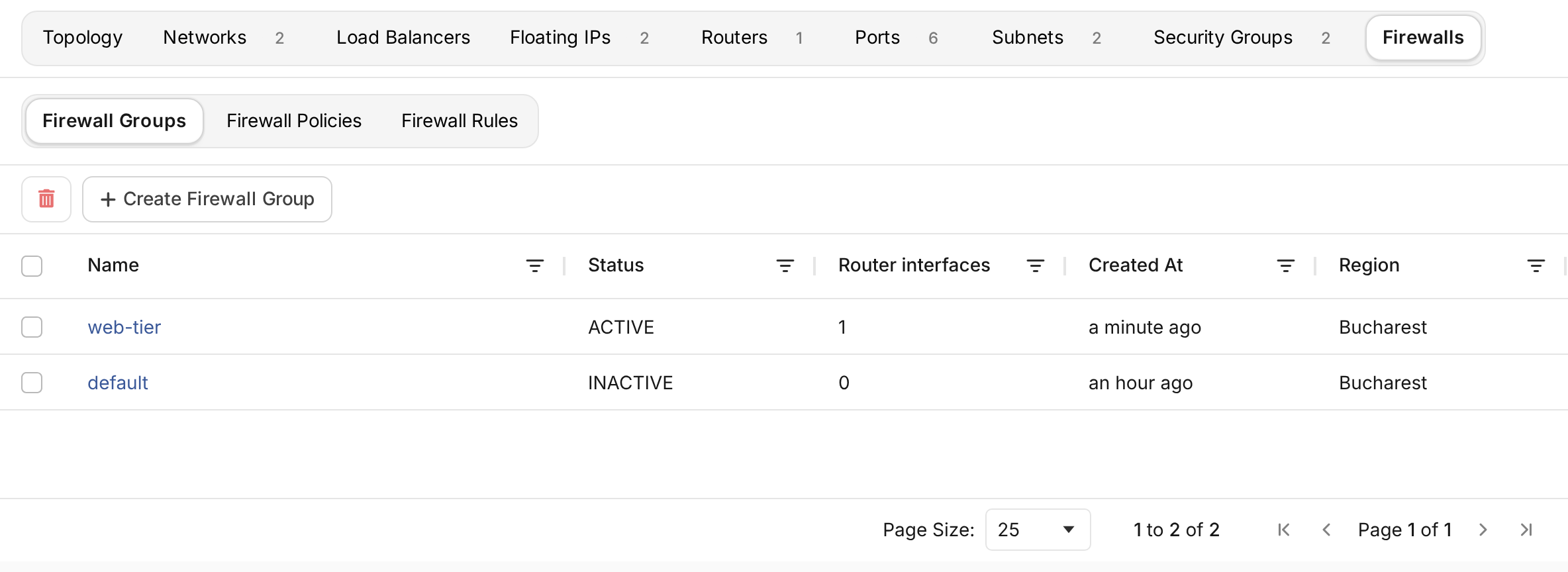
A firewall group filters nothing until it has at least one router interface. Build it from the bottom up: rules, then a policy that orders them, then a group that applies the policy to interfaces. Rules, policies and groups belong to one region, which you choose as the Location when you create them, and a group can only use the policies and router interfaces of its own region.
Write a rule
On Firewall Rules, choose Create Firewall Rule, enter a Name, and fill in what the rule matches:
| Field | Choice |
|---|---|
| Action | Allow lets the traffic through. Deny drops it. Reject drops it and tells the sender |
| Protocol | TCP, UDP, ICMP, or Any |
| IP version | IPv4 or IPv6. Changing it clears both addresses |
| Source address, Destination address | One address or a CIDR range, such as 10.0.0.0/24. Empty matches any address |
| Source port, Destination port | One port, such as 443, or a range, such as 8000:8080. TCP and UDP only. Empty matches any port |
| Enabled | A disabled rule stays in its policies and matches nothing |
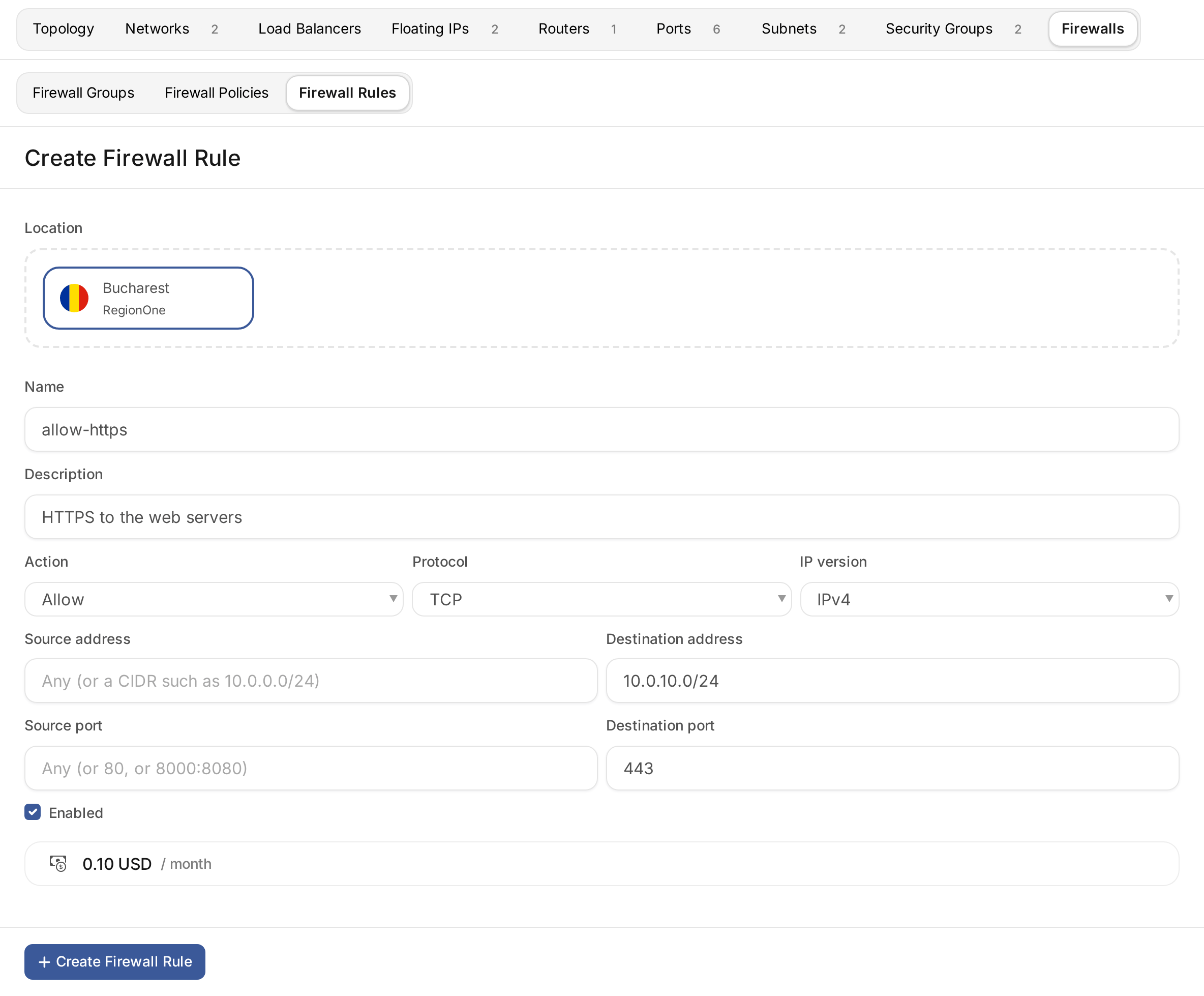
The list of rules sums up what each one matches, for example TCP any → 10.0.0.0/24:22. A rule changes the
traffic only once a policy contains it and a group applies that policy.
Write a server's private address in a rule. The firewall sees traffic after the router has translated a floating IP, so a rule that names the floating IP never matches.
Order rules in a policy
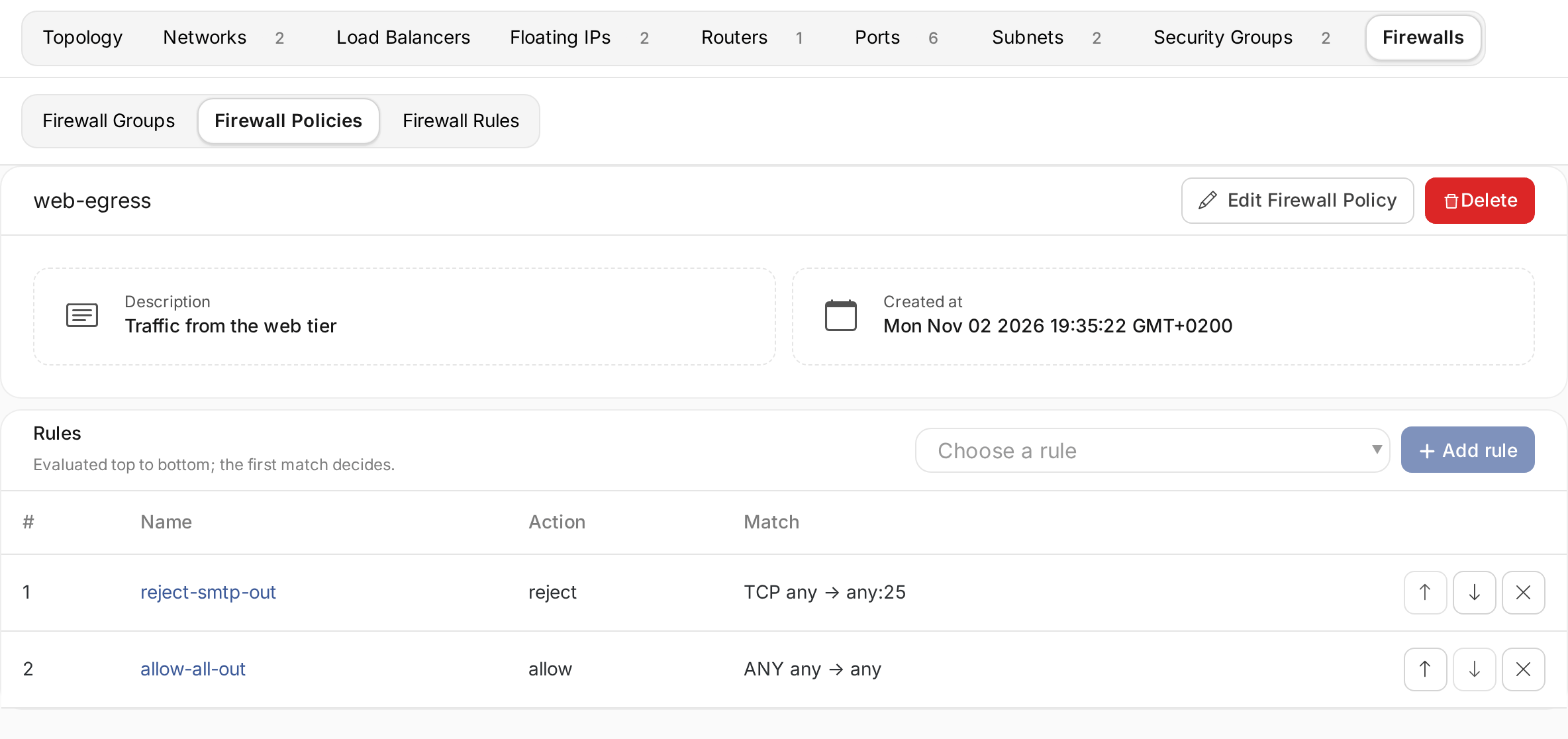
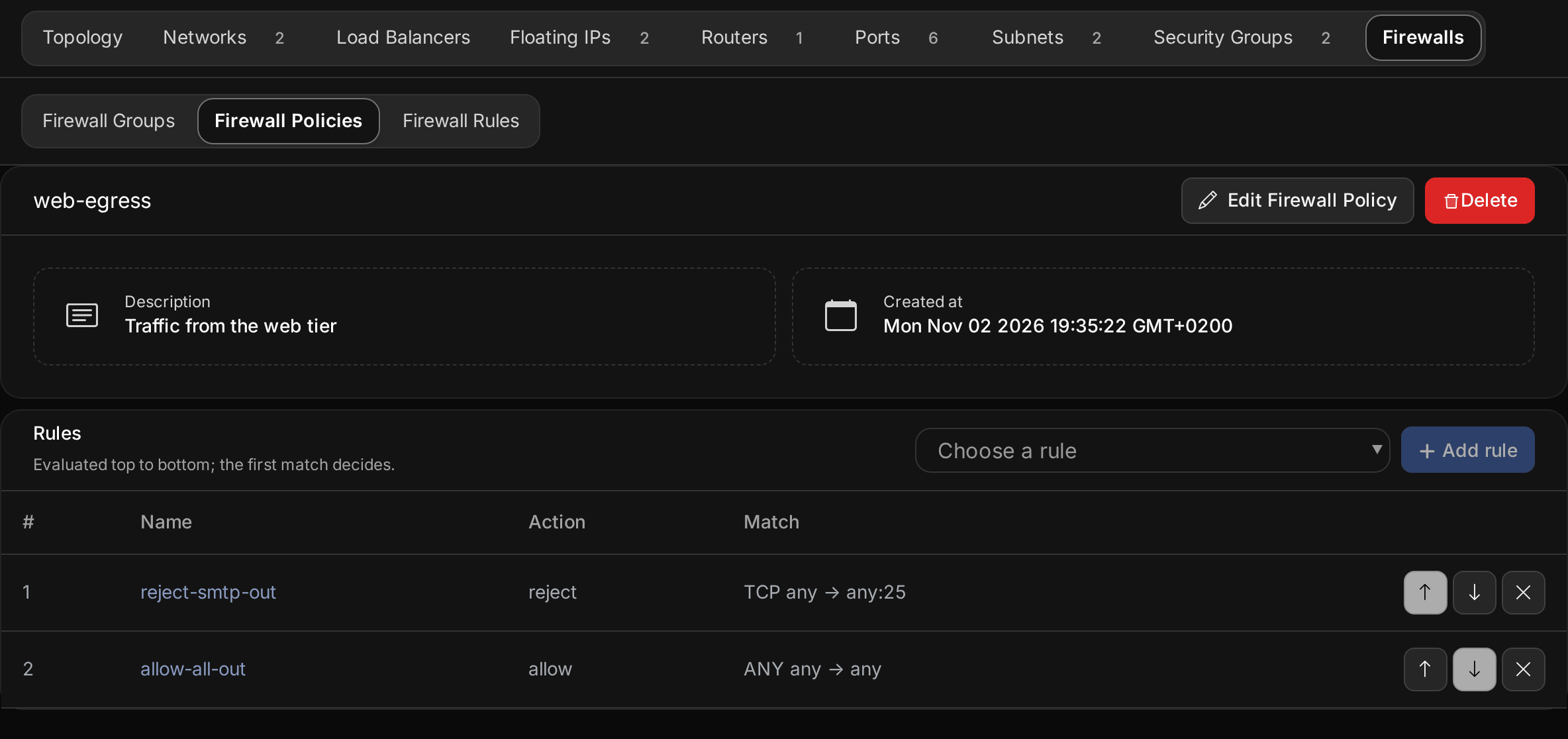
A policy is an ordered list of rules. The cloud checks each packet against the rules from top to bottom, and the first rule that matches decides. Put specific rules before general ones: a rule that denies one address range has to come before a rule that allows everything else.
The cloud drops a packet that matches no rule, so a policy lists what it lets through. Replies to an allowed connection pass without a rule of their own.
On Firewall Policies, choose Create Firewall Policy, enter a Name and pick its rules. Open the policy to change it: Add rule adds a rule at the end, Move up and Move down change the order, and Remove from policy takes a rule out without deleting it.
Apply policies to router interfaces
On Firewall Groups, choose Create Firewall Group and enter a Name:
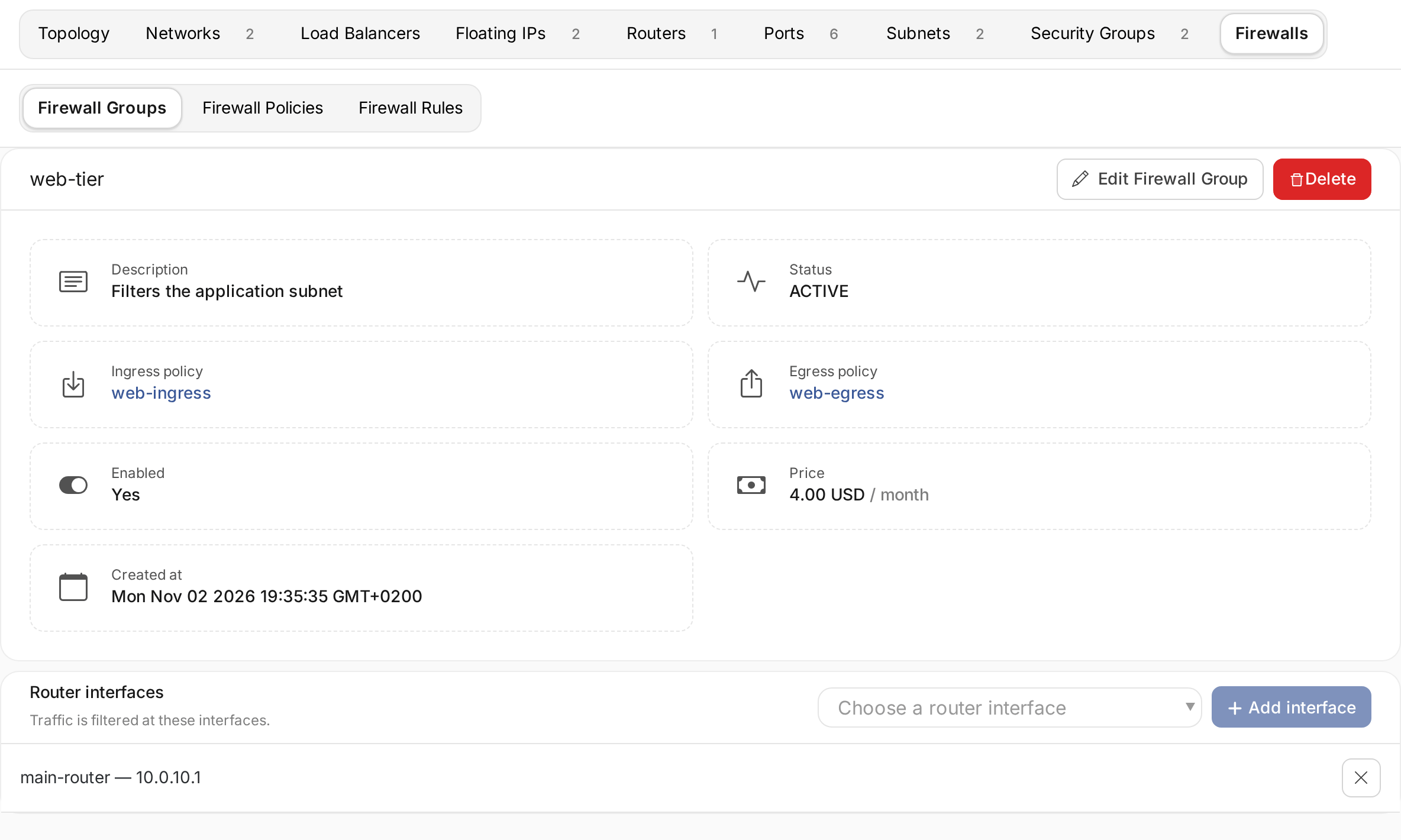
- Ingress policy filters the traffic going to the servers behind the group's interfaces.
- Egress policy filters the traffic those servers send.
- Router interfaces are the router ports the group filters. Each interface belongs to one group at a time, so the list greys out the interfaces another group holds.
Give the group both policies. With None in one direction, the cloud drops every new connection in that direction: without an egress policy, the servers can answer connections and cannot start any.
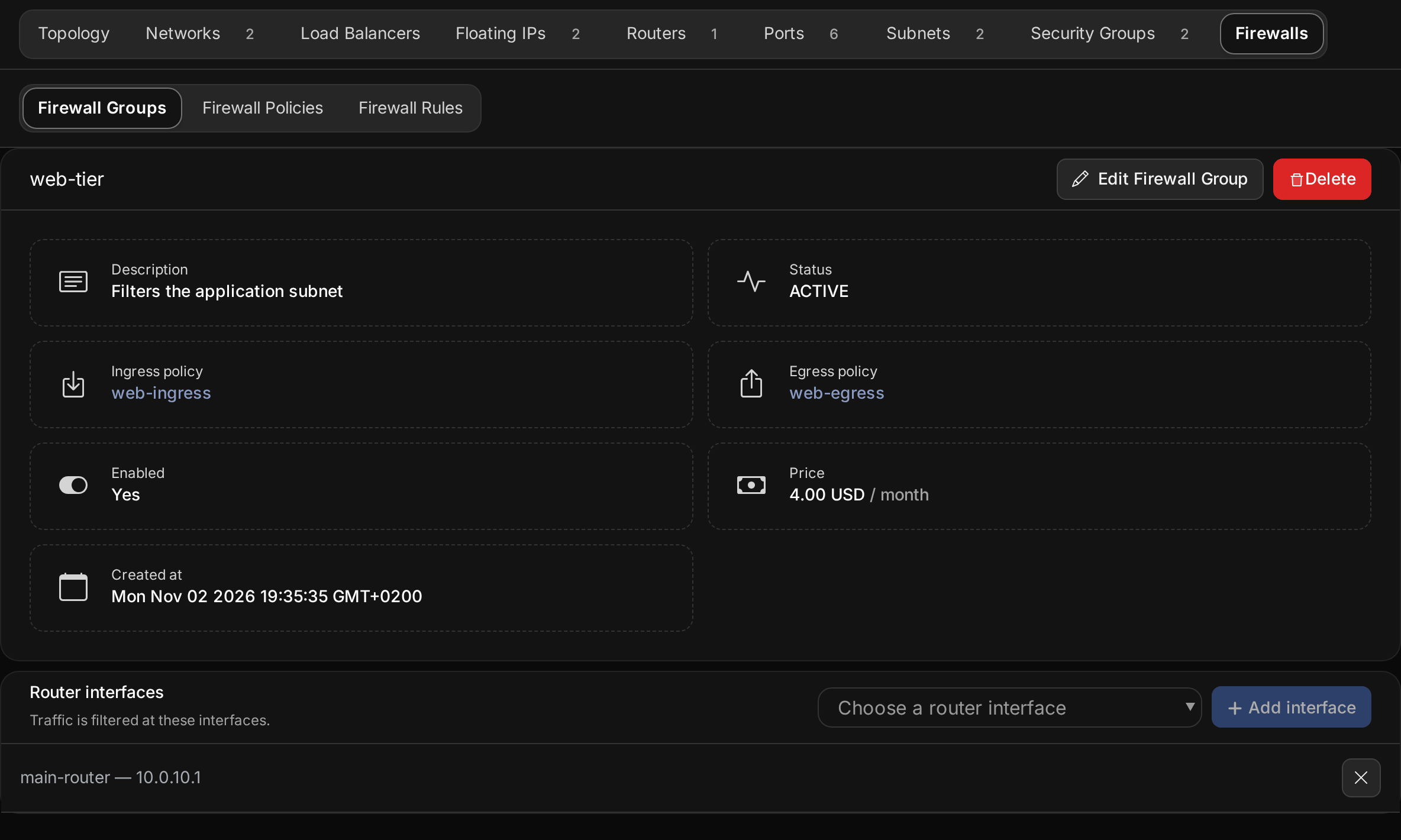
Choose all the group's interfaces when you create it. Its page shows the group's status and links to its policies, and you can Add interface or Remove interface there.
A new group filters exactly the interfaces you chose. After some changes, the cloud filters different interfaces from the ones the group's page lists:
| Change | What the cloud filters afterwards |
|---|---|
| Add interface | Only the new interface. The interfaces the group already held stop being filtered |
| Remove interface, with others left in the group | Every interface of the project's routers, the removed one included |
| A different policy, through Edit Firewall Group | Every interface of the project's routers |
After any of these, add a rule to one of the group's policies, or remove one. The cloud then applies the group to exactly the interfaces it lists.
A router interface connects the router to one subnet. See Routers to connect a subnet to a router.
The default firewall group
The cloud creates a firewall group named default for every project, with the policies default ingress and
default egress. Unless your provider has changed them, default ingress denies all traffic and default egress
allows all of it: on the group's interfaces, the servers can reach out and nothing can reach them.
You can change the interfaces of the default group, and add rules to its policies or remove them. A rule you add
goes last, and the rules of a default policy cannot be reordered, so an allow rule in default ingress sits behind
the rules that deny everything and never matches. To make it count, remove the deny rule of its IP version,
default ingress ipv4 or default ingress ipv6. The policy then drops what its rules do not allow, like any other
policy.
The group and its two policies cannot be renamed or deleted, and their names are reserved for them.
Delete firewall objects
Deleting a firewall group removes it from its interfaces first, and the traffic through those interfaces is no longer filtered. A policy that a group still applies cannot be deleted, and neither can a rule that a policy still contains. Remove the policy from its groups, or the rule from its policies, first.
Check the price of firewalls
Your provider may charge for firewall groups, policies and rules. The create pages show the price, and a
firewall group's page shows its monthly price. The default group and its policies are not charged.