Add a new OpenStack cloud
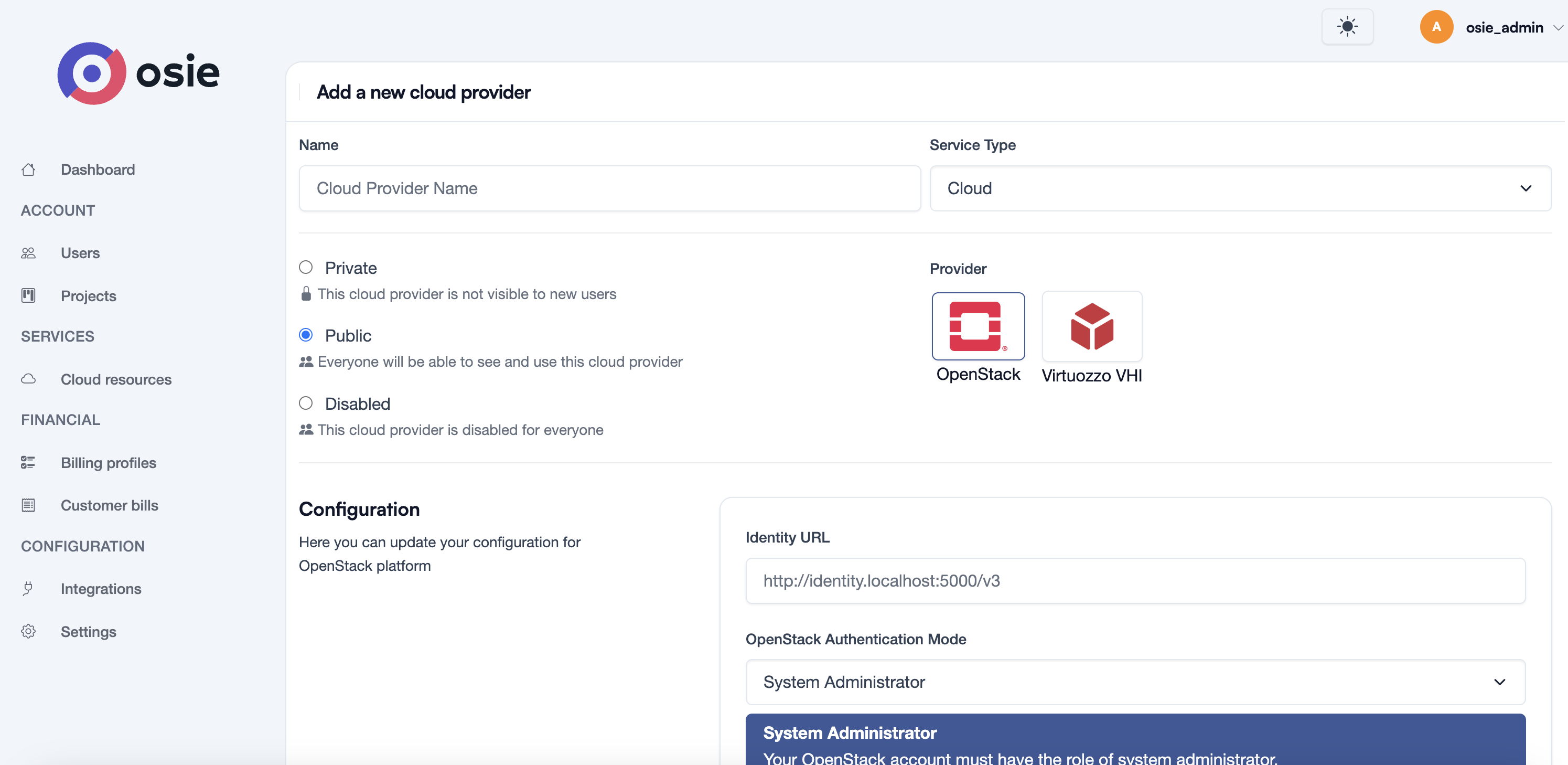
To add a new OpenStack cloud provider, you need to fulfill the following steps:
General
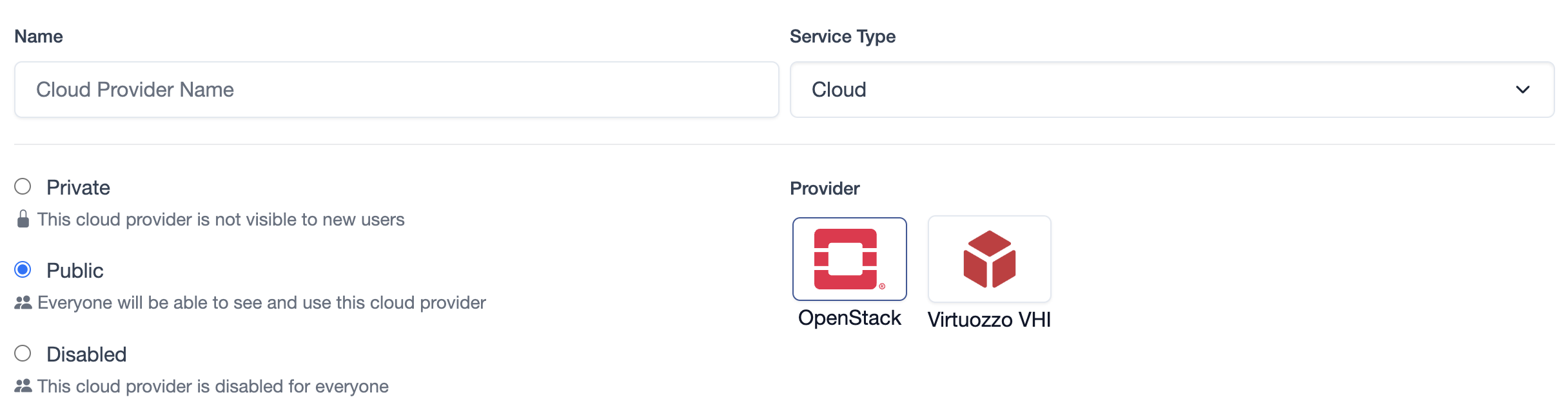
In the General section, you need to provide the following information:
- Name: A unique name for the cloud provider that it will be displayed in the customer portal.
- Service Type: Currently, only Cloud is supported.
- Visibility: The visibility of the cloud provider. You can choose to make it visible to all customers or only to
specific customers:
- Private: The cloud provider will not be visible for all customer. You have to assign the cloud provider manually to the customers.
- Public: The cloud provider will be visible to all customers.
- Disabled: The cloud provider will be disabled and will not be visible to any customer in case of maintenance or other reasons.
- Provider: The cloud provider type: OpenStack Vanilla or OpenStack Virtuozzo Hybrid Infrastructure (VHI)
Configuration
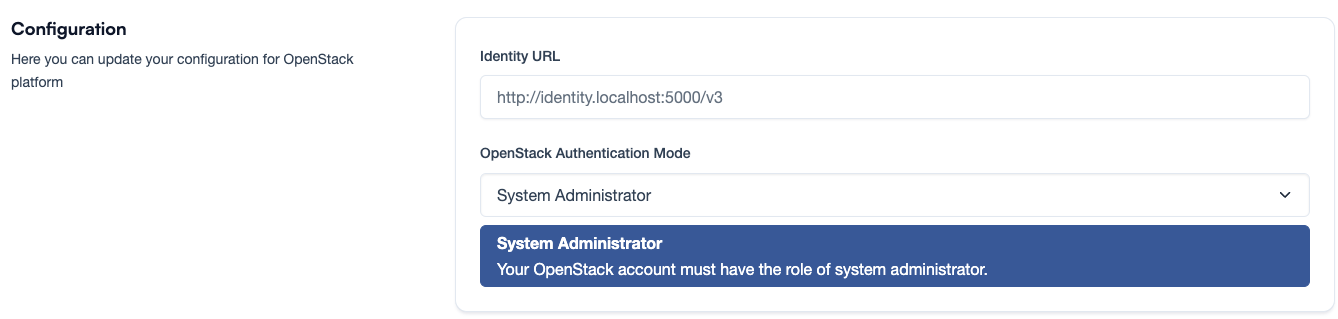
In the Configuration section, you need to provide identity URL and type of authentication.
- Identity URL: The URL of the OpenStack Identity service (Keystone).
- OpenStack Authentication Mode: There are 3 authentication modes available:
- System Administrator: An OpenStack User with system privileges.
- Domain Administrator: OpenStack User must be admin in the set domain.
- Single shared project: This option allows to use OpenStack a project as OpenStack Cloud, the OpenStack user must be member in that project. We do not recommend using this option in production environments.
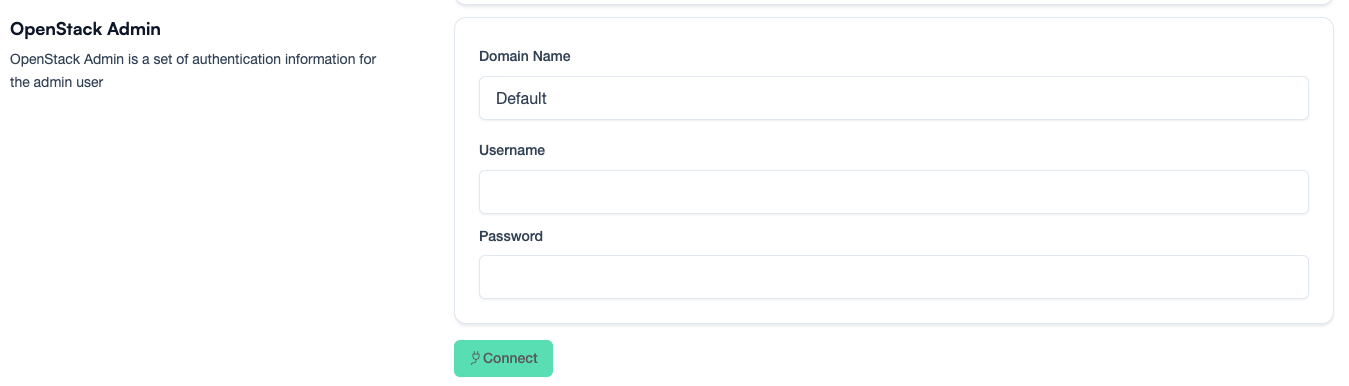
OpenStack Admin
In the OpenStack Admin section, you need to provide the following information:
- Domain Name: The domain name of the OpenStack user.
- User Auth Type: The authentication type of the OpenStack user. You can choose between password and application
credential.
- Password:
- Username: The username of the OpenStack user.
- Password: The password of the OpenStack user.
- Application Credential:
- Application Credential ID: The ID of the application credential.
- Application Credential Secret: The secret of the application credential.
- Password:
- Single Project (Shared Project): The ID of the project that will be used as OpenStack Cloud if we selected OpenStack Authentication Mode: shared project.
Connect to OpenStack
Click Connect button to connect to the OpenStack cloud provider. If the connection is successful you will see a new section Discovered Regions.
Discovered Regions
In the Discovered Regions section, you will see the regions that were discovered in the OpenStack services catalog. Set a name and a country for each region.
Click Save to save the cloud provider.

Post-Configuration
After adding a new cloud provider, you need to configure OpenStack project roles provisioning.
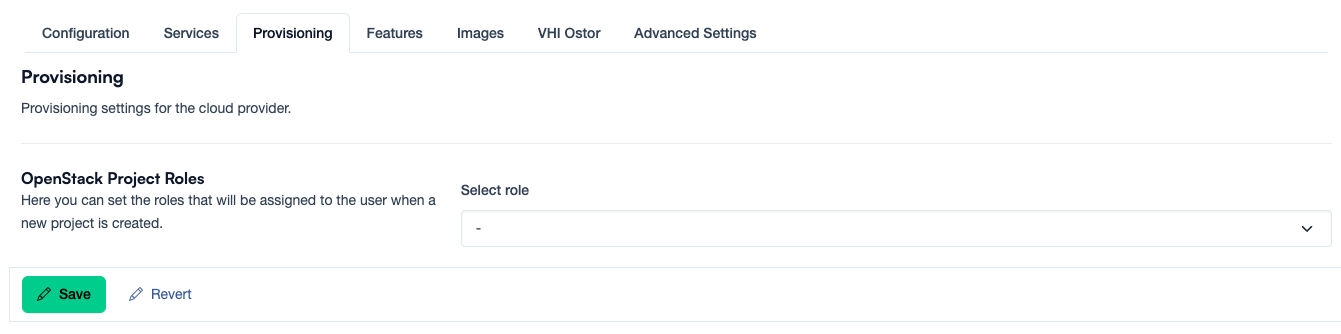
OpenStack project roles provisioning
Go to the added cloud provider and click on the Provisioning tab. You need to add all the roles that an OpenStack user must have in the OpenStack project to be able to use it properly.
Examples: member, heat_stack_owner, upload_image, project_admin.
Every member of every project on this cloud receives this same set of roles, which is what decides what they can do with resources — in the portal and from the OpenStack CLI alike. See Roles and permissions.