Back up servers
Backup & Recovery protects a project's servers with backups stored outside the cloud, by the backup service your provider runs. A policy decides which servers are backed up, where their backups go and how long they are kept. A schedule decides when the backups run. From the same page you restore a server, or mount a backup and download single files from it. See Restore and recover.
The page appears in the project's sidebar when your provider offers backups in one of the project's locations. Every member of the project can use it. When the provider runs more than one backup service, a picker on the page chooses the one you work with.
Dashboard counts the project's servers that are protected, not protected, or protected without a schedule, and shows the success rate, the size of each server's backups and recent activity.
Backup policies
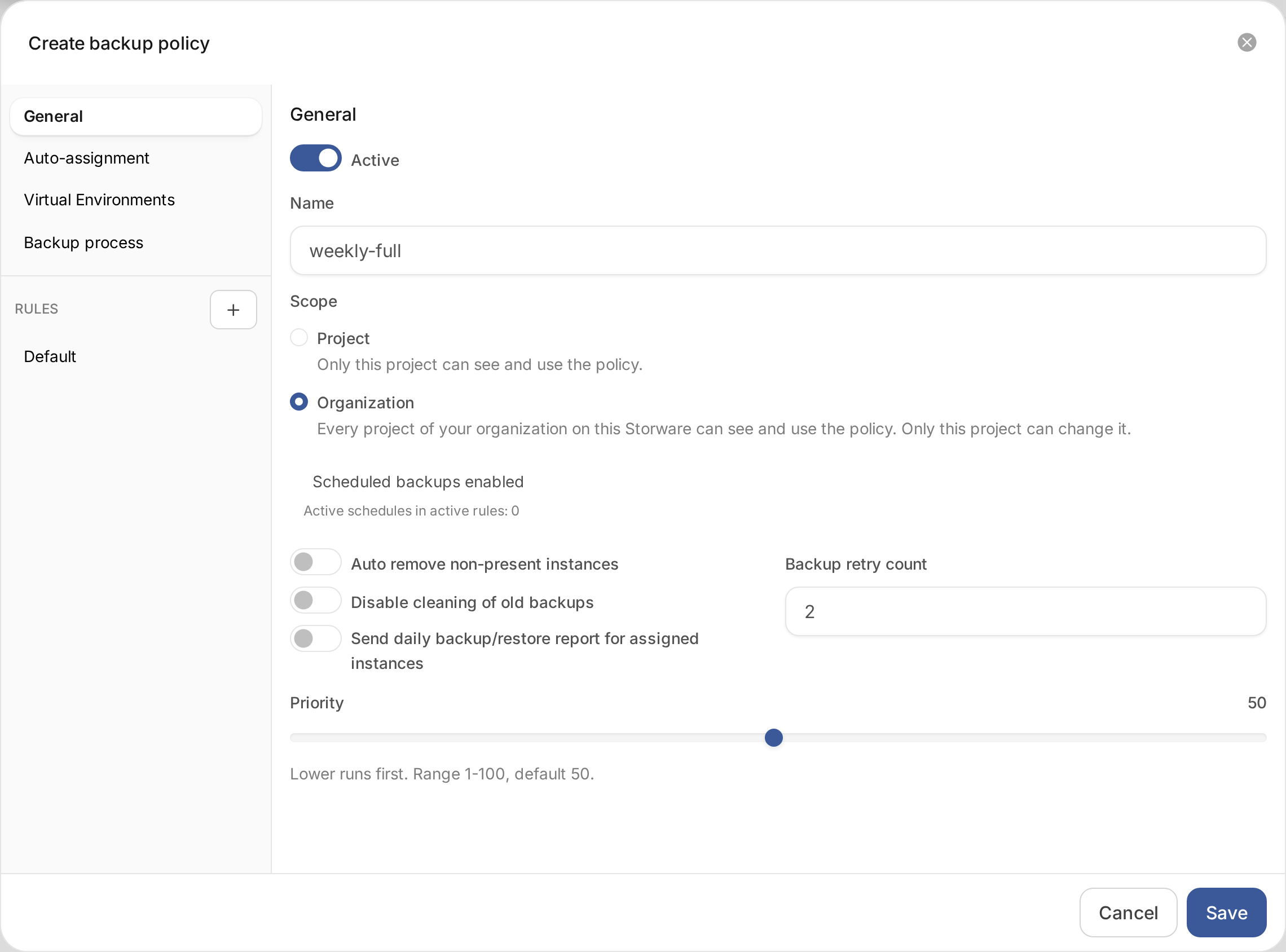
A policy holds the servers it protects and one or more rules. Each rule sends backups to a destination, and optionally to a second one. For each destination it sets how long full and incremental backups are kept, in days or in versions, and can make backups immutable for a number of days. A policy also sets its priority among the backups waiting to run, and how often a failed backup is retried.
Policies lists the policies the project can use. Each policy is marked with its scope:
| Scope | Who can see and use it | Who can change it |
|---|---|---|
| Project | This project only | This project |
| Organization | Every project of your organization | The project that created it |
| Provider | The projects your provider shares it with | Your provider |
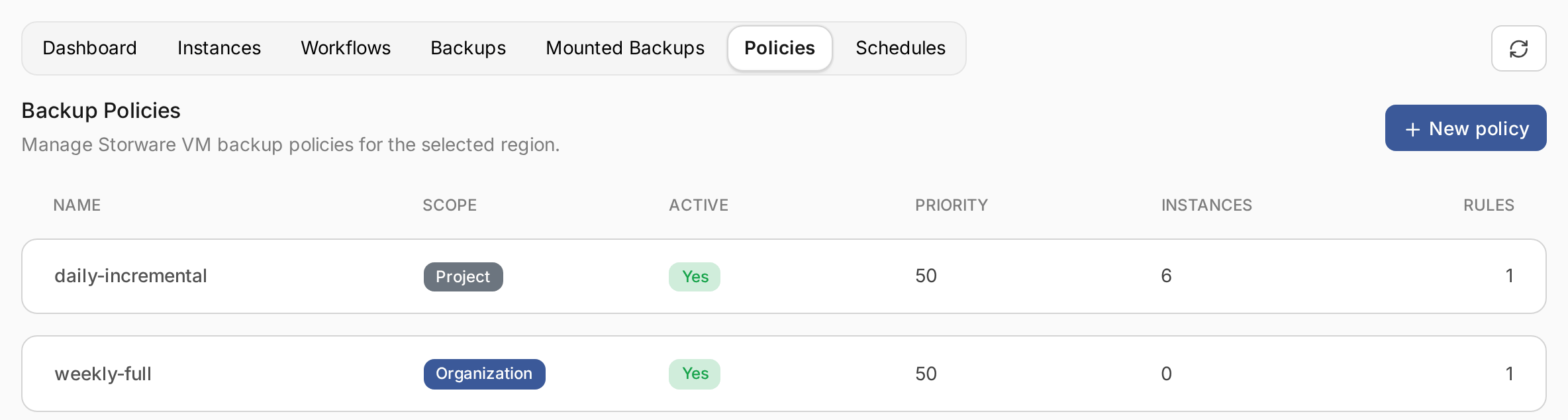
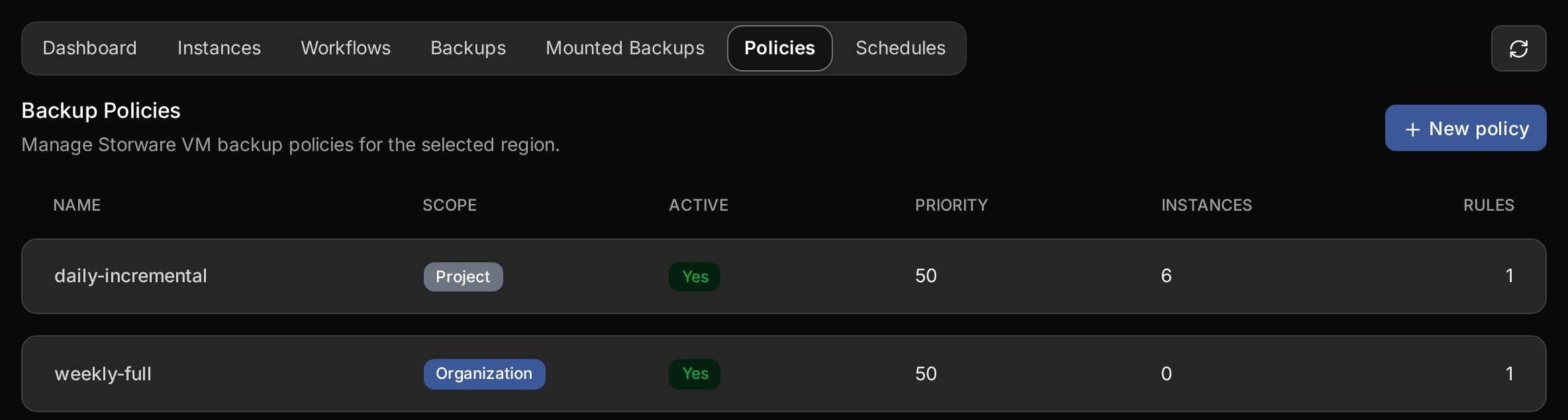
A policy shared by another project, or by your provider, is read-only. Its details name the project that shares it, and its list of servers shows only yours.
Create a policy
Creating policies is available when your provider allows it. Otherwise New policy is disabled, and you use the policies shared with the project.
- In Policies, choose New policy.
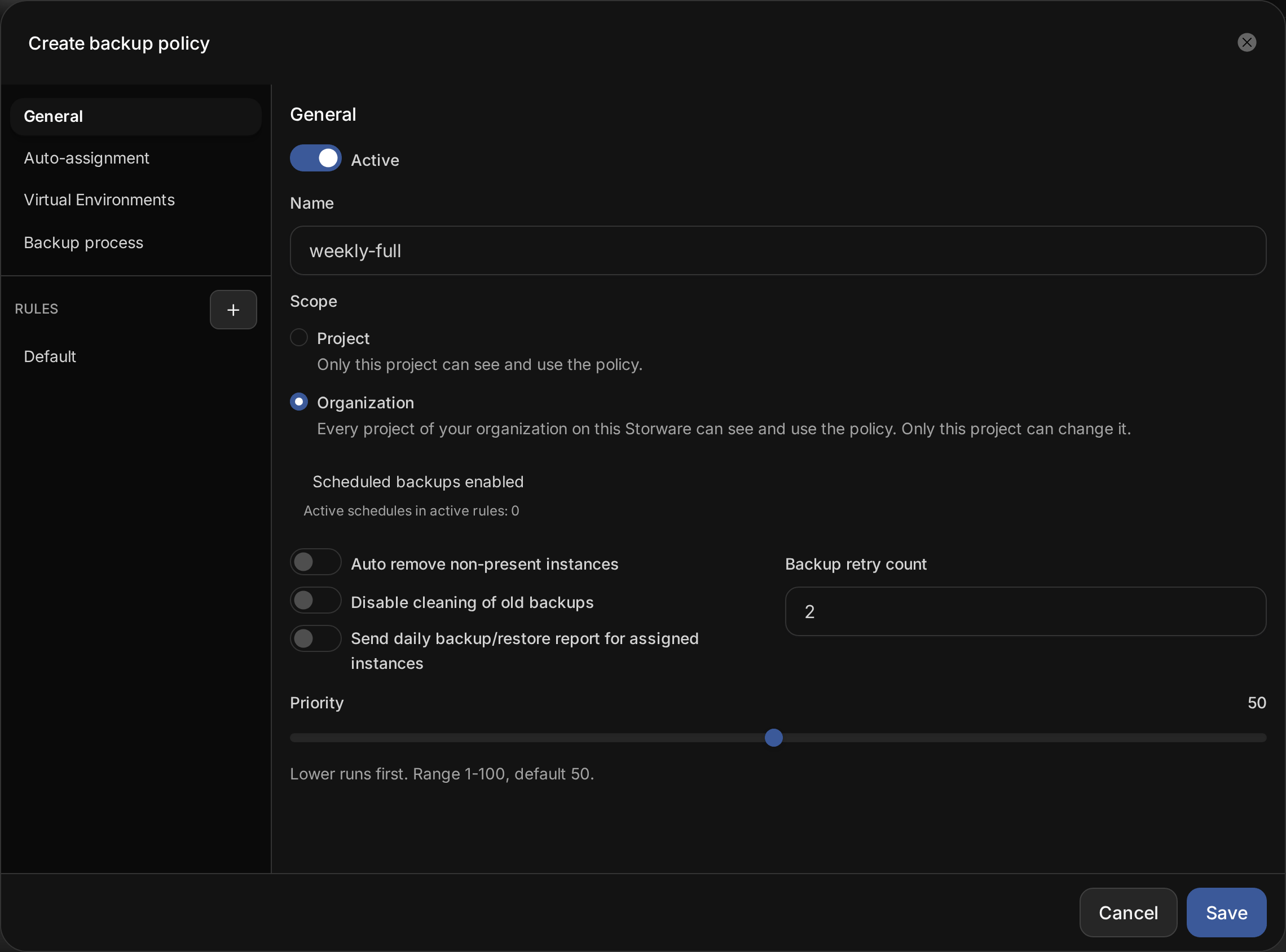
- Under General, enter a Name and choose the Scope: Project, or Organization to let every project of your organization use the policy. Sharing with the organization needs permission to edit the organization, which the Owner and Admin roles hold. The scope cannot change later.
- Set the Priority, from 1 to 100. Lower numbers run first.
- Under Auto-assignment, choose whether the policy picks up servers by tag or by a name pattern, and whether it also removes servers that stop matching.
- Under Virtual Environments, choose the servers the policy protects.
- Under Rules, choose the backup destination of the default rule and its retention. Add a rule for each other destination or retention you need.
- Choose Save.
A policy that still protects servers cannot be deleted. Assign them another policy first.
Schedules
A schedule runs the backups of the policy rules it is attached to. Schedules lists the schedules the project can use, with their backup type and time. Times are shown in your browser's time zone, the same one the schedule form reads the times you enter in.
Creating schedules is available when your provider allows it.
- In Schedules, choose New schedule.
- Choose the backup Type: a full backup, an incremental backup, or a synchronization from the primary destination to the secondary one.
- Under Frequency and timing, choose the Schedule execution type:
- Time runs once at a time of day, within a start window of the minutes you set.
- Interval runs every given number of minutes between a start and an end time.
- Choose the days of the week. Optionally, limit the schedule to an occurrence in the month, such as the first Sunday, and to some months.
- Under Rules, choose the policy rules the schedule runs.
- Save the schedule.
Incremental backups need a hypervisor that tracks changed blocks. Where it does not, choose full backups.
Protect a server
Instances lists the project's servers with their policy, the status and size of their last backup, and their location. Open a server and choose its Policy on the Details tab. A policy with auto-assignment also adds servers that match its tags or name pattern.
The backup service learns about new servers when it synchronizes its inventory with the cloud. To list a server you just created, choose Sync Storware inventory at the top of the page. The page refreshes once the synchronization ends.
Back up a server now
Open the server in Instances and choose the Backup tab. Choose the backup type, the rules whose destinations receive the backup, and the priority, then choose Start backup. The server needs a policy with at least one active rule.
Follow backups and tasks
Backups lists every backup of the project's servers with its time, status, type, destination and size. Successful and partly successful backups open the restore and mount forms.
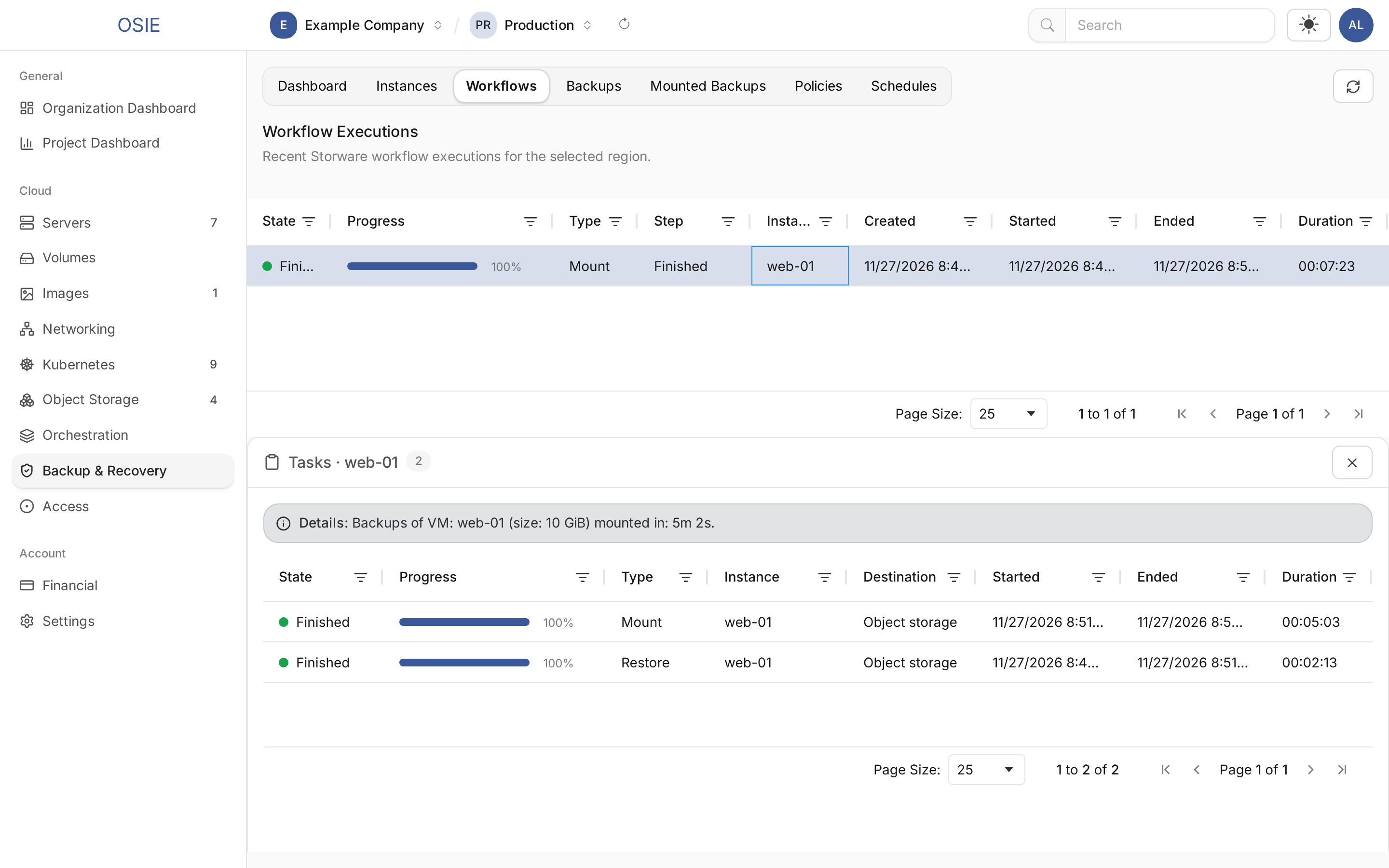
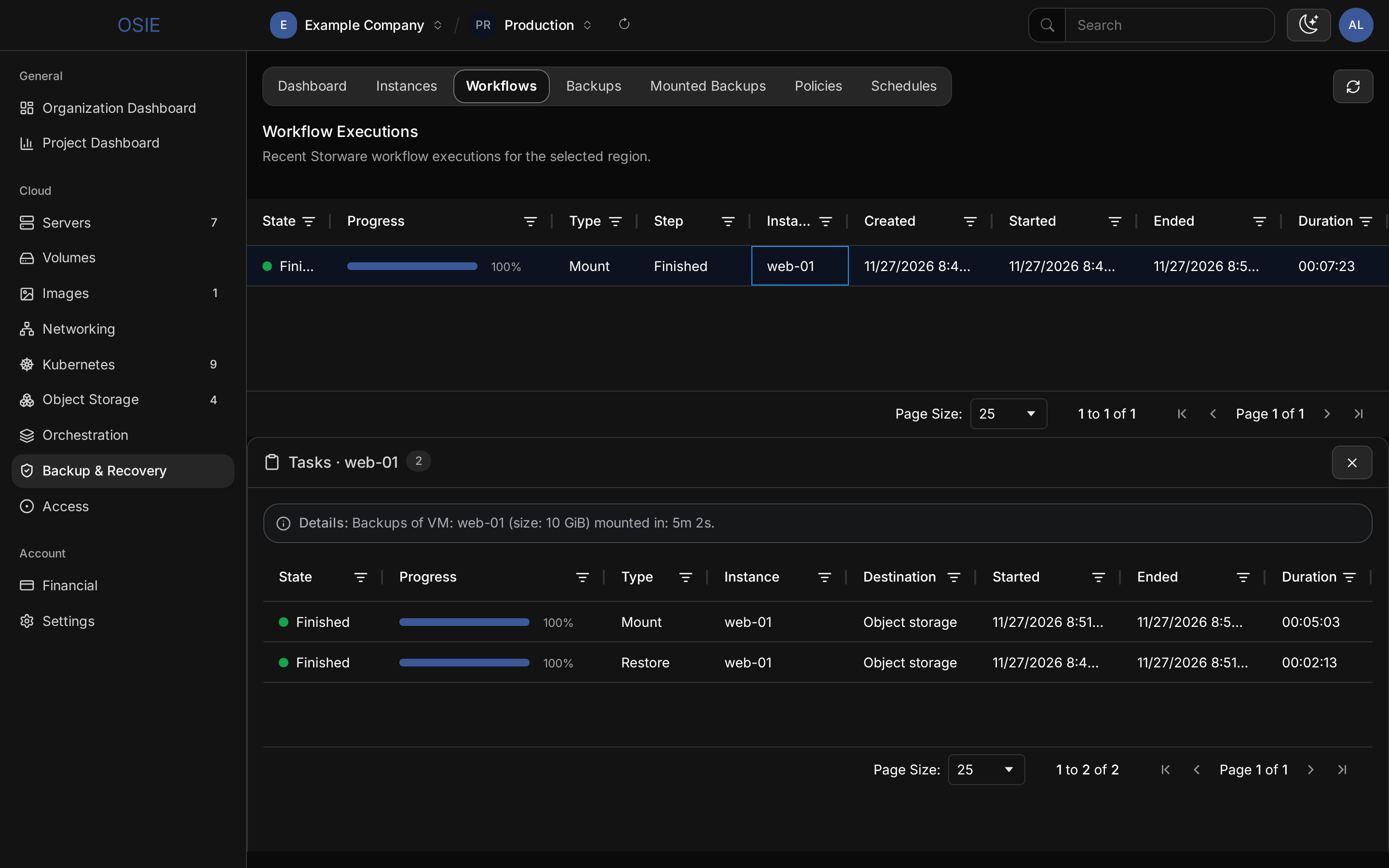
Workflows lists the work the backup service does for the project: backups, restores, mounts and inventory synchronizations, with their progress and duration. Open one to see its tasks. When the backup service reports why a workflow failed, its reason appears above the tasks.