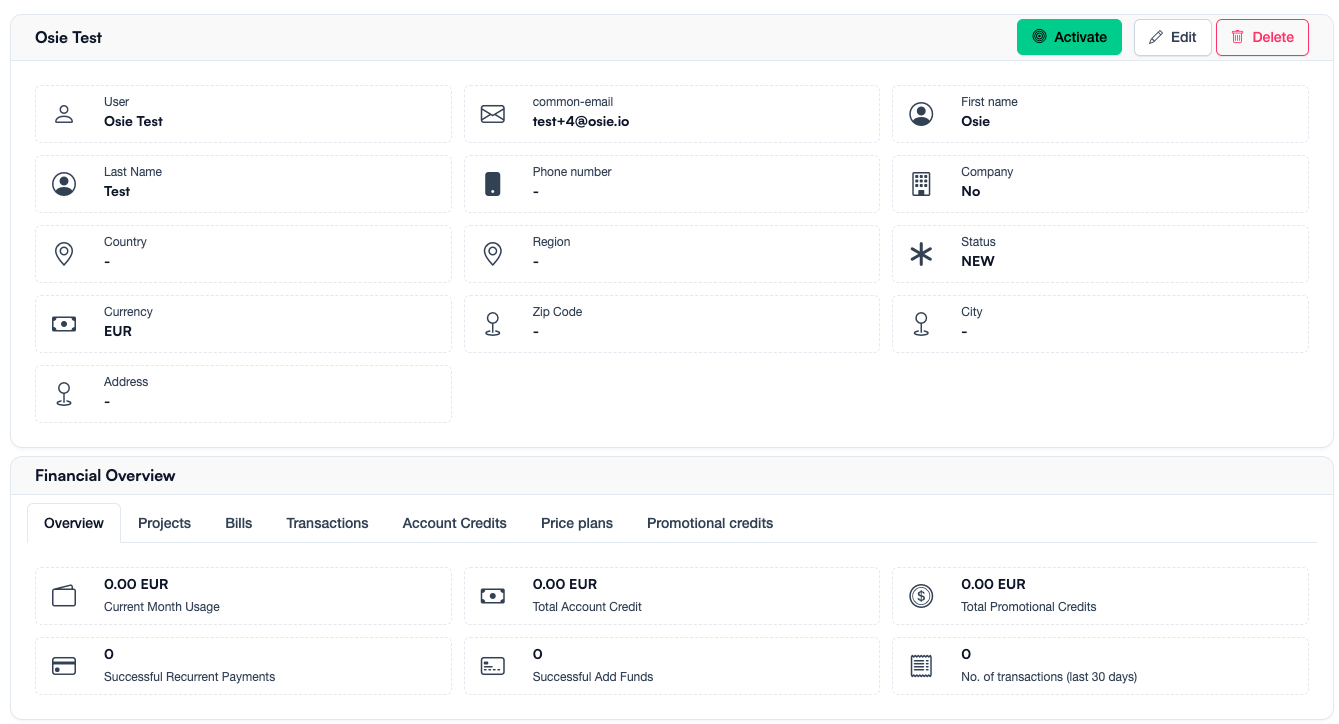
Account Activation
OSIE can automatically activate the customer's account and provision them access to your cloud, allowing them to create resources.
Account Creation
There are 3 concepts that make up an "account" or a so-called "customer":
- User
- Project
- Billing Profile
1. User
The user contains following information:
- Identity Provider ID: sub (e.g. Keycloak User Id)
- First Name and Last Name
2. Project
A project is where the customer creates and manages cloud resources and services.
3. Billing Profile
Billing Profile represents the financial entity that's associated to all the Bills, Invoices and Transactions.
A Billing Profile may be associated to multiple projects, and can also have multiple member Users.
For an "account" to be considered active, the "Billing Profile" has to transition to the ACTIVE status.
Once the Billing Profile is active, the system will start provisioning the services into the project (i.e. creating real projects and user access in OpenStack.)
Auto activation
Billing Profiles can be automatically activated without the manual intervention of an Admin, only if they pass certain constraints specified by the administrator.
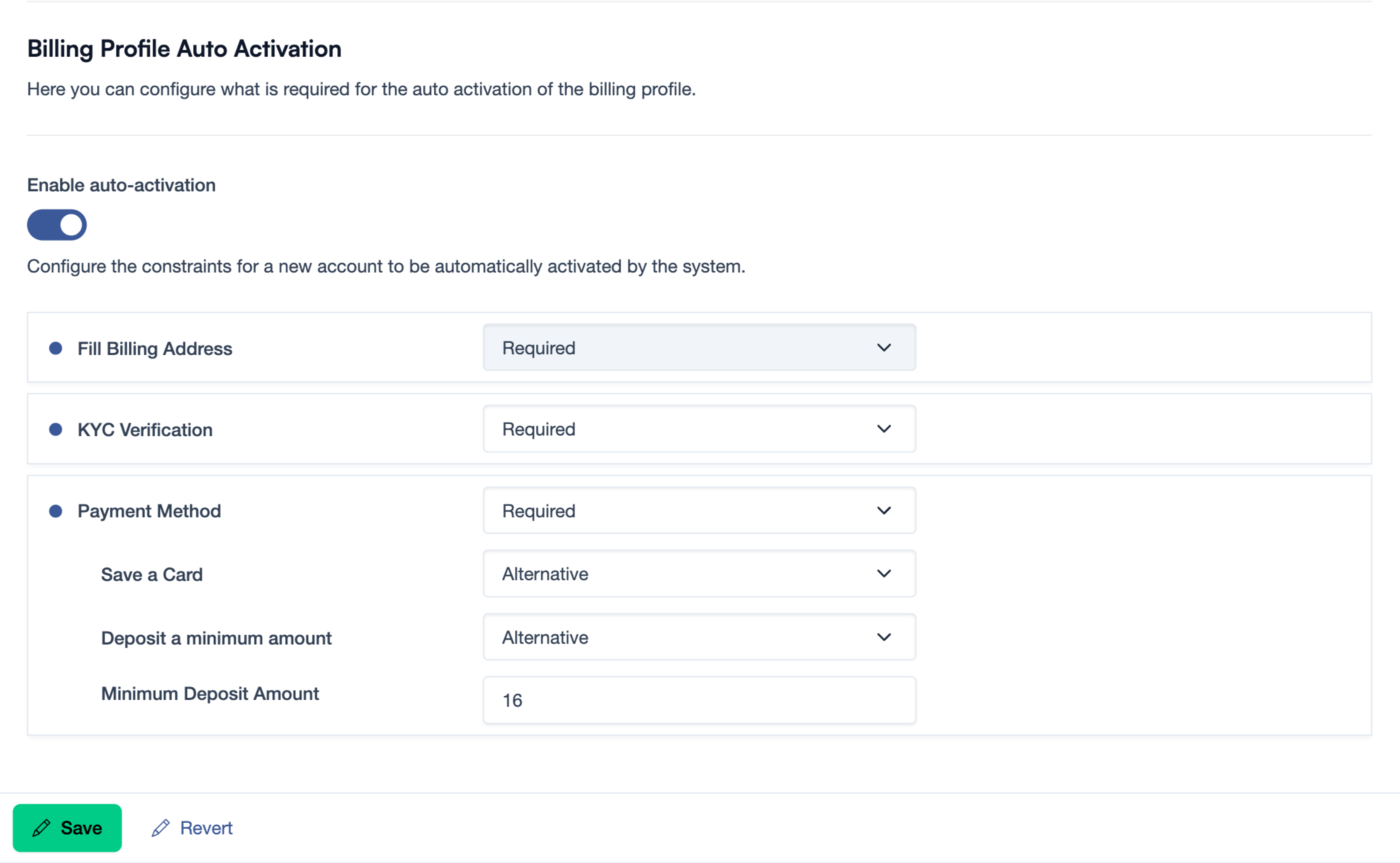
To configure the Auto activation, navigate to the Billing Settings and go to the Billing Profile Auto Activation section.
Auto activation constraints
The Auto activation flow contains a couple of "Constraints" that may authorize or prevent the auto activation of the Billing Profile.
- Fill Billing Address - represents the "billing details" form that has to be filled by the customer. This is always Required and can't be changed.
- KYC Verification (optional) - if there is a KYC integration available for your region, and you have activated it, you may choose to require the KYC process to be fulfilled by your customers.
- Payment Method - requires the customer to present a payment method, having 2 sub-constraints:
- Save a Card - the process of saving a card-on-file in the account, if the Payment Gateway allows it.
- Deposit a minimum amount - the process of adding funds to the account
- Minimum Deposit Amount - if you chose to require a "Deposit" in the previous step, you can configure the minimum deposit amount that can allow the auto activation.
Each constraint has associated an action to it:
Required- the constraint is required, and the activation cannot be accomplished without this constraint passing.Alternative- the constraint is not required, however by passing this constraint, the Billing Profile will be activated unless there is no otherRequiredconstraint remaining.Not Required- the constraint is disabled and has no effect. It can't activate nor constrain the activation process.
The example from the above screenshot, in order for the Billing Profile to be automatically activated, the customer is required to fulfill the KYC verification and then either save a card or deposit at least $16 to their account.
Manual activation
You can disable the Auto activation, case when you will have to manually activate the Billing Profile from the Admin dashboard. To do so, navigate to the Billing Profile page and click the "Activate" button.