Members and roles
Every person in an organization has one organization role. The role decides what they may do across the organization: manage members, change billing, create and delete projects, and work with cloud resources. Managing members and roles needs the Owner or Admin role.
Built-in roles
| Role | Grants |
|---|---|
| Owner | Everything in the organization, including deleting it and reading its audit log |
| Admin | Members, roles, groups, IP allow lists, every project and all billing |
| Member | Read the organization and its billing, create projects, and work with cloud resources in the projects they belong to |
Owners and administrators are owners of every project in the organization. A member reaches only the projects they were added to, directly or through a group.
Add a member
The person needs an account on the portal. To bring in someone who has none yet, invite them to a project by email. See Project members.
- Open the organization's settings and choose Members.
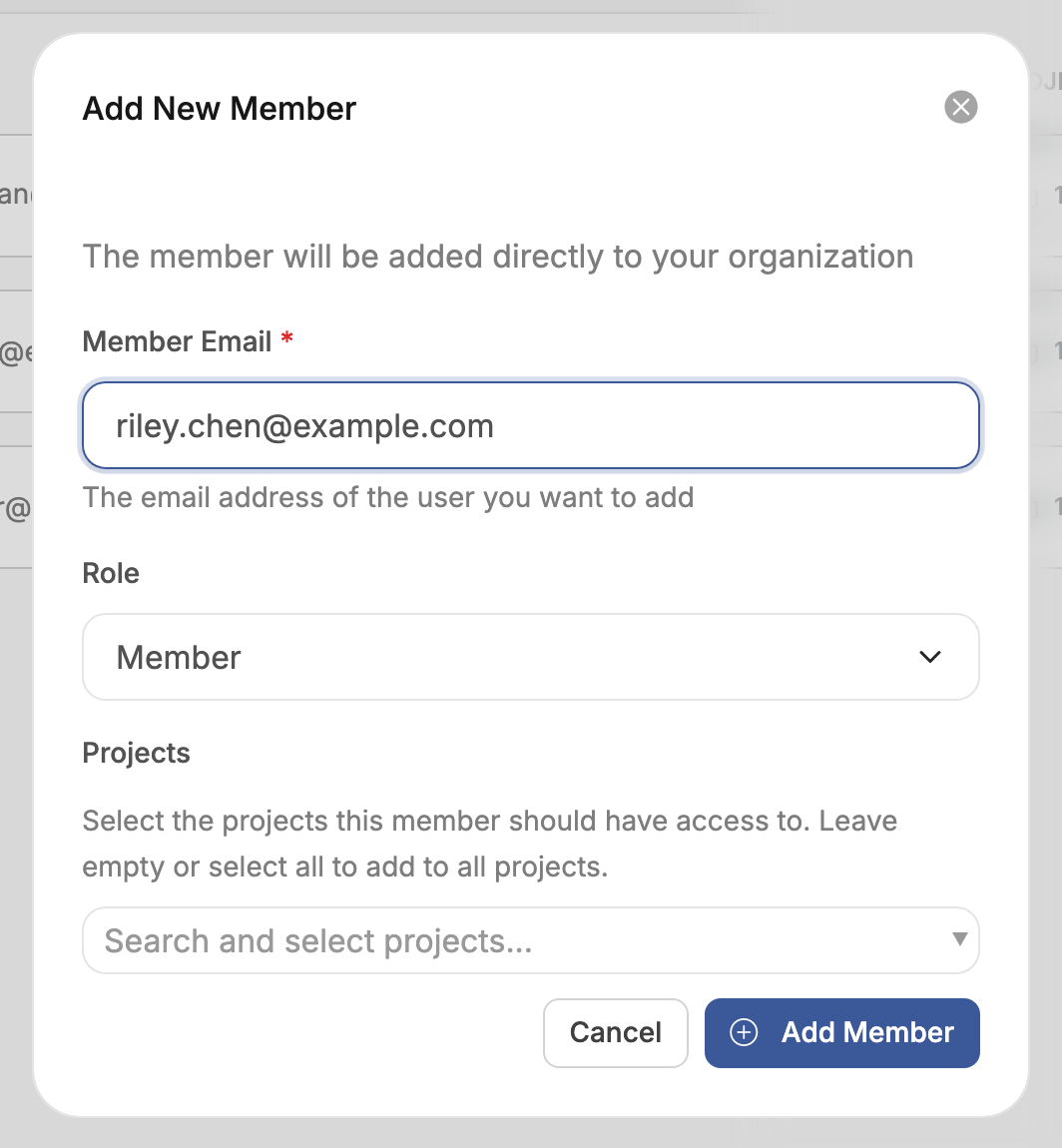
- Choose Add Member.
- Enter the Member Email and choose a Role.
- Under Projects, choose the projects the member gets access to. Leave it empty, or select every project, to add the member to all projects.
- Choose Add Member.
Change a member's role or remove them
Members lists each member's role and the number of projects they belong to. Choose the edit button on a row to give the member another role. Choose the delete button to remove them from the organization. An organization always keeps at least one owner, so the last owner cannot be removed.
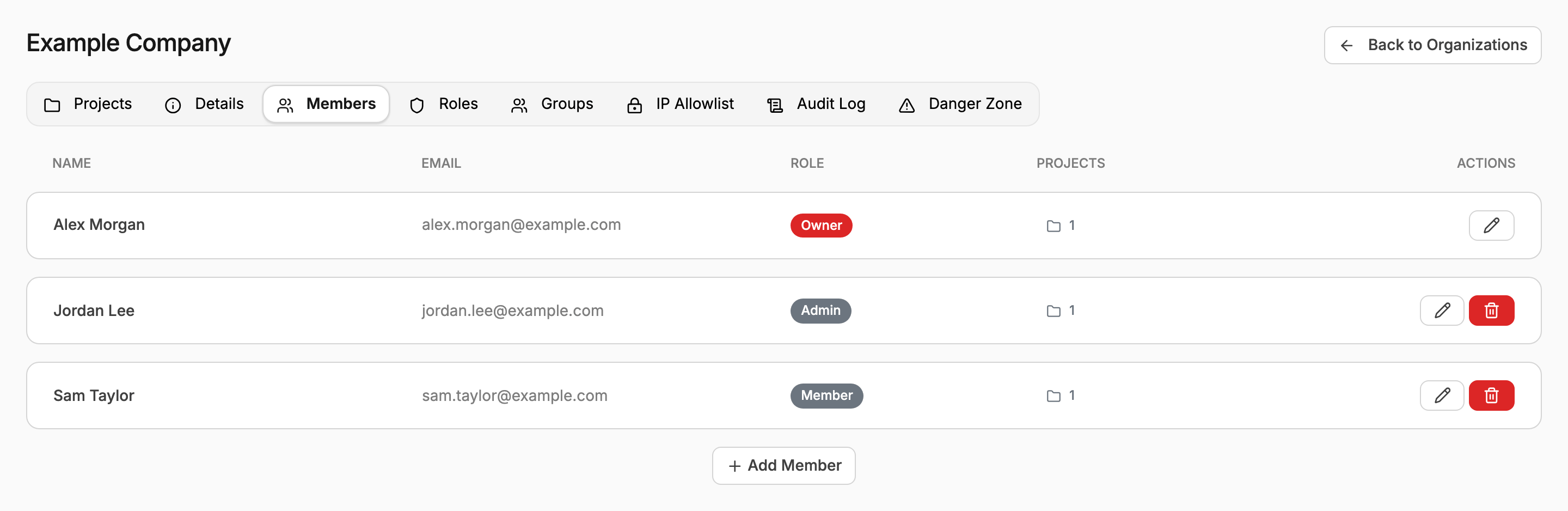
A role change applies at once. Removing a member also removes them from every project of the organization, which withdraws their access to those projects in the cloud.
Define a custom role
The built-in roles cover most teams. A custom role grants a narrower set of permissions, for example a finance role that reads invoices and payment history and nothing else, or an auditor role that reads the audit log.
- Open Roles and choose Create Role.
- Enter a Name in uppercase letters, digits and underscores, such as
FINANCE, and a Description. - Tick the permissions the role grants. A group's Full access permission grants everything in that group, and All permissions grants everything.
- Choose Create Role.
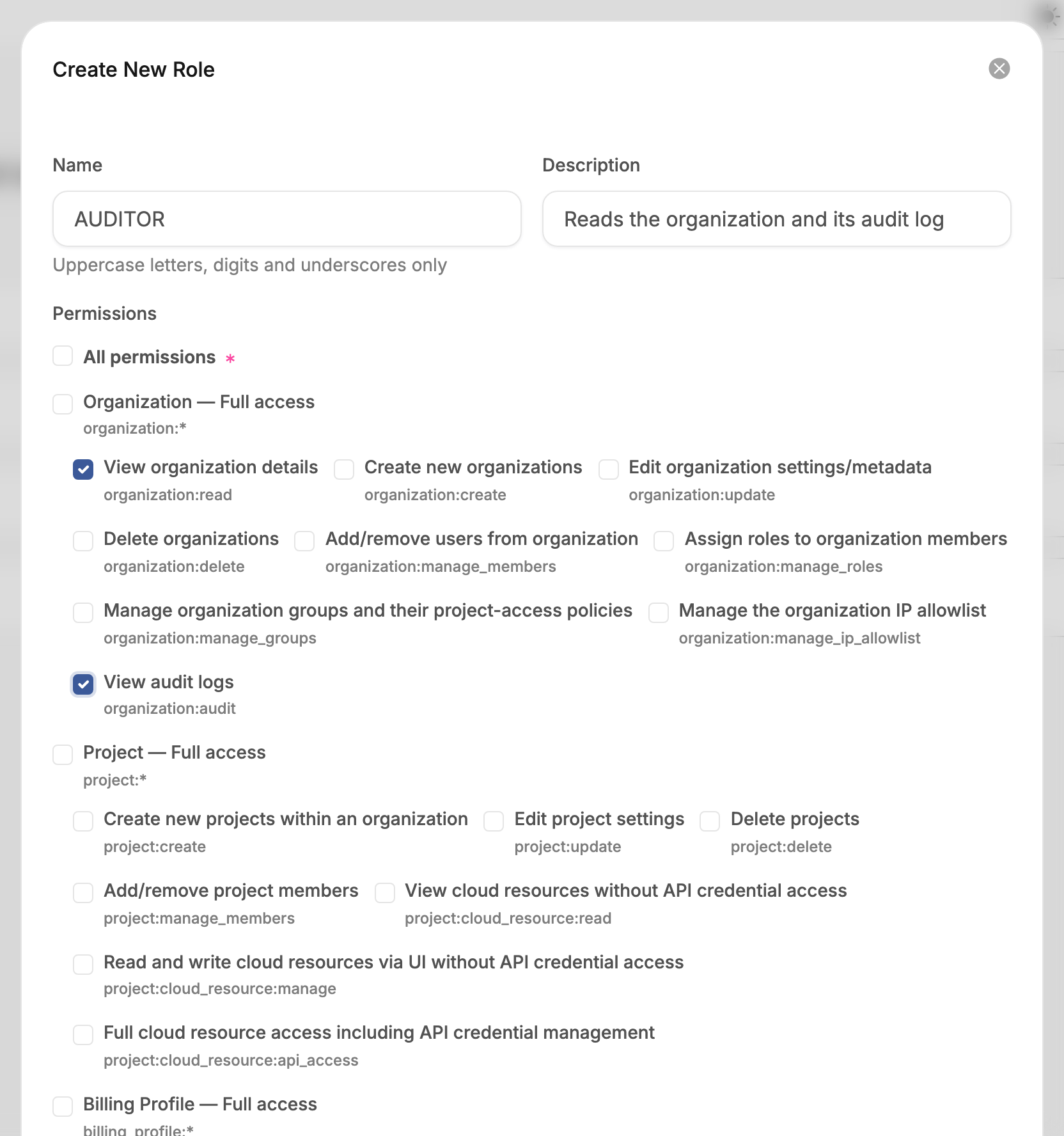
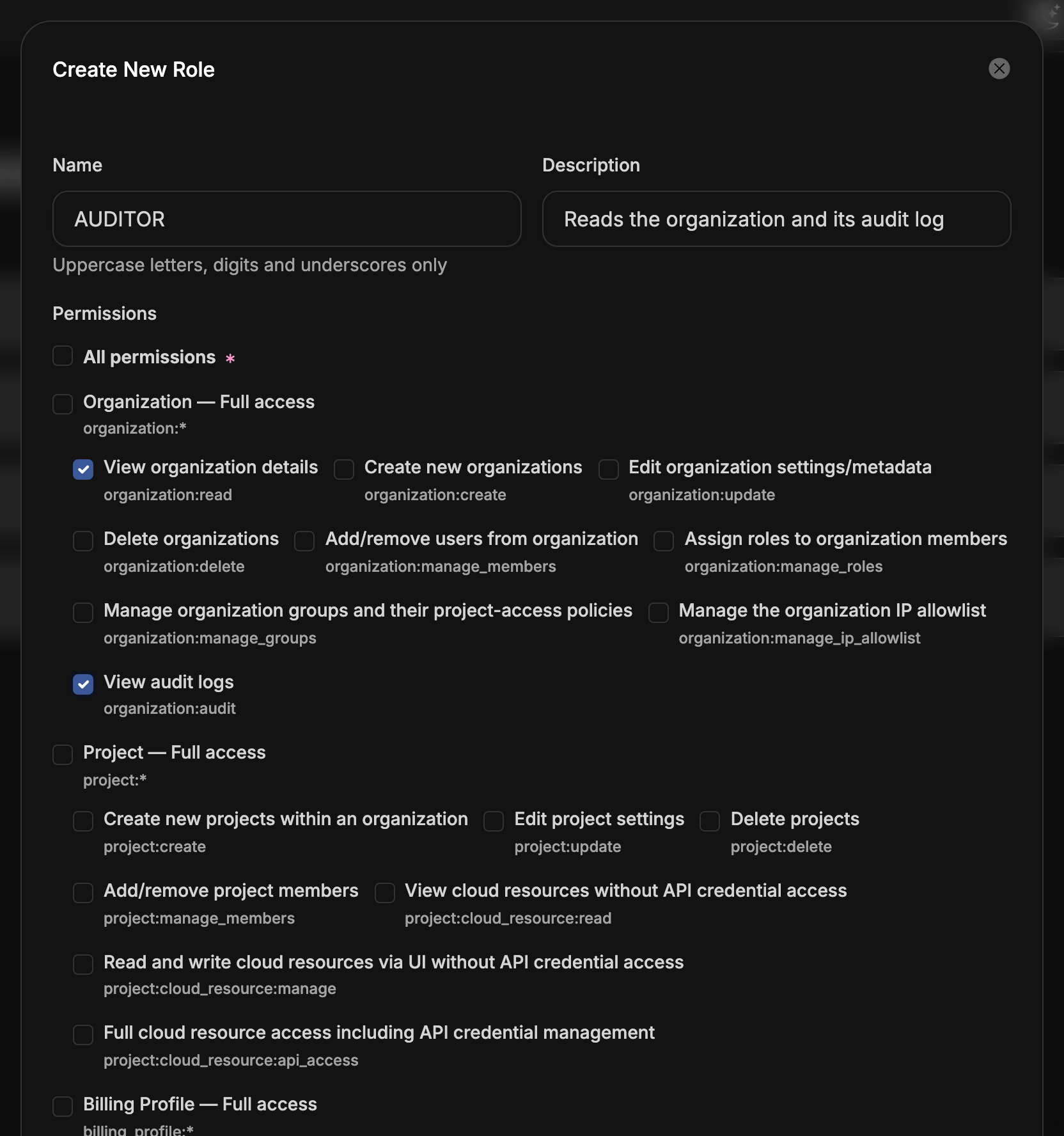
Assign the role from Members, like a built-in one, or grant it on tagged projects through a group. Custom roles appear in Roles with the number of permissions they grant.
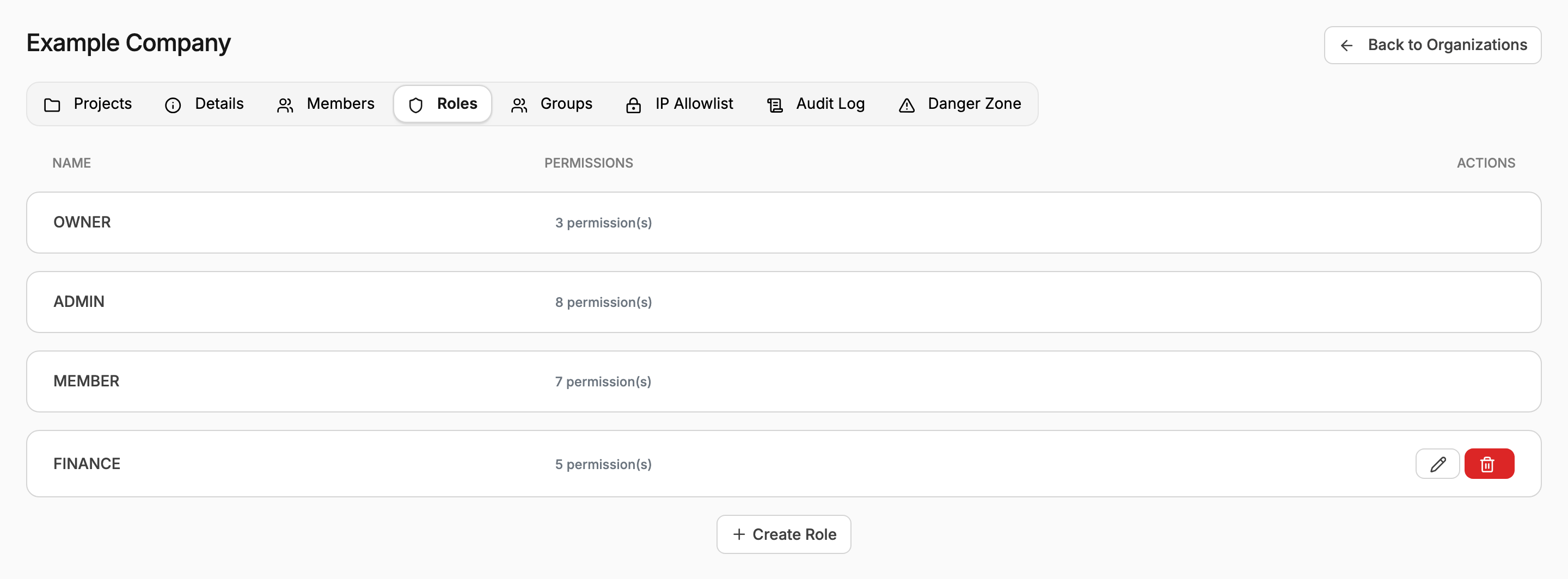
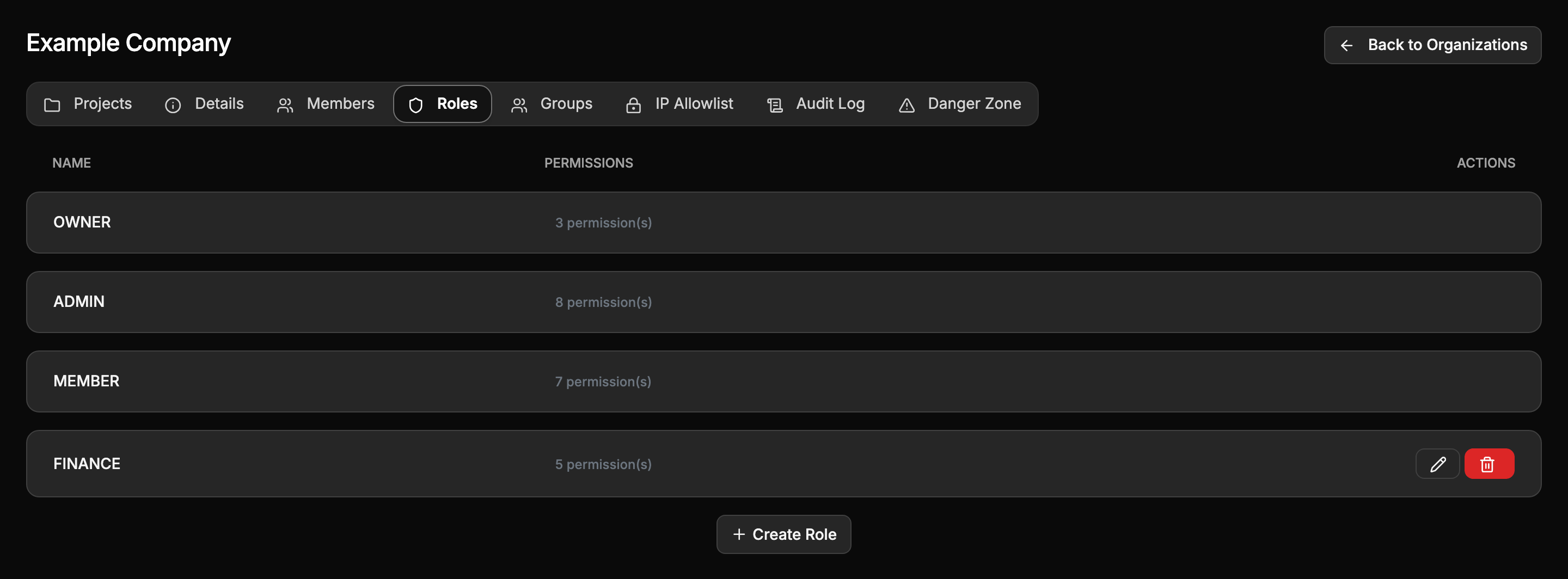
Deleting a custom role removes its permissions from every member who holds it.
Permissions
| Area | Permission | Allows |
|---|---|---|
| Organization | organization:read | View the organization's details |
organization:update | Edit the organization's name and description | |
organization:delete | Delete the organization | |
organization:manage_members | Add and remove members | |
organization:manage_roles | Create roles and assign them to members | |
organization:manage_groups | Manage groups and their access policies | |
organization:manage_ip_allowlist | Manage the IP allow lists | |
organization:audit | Read the audit log | |
| Project | project:create | Create projects |
project:update | Rename projects and set their tags | |
project:delete | Delete projects | |
project:manage_members | Add and remove project members | |
project:cloud_resource:read | View cloud resources in the portal | |
project:cloud_resource:manage | Create, change and delete cloud resources in the portal | |
project:cloud_resource:api_access | Everything above, plus create credentials for the cloud APIs | |
| Billing profile | billing_profile:read | View the billing profile |
billing_profile:update | Edit billing details and payment methods | |
billing_profile:read_invoices | View invoices | |
billing_profile:download_invoices | Download invoice PDFs | |
billing_profile:manage_payment_methods | Add and remove payment methods | |
billing_profile:add_funds | Add funds | |
billing_profile:read_transactions | View the payment history |
A role with project:cloud_resource:read or project:cloud_resource:manage works only in the portal.
Creating application credentials, S3/EC2 credentials or API users needs
project:cloud_resource:api_access. See Credentials for a project.