Images
An image is the disk a server boots from. Open Images in the project's sidebar to see two lists:
| List | Holds |
|---|---|
| Public Images | Operating systems and applications your provider offers to every project. You can create servers from them, but not change or delete them. |
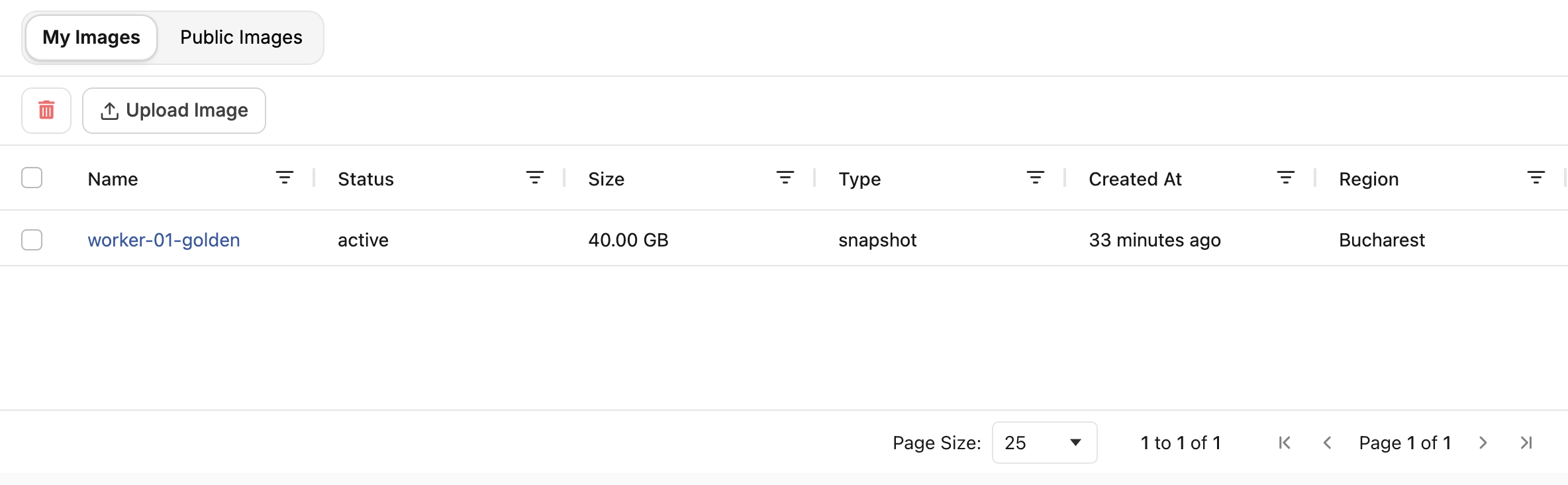
| My Images | Images that belong to the project: the ones you upload, and snapshots of your servers. |
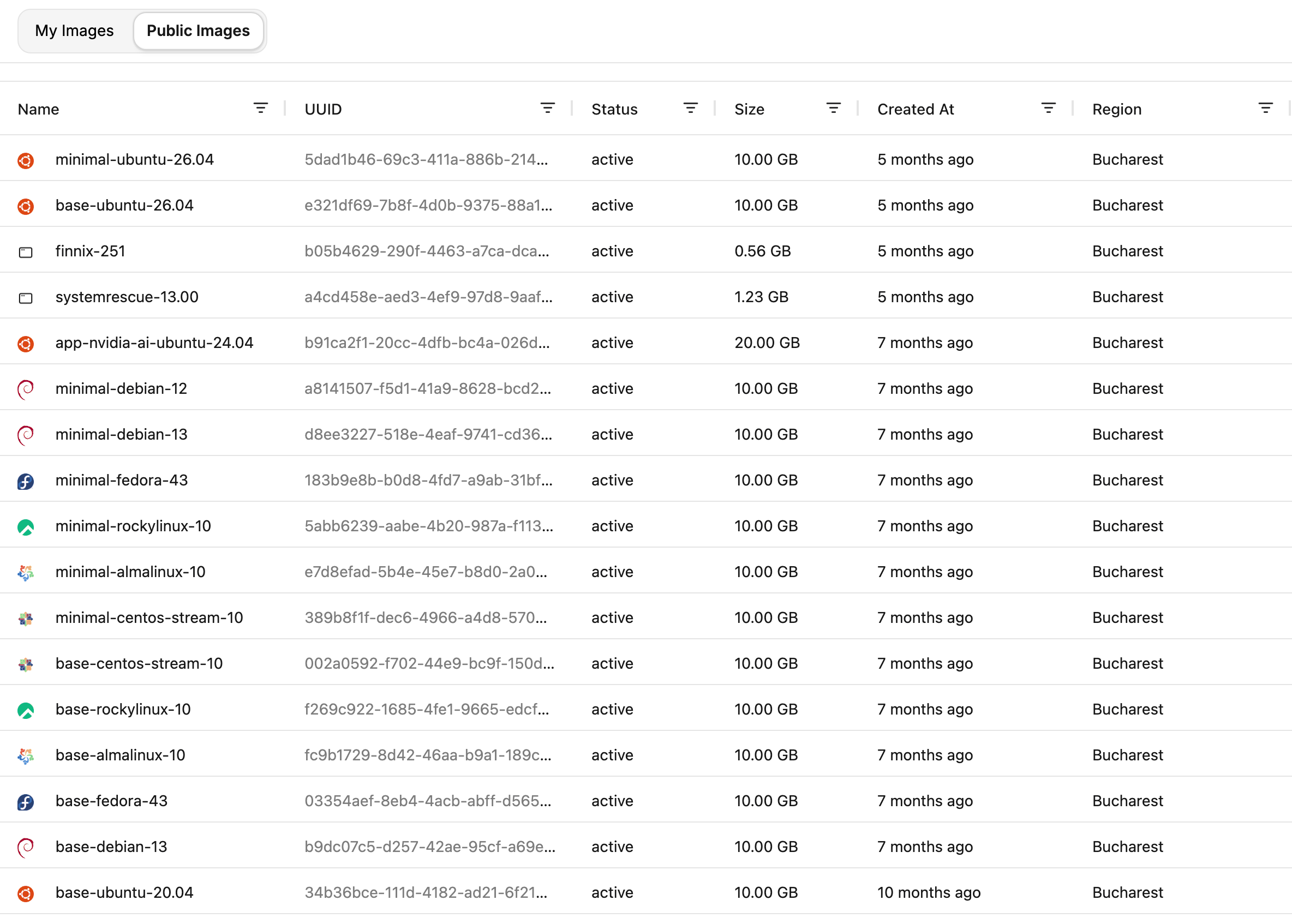
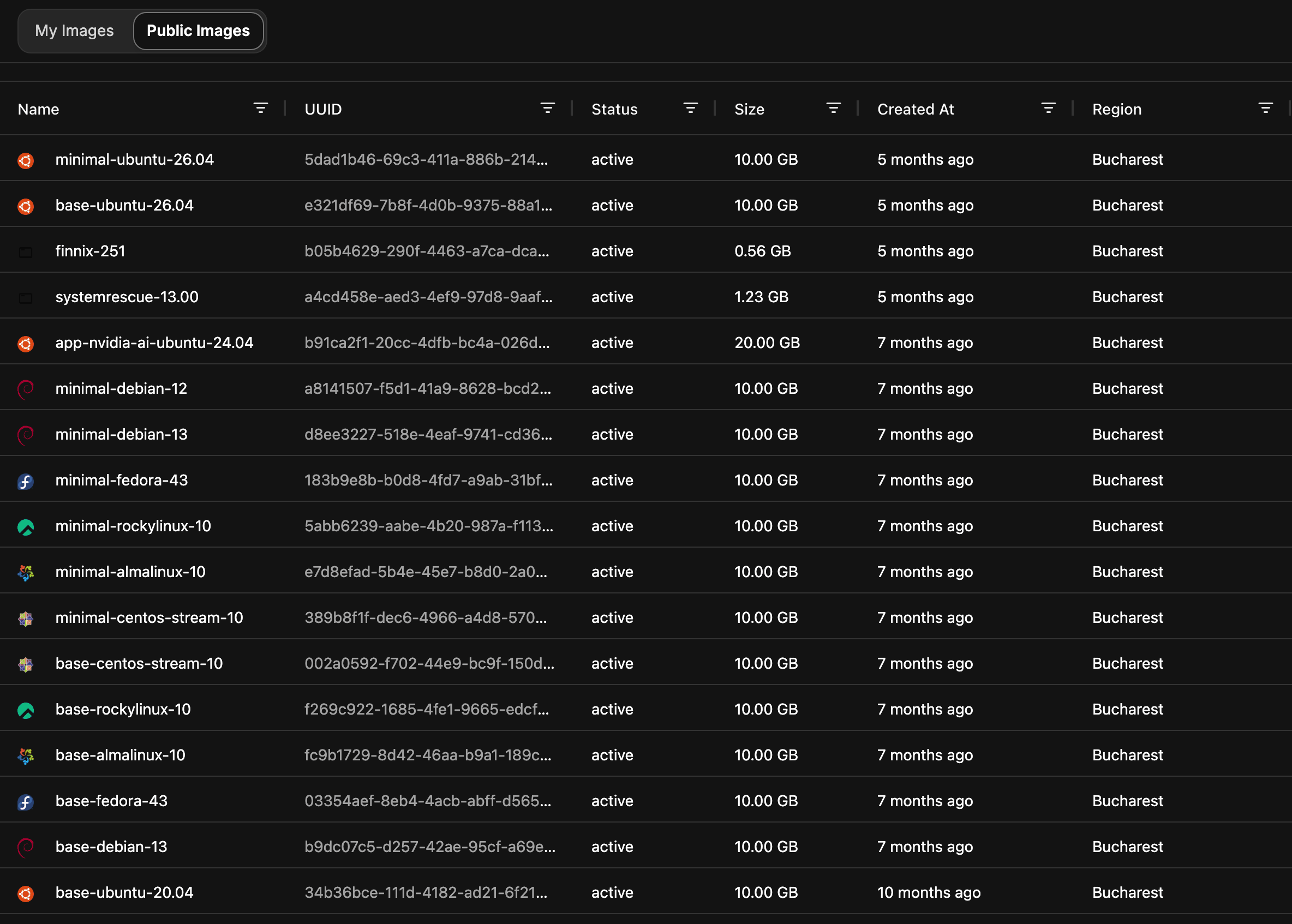
The server creation form shows both. Your provider groups public images by distribution and version, and your own images appear under My Images. See Create a server.
Upload an image
Upload a disk image to run an operating system or appliance your provider does not offer, or to bring a server from another platform.
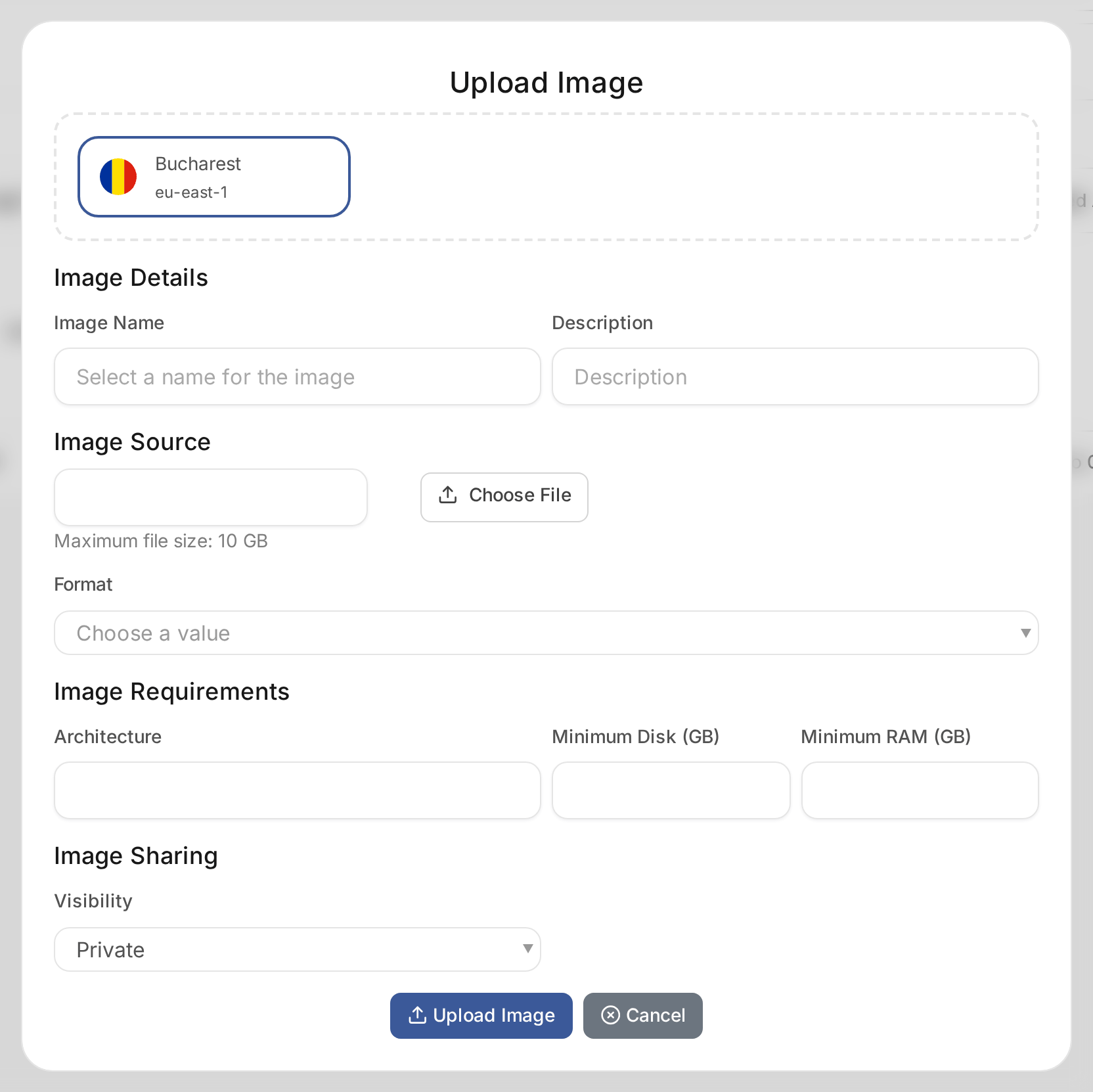
- Open My Images and choose Upload Image.
- Choose the location the image is stored in. Servers in other locations cannot use it.
- Under Image Details, enter the Image Name and an optional Description.
- Under Image Source, choose the file and its Format: QCOW2, RAW or ISO, among others. The format must match the file, or servers fail to boot from the image. The largest file the location accepts is shown under the file picker, and a larger file is refused before anything is uploaded. Ask your provider when you need to upload a larger image.
- Under Image Requirements, set the Architecture, Minimum Disk (GB) and Minimum RAM (GB). The cloud refuses to create a server from the image on a flavor with less disk or memory than these minimums.
- Under Image Sharing, choose the Visibility.
- Choose Upload Image and keep the page open until the upload completes.
| Visibility | Who can use the image |
|---|---|
| Private | Only this project. |
| Shared | This project and the projects it is shared with. |
| Community | Every project in the cloud, when your provider allows it. |
QCOW2 files are smaller to upload than RAW. Prepare the image for the cloud before uploading it: install cloud-init, or cloudbase-init for Windows, so that the server receives its SSH key, hostname and network settings at first boot.
Use snapshots as images
A snapshot of a server is stored as an image in My Images. Create new servers from it to copy a configured server, or keep it as a restore point. See Take a snapshot of a server.
Download or delete an image
Open an image from My Images to see its size, visibility, minimum disk and creation date.
- Download saves the image to your computer, for example to use it on another platform. Large images take several minutes to prepare before the download starts.
- Delete Image deletes the image. Servers created from it keep running, but you cannot create new servers from it.
Images in My Images use storage and may be charged by size. Delete the ones you no longer need.