Cloud features
Beyond the services and regions a cloud offers, each cloud has features that shape what customers can do with those services. Some follow what the OpenStack deployment supports, such as its remote console or how Trove attaches databases. Others are choices about your offering, such as which volume types and public networks customers see.
Every feature on this page is set on the cloud's Features tab, under System > Service providers, except the image upload limit, which has its own card on the Advanced Settings tab. The Features tab is saved as a whole with Save at its bottom. Features apply to every region of the cloud, except volume types and public networks, which are listed per region.
Volumes
Offer volume backups and snapshots
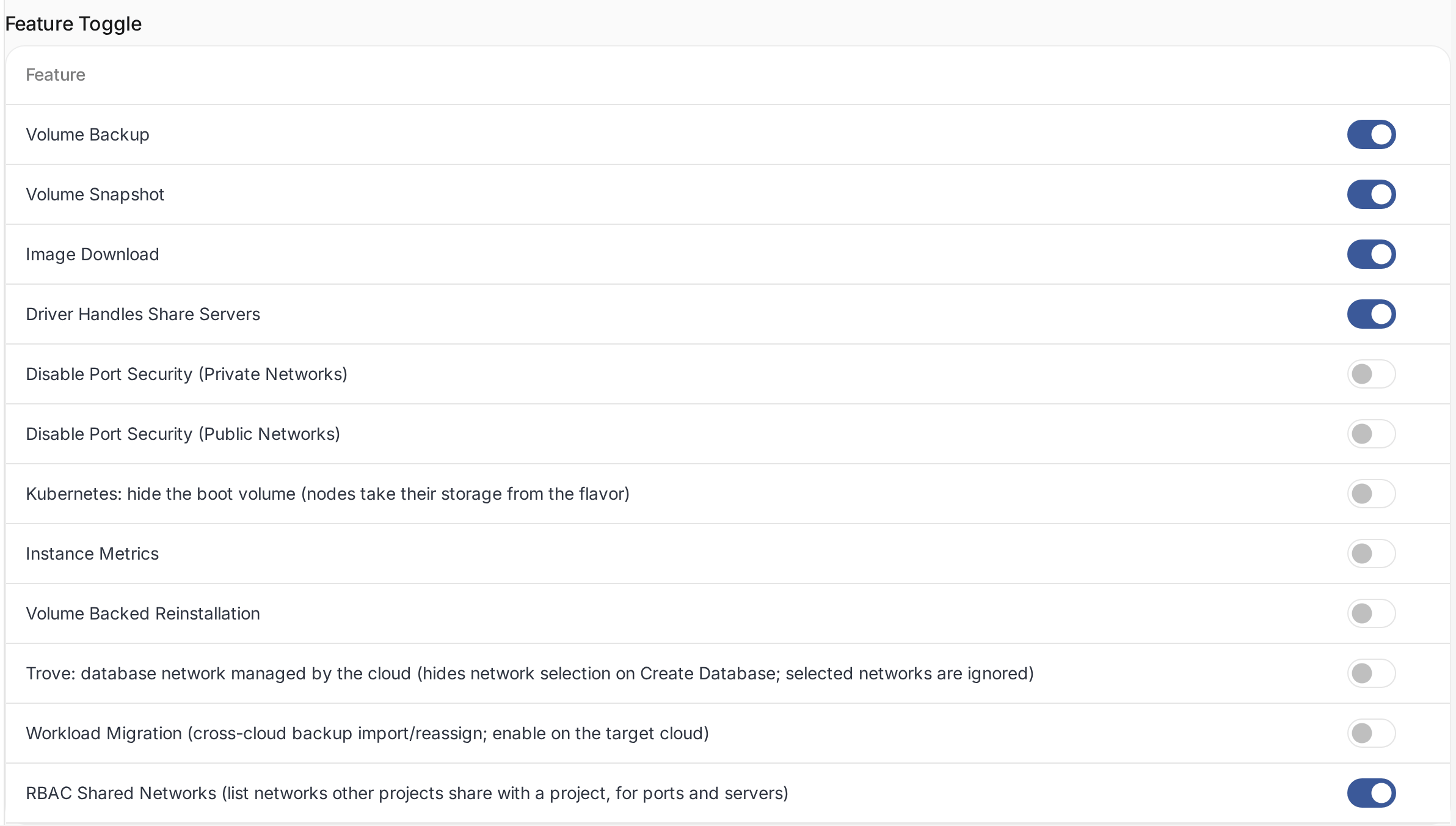
Volume Backup and Volume Snapshot show backups and snapshots on the client portal's volume pages. Turn on Volume Backup only when the cloud runs the Cinder backup service, which stores the backups. Without it, the portal offers backups that OpenStack cannot create.
Choose the volume types customers see
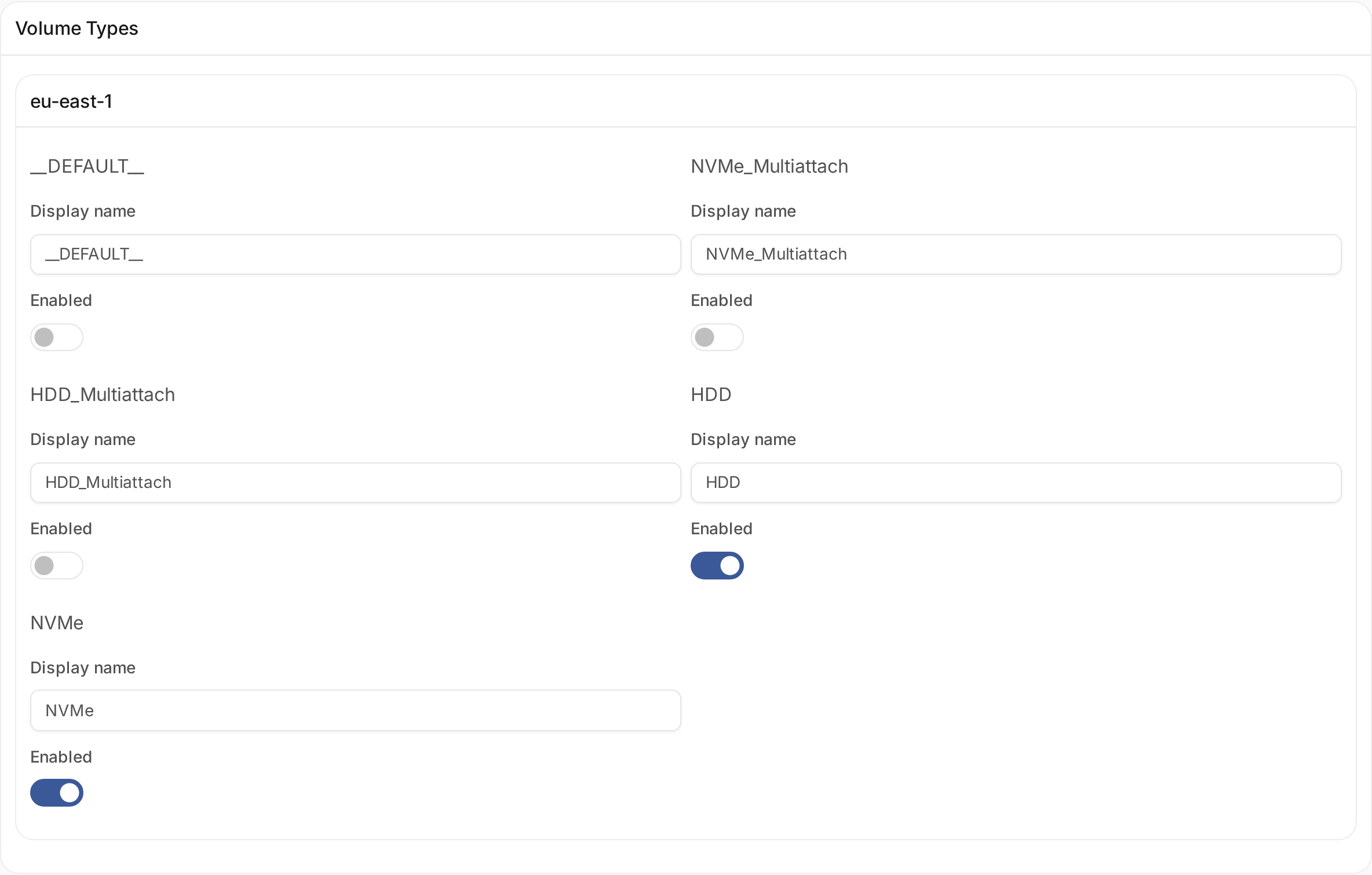
The Volume Types card lists each region's Cinder volume types. Customers see only the types you enable,
under the display name you give them, such as NVMe for a type named ceph-nvme. A region whose types you
never saved offers every type. Once you save a region's types, a type left disabled is hidden, so enable at
least one.
Servers
Choose the remote console
Console Type sets the console customers open from a server's page: noVNC (the default), SPICE HTML5, SPICE Direct, WebMKS for VMware, or Serial Console. The cloud's Nova must run the matching console proxy. Otherwise the console fails to open.
Reinstall servers that boot from a volume
A server whose disk is a volume can be reinstalled only when Volume Backed Reinstallation is on. The server's page then offers Reinstall for it too. Servers whose flavor has a local disk can always be reinstalled. The cloud's Nova must support API microversion 2.93, which added the rebuild of volume-backed servers.
Choose how customers connect a server
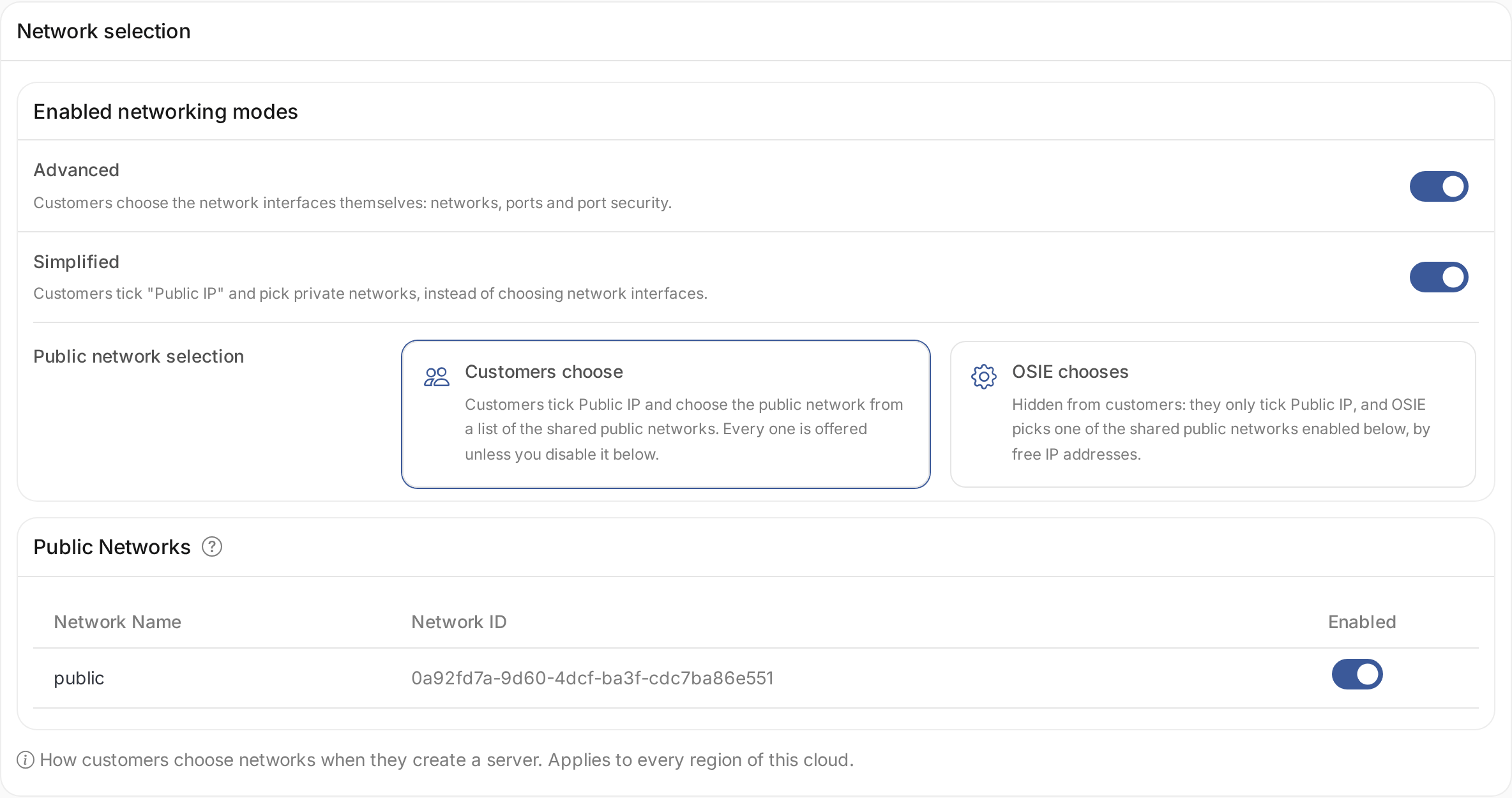
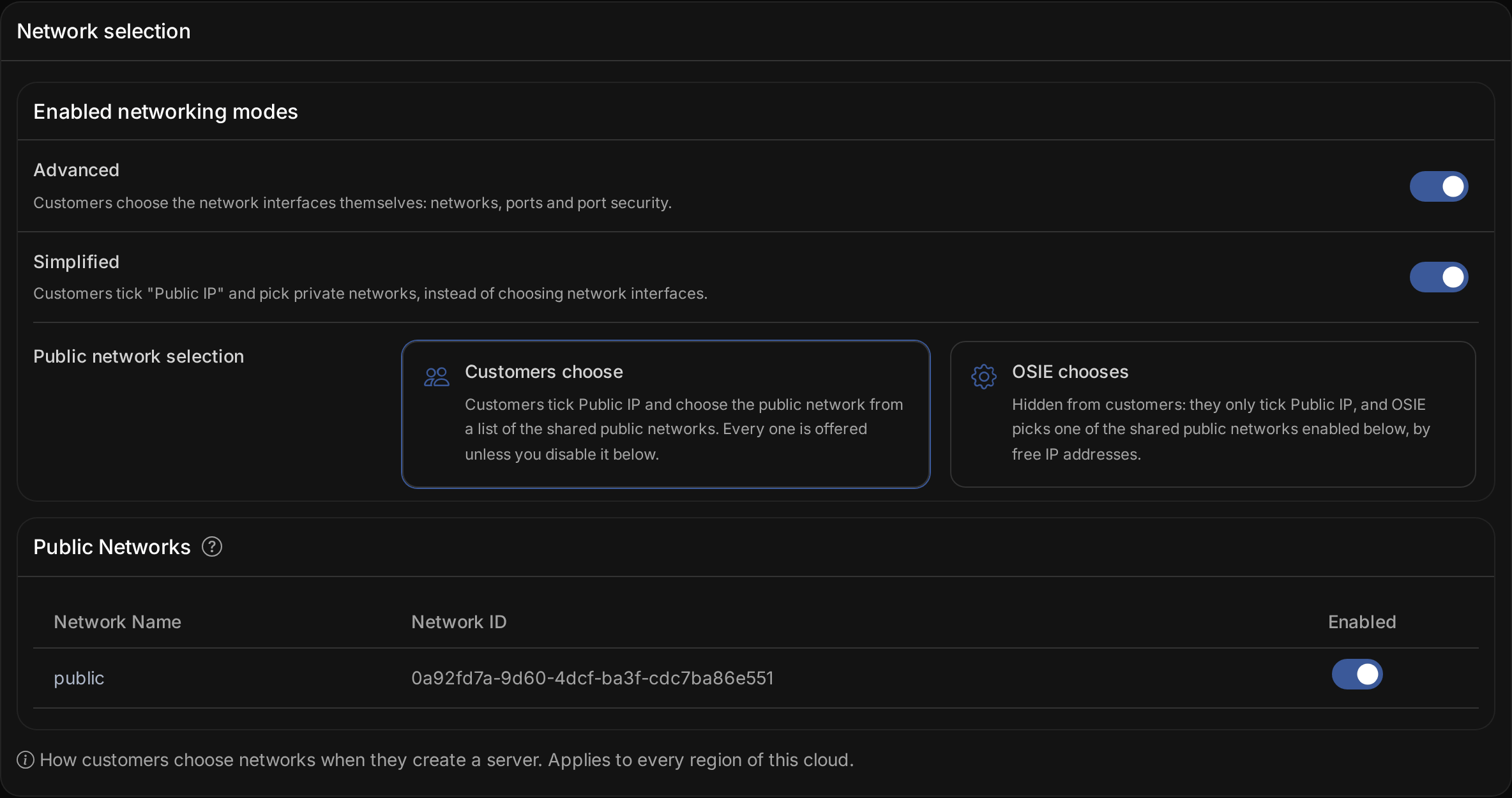
The Network selection card decides how customers attach networks when they create a server. Advanced lets them choose a network for each interface. Simplified lets them tick Public IP and choose private networks. Offer at least one. When both are on, customers switch between them in the form.
With simplified networking, customers can choose the public network themselves, or OSIE can choose it for them. When OSIE chooses, set the Allocation strategy. Spread places each server on the public network with the most free addresses. Bin-pack fills one network before the next. Bare metal servers always use advanced networking.
Choose the public networks customers see
The Public Networks card lists the cloud's external networks. Customers see every public network until you disable it here. A disabled network is no longer offered when customers create resources.
Offer networks shared with a project
A network that one project shares with another through an OpenStack RBAC policy belongs to the project that shares it. With RBAC Shared Networks on, OSIE lists such networks to the projects they are shared with, and to every project when the policy shares them with all projects. Customers see them under Networking > Networks, marked Shared, and can create ports and servers on them. See Networks shared with the project.
The feature is off by default. While it is off, OSIE does not ask the cloud for shared networks, and customers see only their own networks and your public ones. OSIE reads shared networks from the cloud and never stores them, so they are not billed to the projects they are shared with. External networks are listed under public networks instead.
Let customers turn off port security
Port security stops a server from sending traffic from addresses that are not its own, and applies its security groups. Some workloads need it off, such as a router, a firewall or a VPN appliance running on a server. An interface without port security has no security groups, so none of their rules filter its traffic. Disable Port Security (Private Networks) and Disable Port Security (Public Networks) let customers turn it off on their interfaces, on private and on public networks. Both are off by default. While they are off, OSIE refuses requests to disable port security.
A server without port security on a public network can send traffic from any address on that network. Allow it on public networks only when you trust the customers who get it.
Images
Let customers download images
Image Download adds a download link to the client portal's image page, so customers can take a copy of an image or a server snapshot out of the cloud.
Limit the size of uploaded images
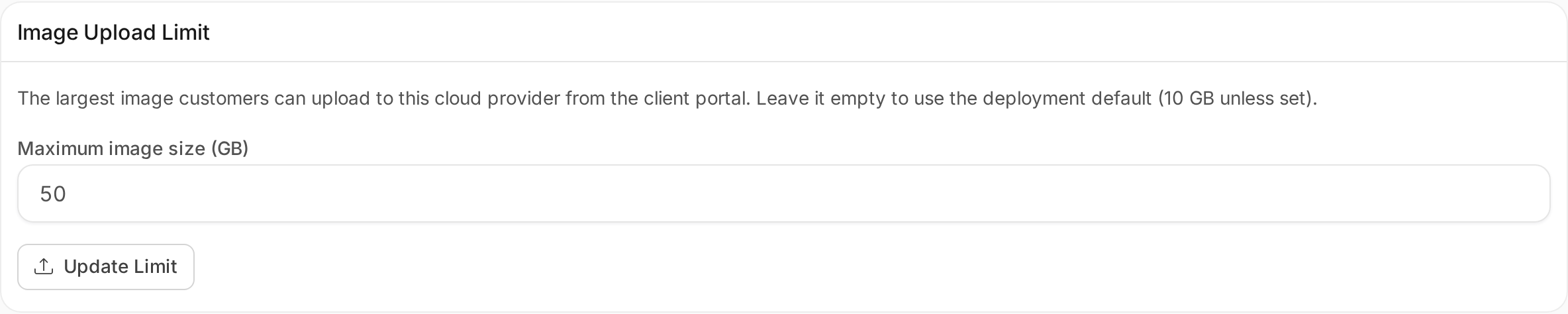
Customers upload their own disk images from the client portal. Large images, such as Windows or appliance images, need a higher limit than the installation's default, which is 10 GB unless your operator changed it. To give a cloud a limit of its own, open its Advanced Settings tab, enter the size in GB under Image Upload Limit, and choose Update Limit. Leave the field empty to use the installation's default.
The upload dialog shows customers the limit of the location they choose, and refuses a larger file before anything is created in the cloud.
Load balancers
Match the load balancer driver
Octavia Provider Driver tells OSIE which provider the cloud's Octavia uses, so customers are offered only the balancing algorithms it supports. Amphora offers round robin, least connections and source IP. OVN offers source IP and port only. Without a choice, OSIE offers Amphora's algorithms.
Kubernetes
Choose the cluster templates customers see
The Kubernetes Cluster Templates card lists the cloud's Magnum templates. A project is offered its own templates and the public templates that are not hidden in Magnum, without the ones you hide here. Hiding a template does not affect clusters already created from it.
Take node storage from the flavor
By default, customers choose a boot volume type and size for the nodes of a cluster. Kubernetes: hide the boot volume removes that choice, and nodes get their disk from their flavor or the cluster template. Use it when your templates or flavors already define node storage.
File shares
Create shares on share networks
Turn on Driver Handles Share Servers when the cloud's Manila backend creates a share server for each share network. Customers then choose a share network when they create a share, and OSIE requires one.
Databases
Attach databases to Trove's management network
Trove can be configured to attach every database to a management network of its own. Such a Trove can fail to create a database on a network the customer picks. For such a cloud, turn on Trove: database network managed by the cloud. Customers then create databases without choosing a network, and Trove attaches the one it is configured with.
Backups
Move workload backups between clouds
Workload Migration lets customers move the backups of a workload to this cloud from another cloud. Turn it on for the cloud the backups move to. Both clouds must reach the backup repository that holds the workload's backups. Without the feature, OSIE refuses the move.