OpenStack Domain Reseller
Sell more services through reseller partners by providing them full OpenStack Domains.
Resellers can then set-up their own OSIE installation and connect it to the OpenStack Domain.
Existing concepts will be used, with a "reseller" flag.
- Cloud Provider. The reseller openstack domain needs to be added as a "Private" cloud provider and enabled as "Reseller". This is required for OSIE to track new projects and cloud resources created by the reseller in their Domain.
- Billing Profile. A reseller is just a "special" Billing Profile. As every other regular customer, the Reseller will receive a single monthly bill for their entire Domain.
Steps for the Cloud Provider
Below are the steps you need to do when onboarding a new Reseller.
1. Set-up the OpenStack Domain
Here is an example of how to create a new domain and admin user for the reseller.
openstack domain create reseller1_domain

openstack user create --domain reseller1_domain \
  --password-prompt reseller1_admin

openstack role add --domain reseller1_domain  \
  --user-domain reseller1_domain \
  --user reseller1_admin admin
Now you can share the Keystone endpoint along with the domain name, username and password to the Reseller.
3. Create the "reseller" Billing Profile
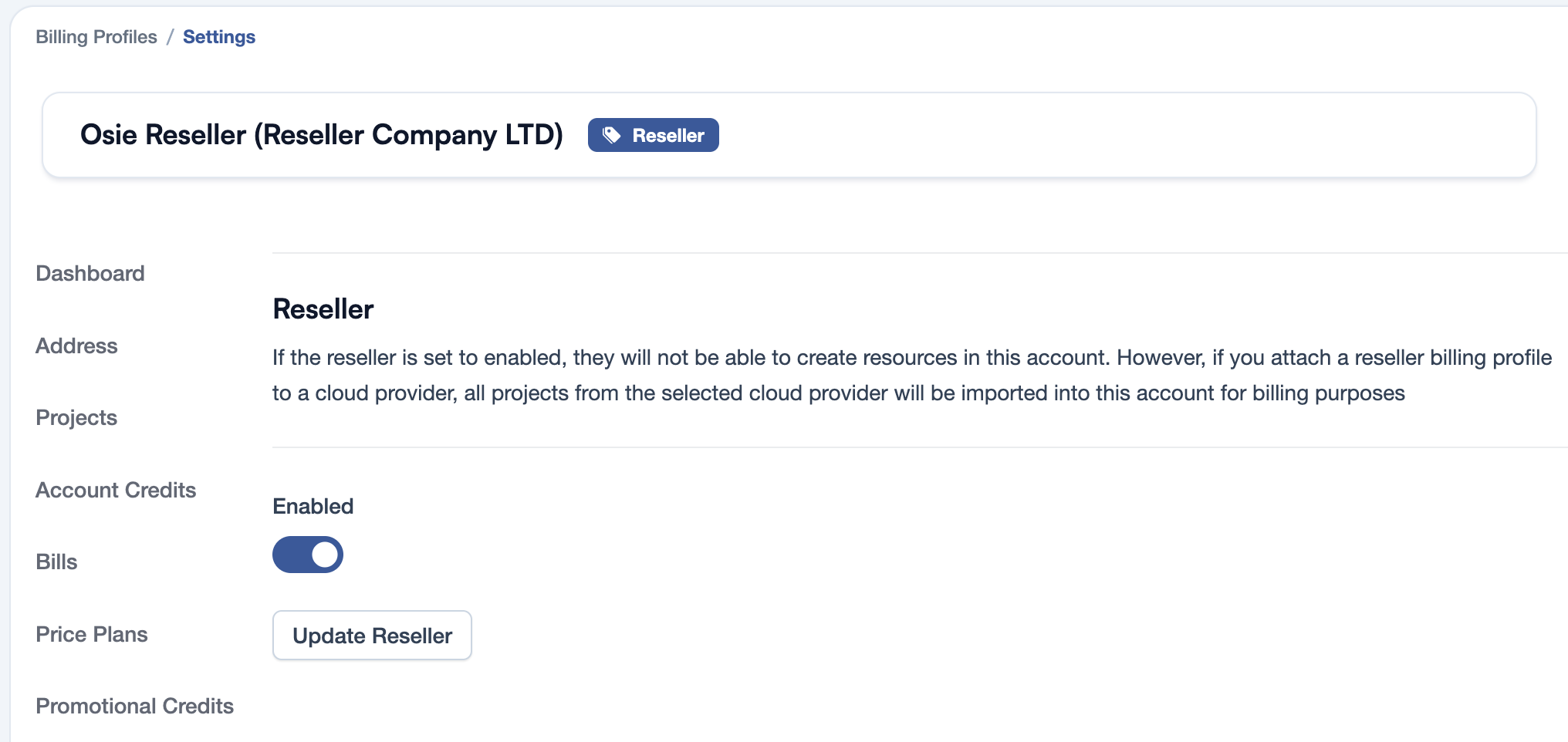
The reseller is just a "special" Billing Profile that is marked as reseller.
Either choose an existing one or create a new Billing Profile, then go to "Settings" and Enable the reseller functionality.
2. Create a "reseller" Cloud Provider
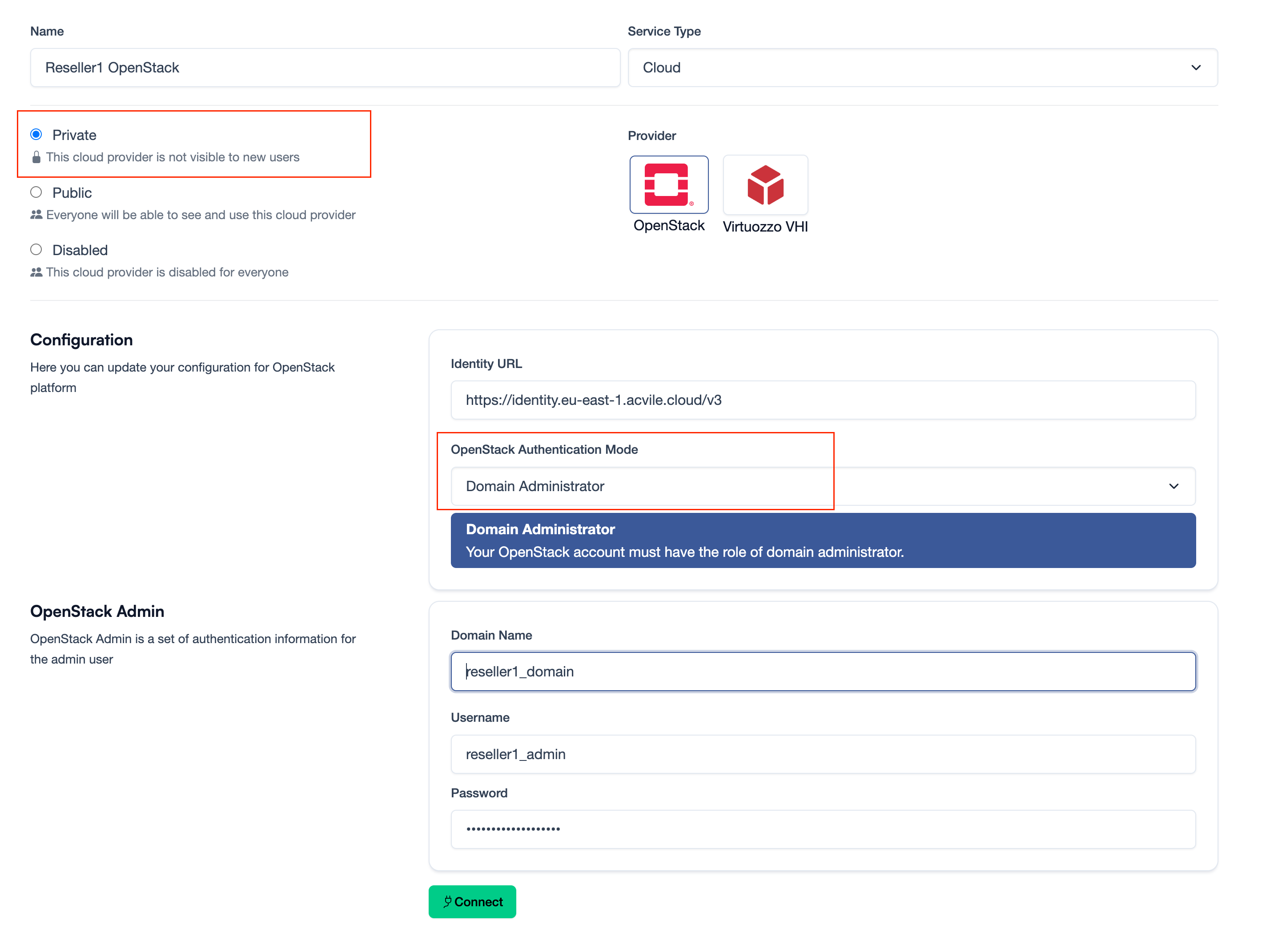
For OSIE to be able to track every new project and cloud resource of the reseller domain, you need to add that domain as a new OpenStack cloud provider using Private option.
The porupose of this provider is just "read only", for tracking the resources that need to be added on the Reseller's bill.
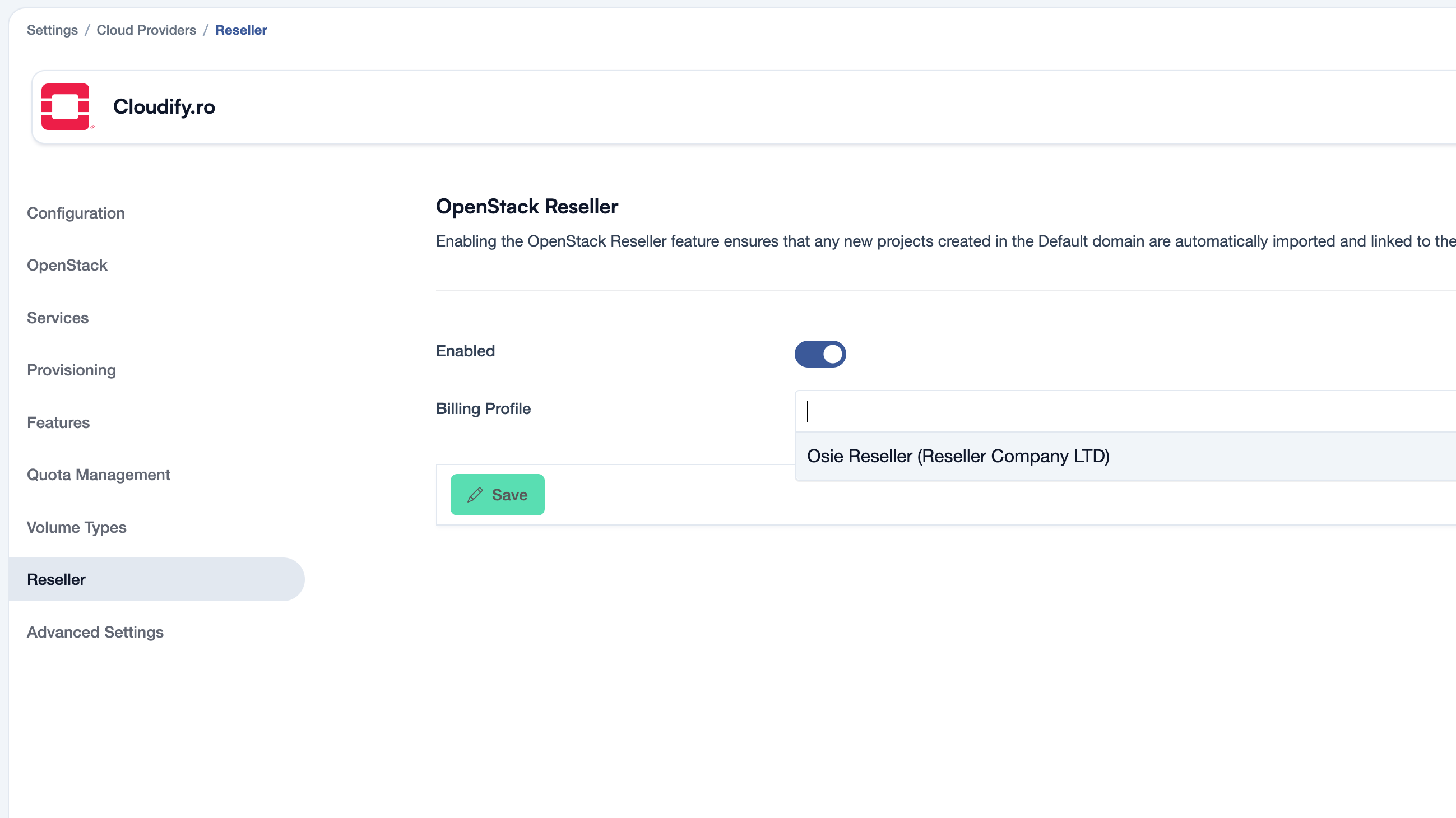
Attach the cloud provider to the reseller billing profile.
Steps for the Reseller
The reseller needs to install a new OSIE instance on their own and connect it to your OpenStack using the "Domain Administrator" option documented in the Add a new OpenStack cloud section.