Billing profiles
A billing profile is who gets the bill. It holds the legal and fiscal identity you invoice — company name, tax ID, address, country, currency — and it owns everything that follows from being a payer: one bill per cycle, one balance, one set of credits, and its own answer to "what does this customer pay and what happens when they stop paying".
Everything else in the billing system attaches to it. Price plans are matched against it, tax rules are resolved against its country and tax status, and suspension acts on it.
Billing profiles in the hierarchy
Realm
└── Organization ──────────────► Billing profile (attached: the payer, or none)
    ├── Billing profile(s)       currency · tax identity · balance · bills
    └── Project(s)               billed to the organization's attached profile
        └── cloud provider projects (OpenStack, …)
- An organization is the tenant: the group of users who share access. It attaches one billing profile as its payer, or none, in which case billing is off for it — see Organization billing.
- A billing profile belongs to one organization, named when you create it. An organization can own more than one; attaching a different one moves its future invoices to that payer, and the profiles it detached keep their history.
- A project is where cloud resources live, and it is what gets metered. Every project is billed to its organization's attached profile.
Because metering follows the project, moving a project to another organization moves its future charges to that organization's profile. Charges already written to an open bill stay where they were rated, and the same holds when an organization changes profile: usage up to the change stays on the previous one. The profile lists the projects billed to it.
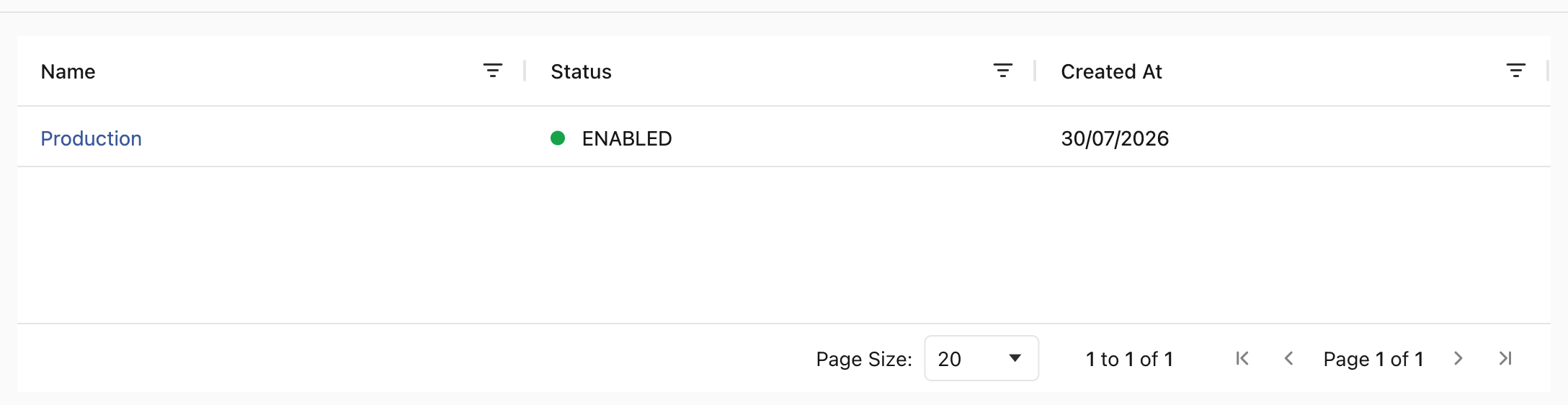
Records owned by a billing profile
Beyond projects, the billing profile owns the entire financial record. Each of the following is many-to-one against it, which is why the profile — not the organization, and not the user — is the unit you delete, suspend, or migrate as a whole:
| Attached to the profile | What it is |
|---|---|
| Bills | One per billing cycle, each with its own items, adjustments and tax |
| Account credits and their transactions | Prepaid funds, plus the invoiced record of each top-up |
| Promotional credits and promotion code redemptions | Granted credit and the codes that produced it |
| Credit cards and card transactions | Stored payment methods and every charge attempted against them |
| Bank transfers | Transfers matched to the account, each tied to a credit transaction |
| Collect transactions | Individual collection attempts against a bill |
| Savings contracts | Commitments purchased under a savings plan, and the plan eligibility that allowed it |
| Suspension processes | One record per dunning run, holding the notifications sent and where the run stands |
| Identity validations | Verification attempts and their outcome |
| Affiliate entries | Affiliate commission accrued from this account |
Two of these matter when you plan changes. A profile's currency is recorded on its bills, credits and transactions, so it is a property of the payer rather than a display setting. And because suspension processes are per profile, an override on the suspension settings changes only this customer's thresholds — runs already recorded are left as they are.
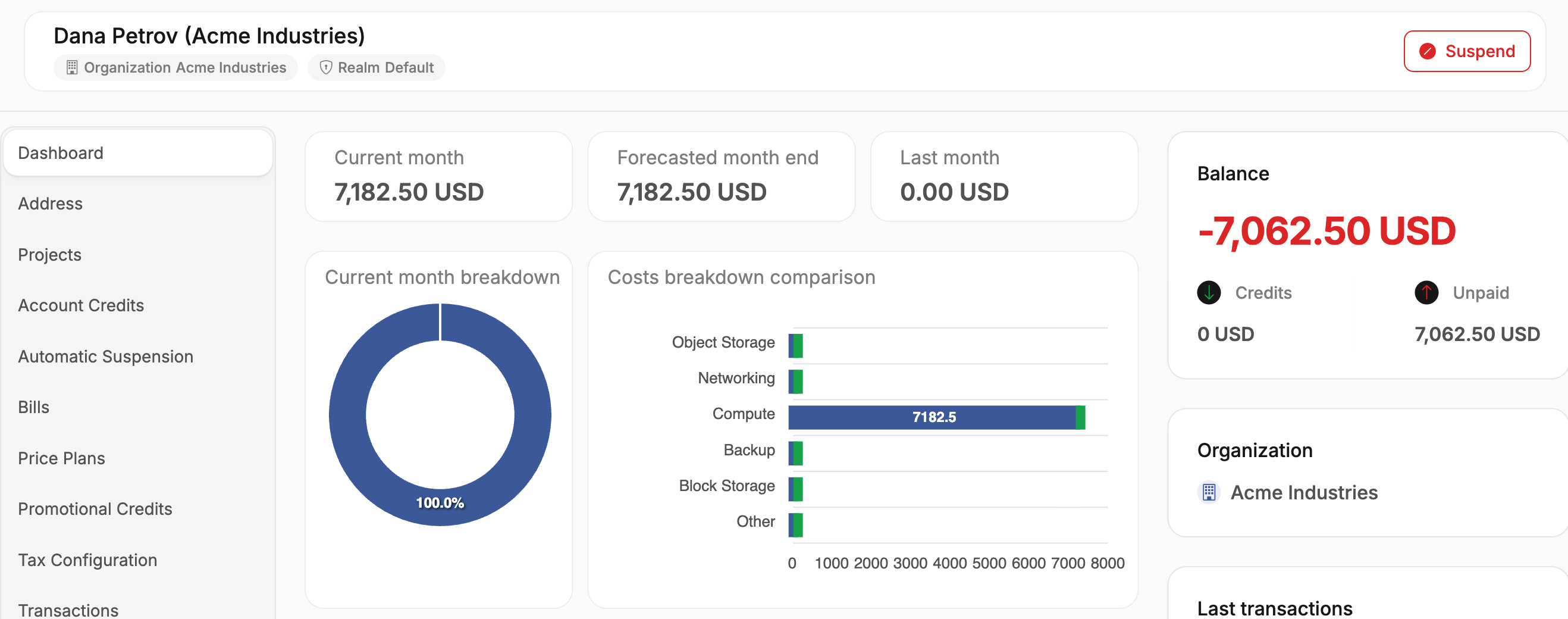
A profile names the organization and realm it belongs to, and carries its own balance — the amount outstanding once credits and payments are set against everything billed.
Invoiced identity
Personal or company name, tax ID, address and country are what OSIE prints on an invoice. Two of them are not cosmetic: country and the business-or-consumer distinction are what automatic tax rules resolve against, so a wrong country produces a wrong tax rate on every future invoice rather than an error you would notice.
Currency is part of the same identity. Bills are rated in the platform's base currency and issued in the profile's, so changing it changes how future invoices are presented, not what has already been rated. See Currencies.
A profile can also carry your own references, such as an order reference or the customer's code in your accounting system, as metadata. The customer never sees it, the Admin API finds the profile by it, and the invoice and statement templates can print it.
Status and its actions
| Status | Meaning |
|---|---|
| New | Created but not yet billable. Use Activate once you accept the customer, or let the platform's activation flow do it. |
| Active | Normal state. Metered, billed, invoiced. |
| Suspended | Cloud access withdrawn — see Suspension below. Unsuspend returns it to Active. |
| Skip | Bills are still calculated but never sent. Use it for internal, test, or otherwise non-invoiced accounts. |
| Deleted | The customer was removed. Personal data is anonymized, nothing is billed, and the profile is read-only. See Remove a customer. |
Suspend and Unsuspend are available directly on the profile, so you never have to wait for the automated process to act — or to undo what it did.
A profile can also leave New on its own, when the platform's activation flow is configured to do it. That flow can require conditions before it activates anyone: a stored payment card, a passed KYC check, or a validated billing profile. Until every required condition is met the profile stays New, and Activate remains the way to admit a customer regardless.
Price plans
By default a customer is priced by every Public price plan. Assigning plans to the profile is how you depart from that:
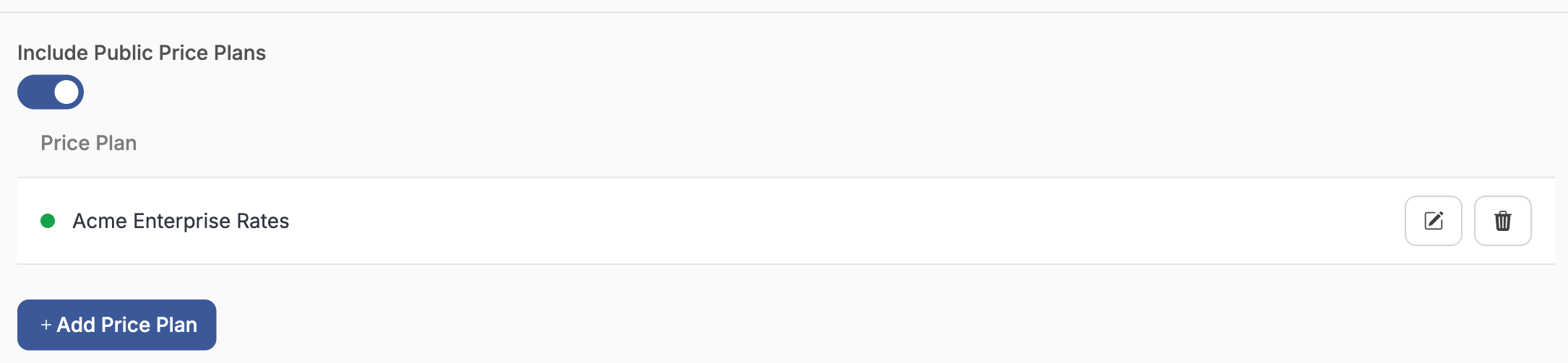
- Add Price Plan assigns a plan to this customer. Only Scoped plans can be assigned — a public plan already applies to everyone, so there is nothing to assign.
- Include Public Price Plans decides whether the public catalog still applies on top of the assigned ones. Leave it on and a scoped plan only has to carry the rules that differ; turn it off and the scoped plans become the customer's complete price list.
Once at least one scoped plan is assigned and Include Public Price Plans is off, anything those plans do not price is billed at nothing at all — a scoped plan holding one instance rule silently makes volumes, traffic and object storage free for that customer. Turn it off only when the assigned plans are a complete catalog. With no scoped plan assigned the public plans apply regardless of the switch.
Tax configuration
Tax is normally derived automatically from the profile's country, its business-or-consumer status and the tax rules you have configured. You override that for a single customer on the profile's Tax Configuration tab:
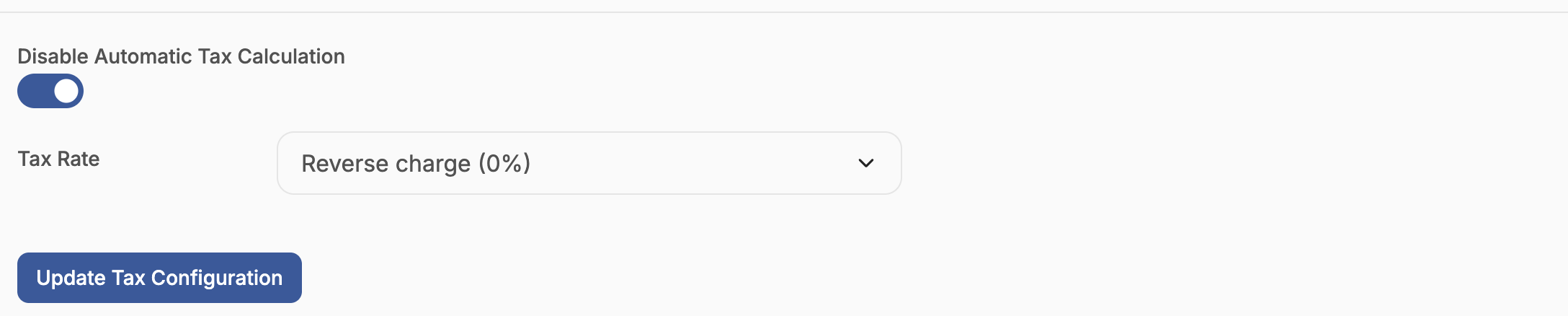
- Disable Automatic Tax Calculation stops the country lookup for this profile.
- Tax Rate then pins which tax applies. The list offers Scoped tax rules only, plus Don't add any tax — which is how you handle a reverse-charge or tax-exempt customer.
A scoped tax rule exists precisely to be selected here; it is never applied automatically. Create the rule first under Settings > Tax rules with its access mode set to Scoped, otherwise this list is empty.
Automatic suspension
Automated suspension is configured platform-wide, and every profile follows that configuration. A single profile can diverge from it:
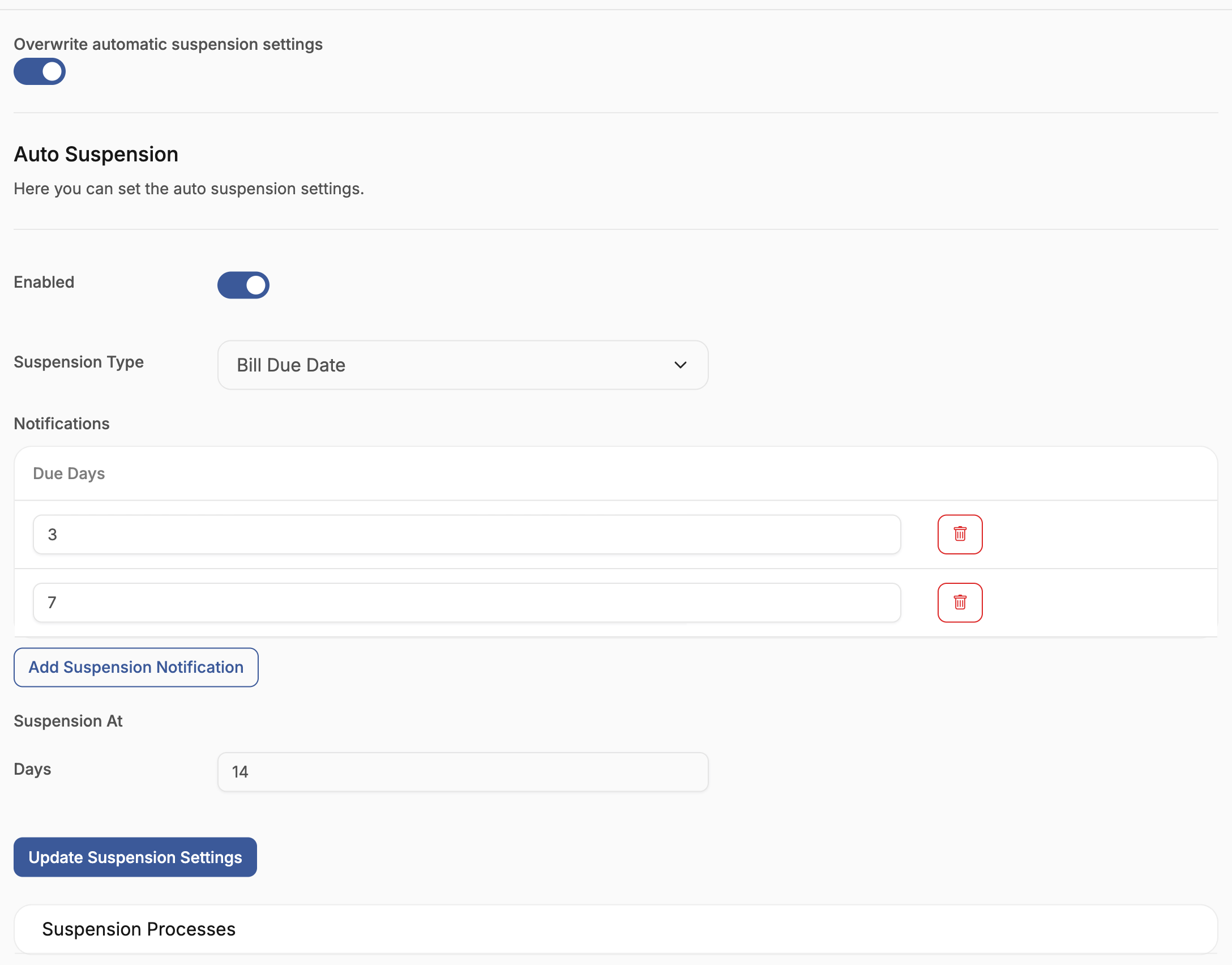
Overwrite automatic suspension settings replaces the platform configuration with the one below it for this profile only — trigger type, the notification thresholds, and the threshold at which suspension fires. Leave it off and the platform settings apply; the per-profile values are ignored unless the switch is on.
The same two triggers are available as platform-wide:
- Bill Due Date — measured in days past a bill's due date.
- Balance — measured against the account balance.
Notifications are sent as each threshold is passed, and suspension fires at Suspension At. Because the values are per profile, this is where you give an established customer more time to pay, or hold a trial account to a stricter limit. The Suspension Processes list below the form records what the automated process has done for this customer and where a run currently stands.
Effects of suspension
Suspension is not only a status change. For every project billed to the profile, and on every cloud provider that project is provisioned to, OSIE:
- Revokes each project member's roles on the cloud project, so no user can act on it.
- Disables the project's API users, so application credentials and API-driven automation stop too.
- Suspends every server in the project.
Then it sets the profile to Suspended and notifies the customer. Unsuspending reverses all three, in order: API users are re-enabled, member roles restored, servers resumed.
A suspended profile is not billed for the time it spends suspended, unless you choose to bill suspended accounts.
Failures are logged per project and per cloud provider rather than aborting the run, so a profile can end up suspended in OSIE while one cloud provider was unreachable. Check the API log if a suspended customer still has running servers.
Credits and balance
Two kinds of credit reduce what a customer owes, and both are held on the profile:
- Account Credits — prepaid funds. Each credit carries its own amount, currency and invoice reference, so topping up is itself an invoiced transaction.
- Promotional Credits — granted credit with an initial amount, a remaining amount and an expiry date. See Promotional credits for granting them at sign-up.
Both are consumed by bills as they are issued, and the profile's Balance is what remains once credits and payments are set against the amount billed. A negative balance is what the Balance suspension trigger measures.
Notifications
Billing notifications are silenced per customer, either wholesale or message by message:
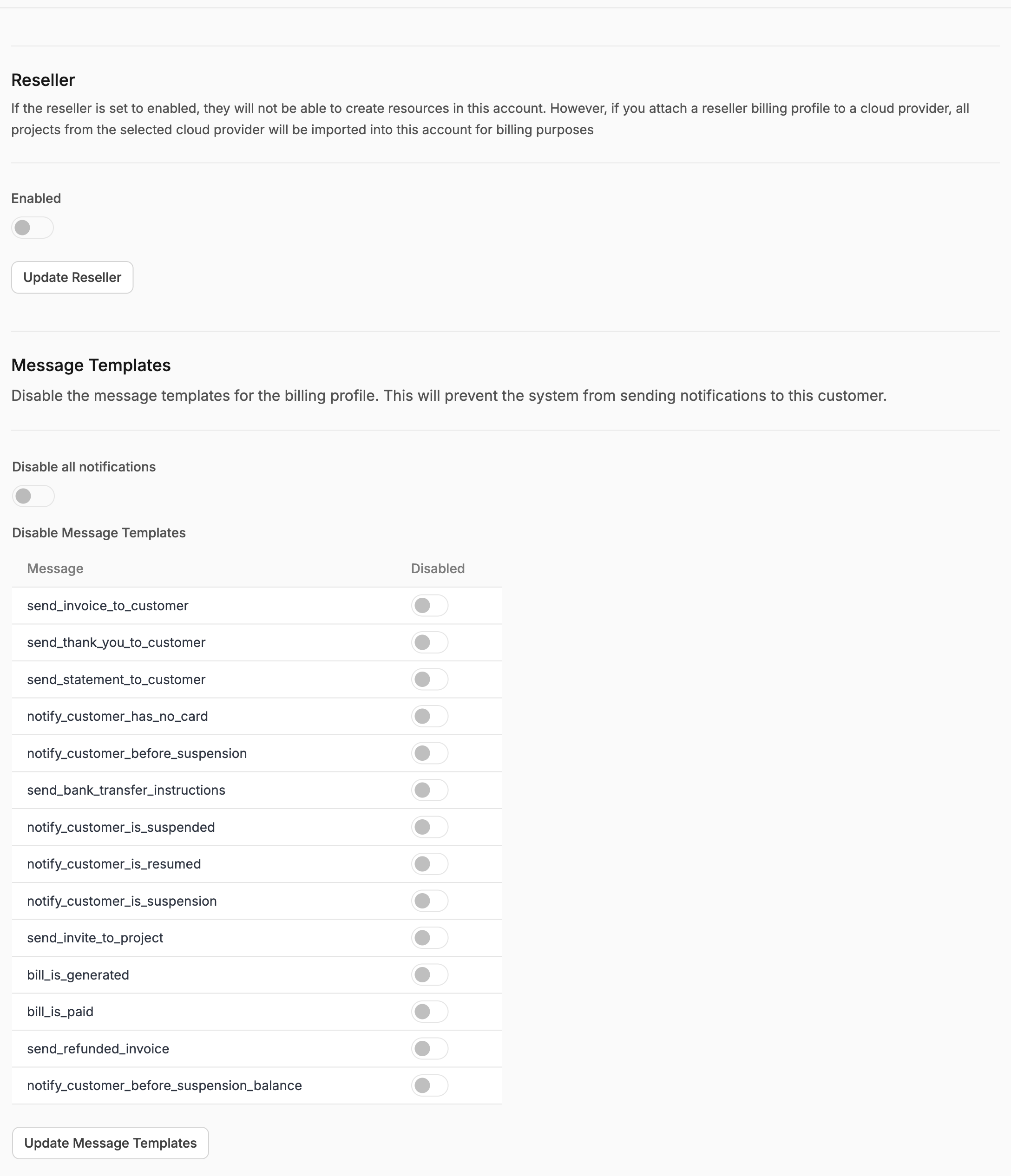
- Disable all notifications silences every billing message for the profile.
- Disable Message Templates silences individual messages — invoice delivery, suspension warnings, payment confirmations — one at a time.
Both are per profile and leave the platform's templates untouched. Silencing a profile is the right move for an account billed through a channel partner, or for an internal account paired with Skip status.
Reseller profiles
A reseller is a billing profile with Reseller enabled on the Settings tab. It changes what the profile is for: the reseller cannot create resources in the account, and instead every project from the cloud provider you attach the profile to is imported into it for billing. The reseller receives one bill for their whole domain, and the automatic-suspension settings and the Suspend action are hidden — suspending a whole domain is not something the dunning process does.
Setting one up spans the cloud side too; the full procedure is in OpenStack Domain Reseller.
Remove a customer
When a customer leaves, or asks for their personal data to be erased, you remove their billing profile in up to two steps. Deleting it erases who the customer is and keeps what they were billed. Purging it erases the billing history as well. Most removals stop after the first step, because bills and payments are usually records you must keep.
Deleting a billing profile does not touch the cloud. Its projects keep their resources, and once the profile is gone nothing bills them. Delete the customer's projects before the profile when their resources should go too.
Delete the billing profile
Open the profile under Client Area > Billing profiles and choose Delete Billing Profile. The dialog shows how many records each part of the removal affects.
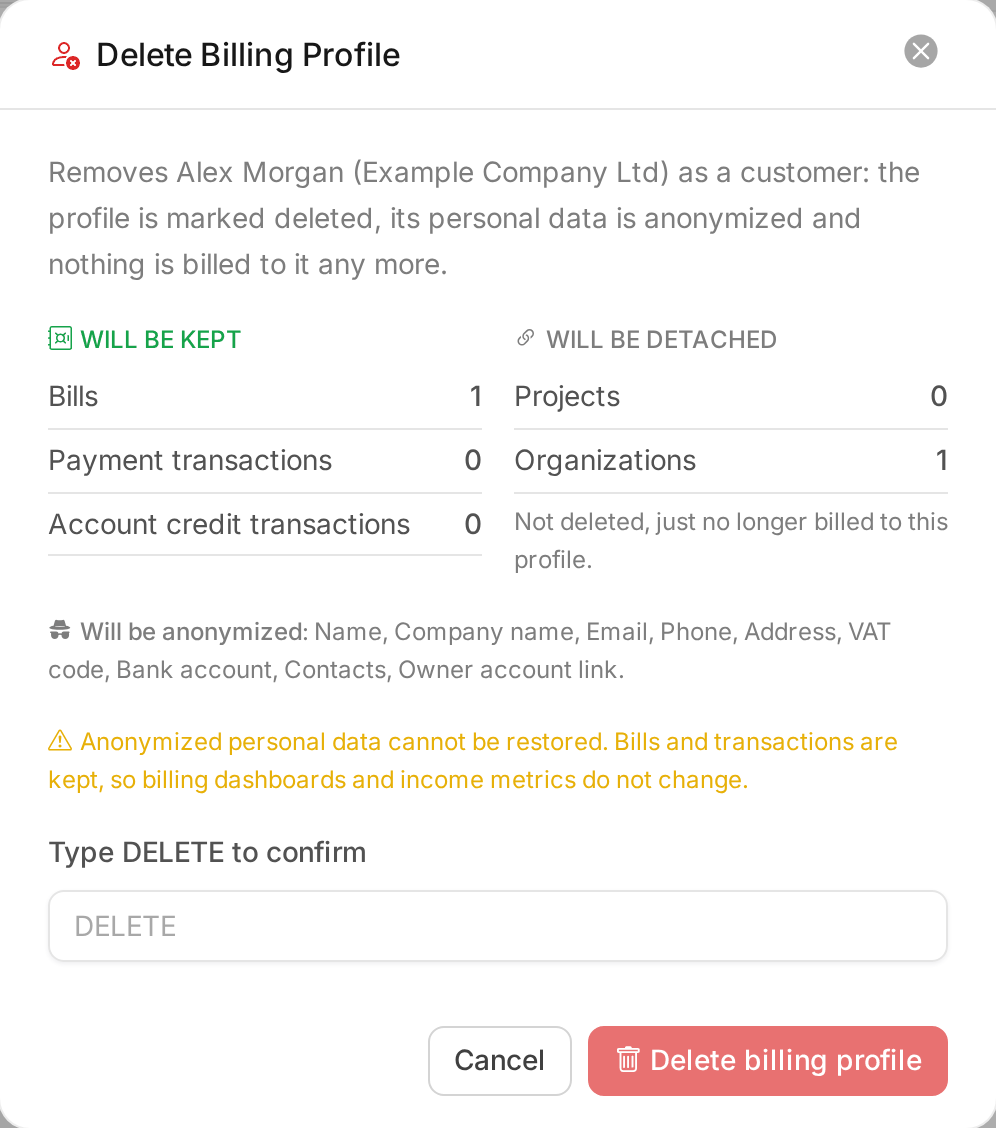
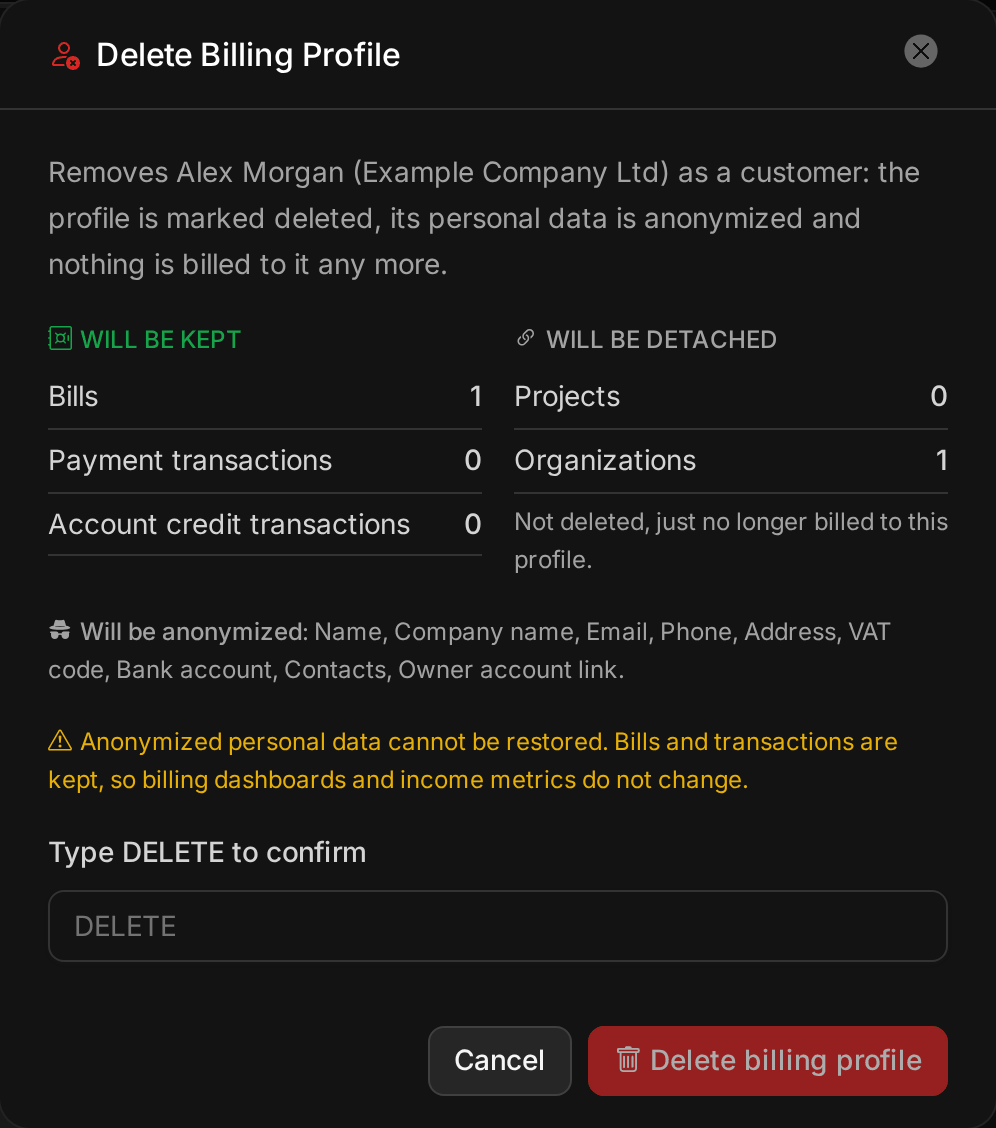
Deleting replaces the customer's name, contact details, address, tax ID and bank details, clears the profile's metadata, and removes their saved cards and identity checks. Their bills and transactions stay, so revenue and income reports do not change. The profile is detached from its organization and projects, and its status becomes Deleted.
A deleted profile cannot be edited, billed, suspended or attached to an organization again, and the customer no longer sees it in the client portal. The anonymized details cannot be restored.
Purge the deleted profile
Purge Billing Profile appears once a profile is deleted. It erases the profile together with every record it owns, as listed in Records owned by a billing profile.
A purge changes your billing history. Revenue and income reports lose everything the customer contributed, past months included, and invoices you already sent no longer match anything in OSIE. A purge cannot be undone.