Automated suspension
Automated suspension collects overdue money for you. When a customer's balance falls below a limit, or a bill stays unpaid past its due date, OSIE emails warnings at the thresholds you set. If the customer still does not pay, OSIE suspends their account and withdraws their cloud access. When they pay, OSIE resumes the account on its own.
Suspension process
OSIE checks every billing profile every 30 minutes. A profile that crosses its first threshold starts a suspension process, recorded on the profile under Suspension Processes. Each warning is sent once per process, to the billing profile's email address. When the profile reaches the suspension threshold, OSIE suspends its projects on every cloud, sets the profile to Suspended, and emails the customer.
A payment is checked at once, without waiting for the next run: adding funds, paying a bill by card, redeeming a promotion code, or an administrator adding credit. When a payment brings the profile back above the threshold that started the process, the process ends without another email. When it lifts a suspended profile above the suspension threshold, OSIE resumes its projects, sets it back to Active, and emails the customer that their services are resumed. The next time the profile falls behind, a new process starts with every warning unsent.
OSIE lifts only the suspensions it made. A profile you suspend by hand stays suspended until you unsuspend it.
The emails are message templates, which you edit under System > Message Templates.
Choose a trigger
Suspension follows one trigger, platform-wide.
Suspend on a negative balance
The Balance trigger measures the profile's balance: its account and promotional credit, minus everything unpaid on its bills, including the bill of the current month. A customer who owes 20 has a balance of -20, in the platform's base currency. A warning is sent when the balance falls below its threshold, and the account is suspended when the balance reaches Suspension At or goes lower.
Use it for prepaid accounts, which are expected to keep their balance above zero.
Suspend on overdue bills
The Bill Due Date trigger counts the days since the due date of the profile's oldest unpaid bill. A warning is sent once that bill is more days overdue than its threshold, and the account is suspended when it is overdue by Suspension At days or more. Bills of the current month are not due yet, so they never count.
Use it for accounts that pay invoices after the fact.
Configure automated suspension
- Go to System > Billing settings and open the Settings tab.
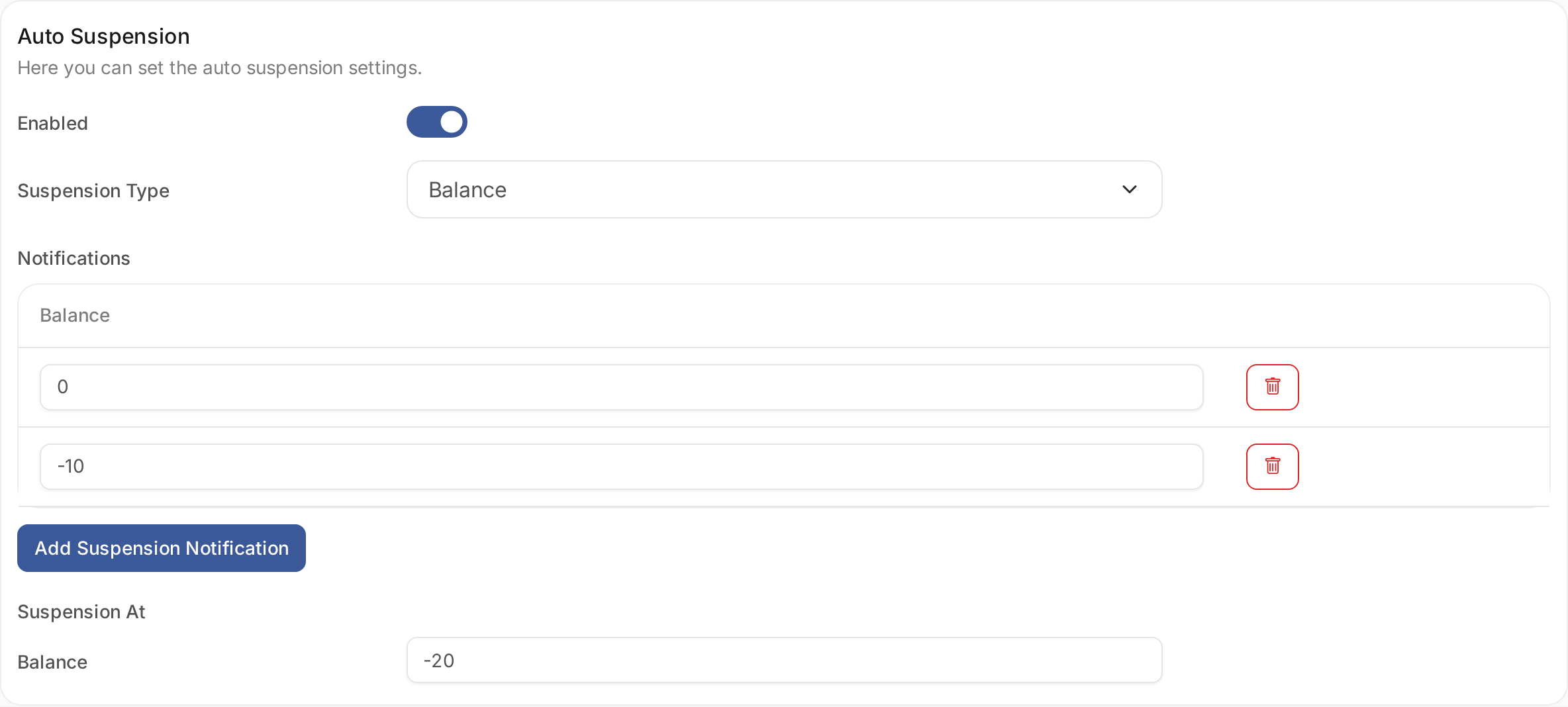
- On the Auto Suspension card, turn on Enabled and choose the Suspension Type.
- Under Notifications, add a row for each warning with Add Suspension Notification, and enter its threshold: a balance for the Balance trigger, a number of days for Bill Due Date.
- Enter the threshold in Suspension At.
- Select Update Settings.
For example, with the Balance trigger, warnings at 0 and -10 and suspension at -20 give a customer two warnings before their cloud access is withdrawn. With Bill Due Date, warnings at 3 and 7 days and suspension at 10 days give them ten days past the due date.
Which accounts are suspended
Automated suspension runs only while it is enabled here. It then applies to every Active billing profile that an organization bills to. It never suspends:
- profiles that are New, Skip or Deleted,
- reseller profiles,
- profiles whose payments are managed outside OSIE.
A single customer can have their own thresholds, or have suspension turned off, with an override on their billing profile. An override replaces the whole configuration for that profile. It takes effect only while automated suspension is enabled platform-wide.
Billing while an account is suspended
A suspended account keeps its volumes, IP addresses and suspended servers. By default it is not charged for them while it is suspended, and the time it spent suspended is not billed when it resumes.
To charge suspended accounts for what they hold, turn on Bill suspended accounts while they are suspended on the Suspended Accounts card of the same tab. Suspended accounts are then billed as they go, like active ones. The choice applies to every suspended account, whether OSIE suspended it or an administrator did.

