Adjustment rules
Price plan rules price one resource at a time. An adjustment rule works one level up: it measures what a customer has already accumulated on the current bill and writes a single line on top of it — a volume discount, a surcharge, a platform fee.
Adjustment rules belong to a price plan, so they inherit its audience. A rule on a Public price plan reaches every customer; a rule on a Scoped plan reaches only the billing profiles that plan is assigned to. Without a price plan applying to the customer, its adjustment rules never run.
Adjustment calculation
Each time the billing job runs, OSIE evaluates every enabled adjustment rule of every price plan that applies to the customer:
- Measure. Sum the net amount of the bill items matched by the rule's targets. That sum is the target amount.
- Select a tier. Take the tier with the highest start amount that is less than or equal to the target amount.
- Apply the modifier. Add or subtract the tier's value — a percentage of the target amount, or a flat sum — against the whole target amount.
- Write one line onto the bill, labelled with the rule's description.
The line is recalculated on every run rather than accumulated, so it always reflects the bill as it currently stands. Nothing is written when the target amount is zero, or when the target amount has not reached the lowest tier's start amount — and a line already on the bill is left untouched in those cases rather than reset.
Adjustments change the net amount of the bill. Tax rules are applied to the adjusted net, and account credits and promotional credits are deducted after that. A subtract modifier produces a negative line, which the customer sees in their portal under Adjustments on the bill.
Create an adjustment rule
Go to Settings > Price plans, open the plan the rule belongs to, and switch to the Adjustment Rules tab. The tab lists every rule on the plan with its status and description.

Click Create Adjustment Rule and fill in:
- Name — used to identify the rule in the admin dashboard.
- Enabled — a disabled rule is skipped by the billing job.
- Description — what the customer sees as the label of the line on their bill. When left empty, the name is used instead, so write it for the customer rather than for yourself.
Targets: what the rule measures
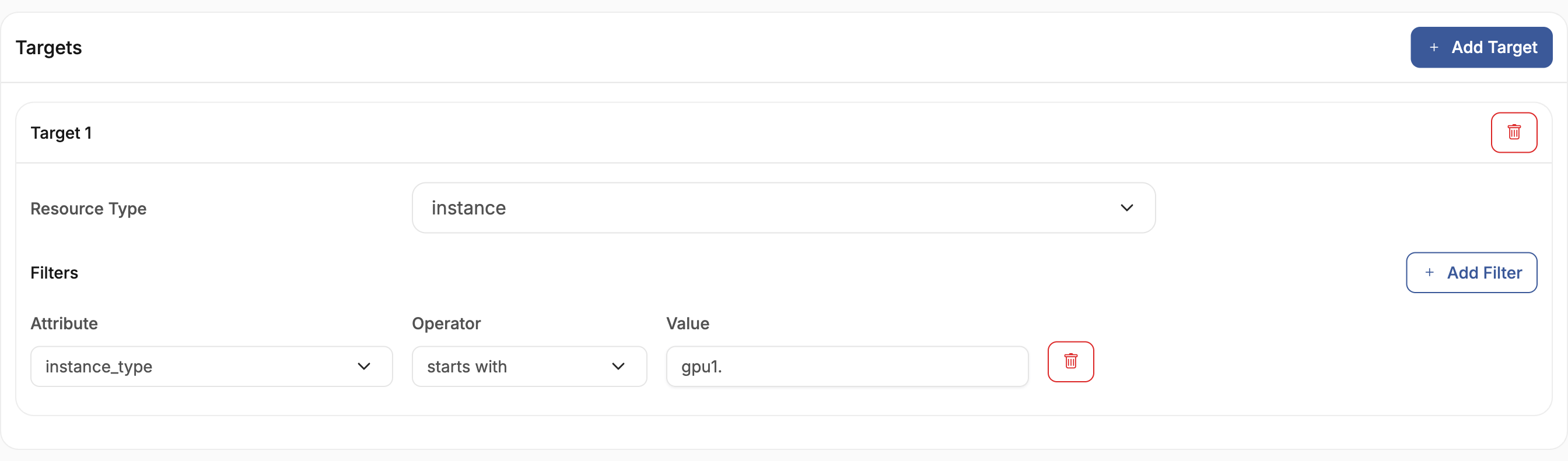
A target names one resource type and, optionally, a set of filters. A bill item counts towards the target amount when its resource type matches and all of that target's filters match — the same attributes and operators used by price plan rule filters, listed per type under Resource types.
- Several targets on one rule are additive: the target amount is the sum across all of them, so an item matching two targets is counted twice. Keep targets disjoint unless that is what you want.
- A target without filters counts every bill item of that resource type.
- A rule without targets measures the entire bill.
The rule below measures GPU compute only — instances whose flavor is one of the gpu1 sizes:
Tiers: how much is adjusted
A tier is a start amount plus a modifier. The modifier has three fields:
| Field | Meaning |
|---|---|
| Operator | Add charges more, Subtract charges less |
| Value | The size of the adjustment |
| As Percentage | When on, Value is a percentage of the target amount; when off, it is a flat sum in the platform's base currency |
Tiers turn a rule into a volume scale: give each threshold its own start amount, and the billing job picks the one the customer has reached.
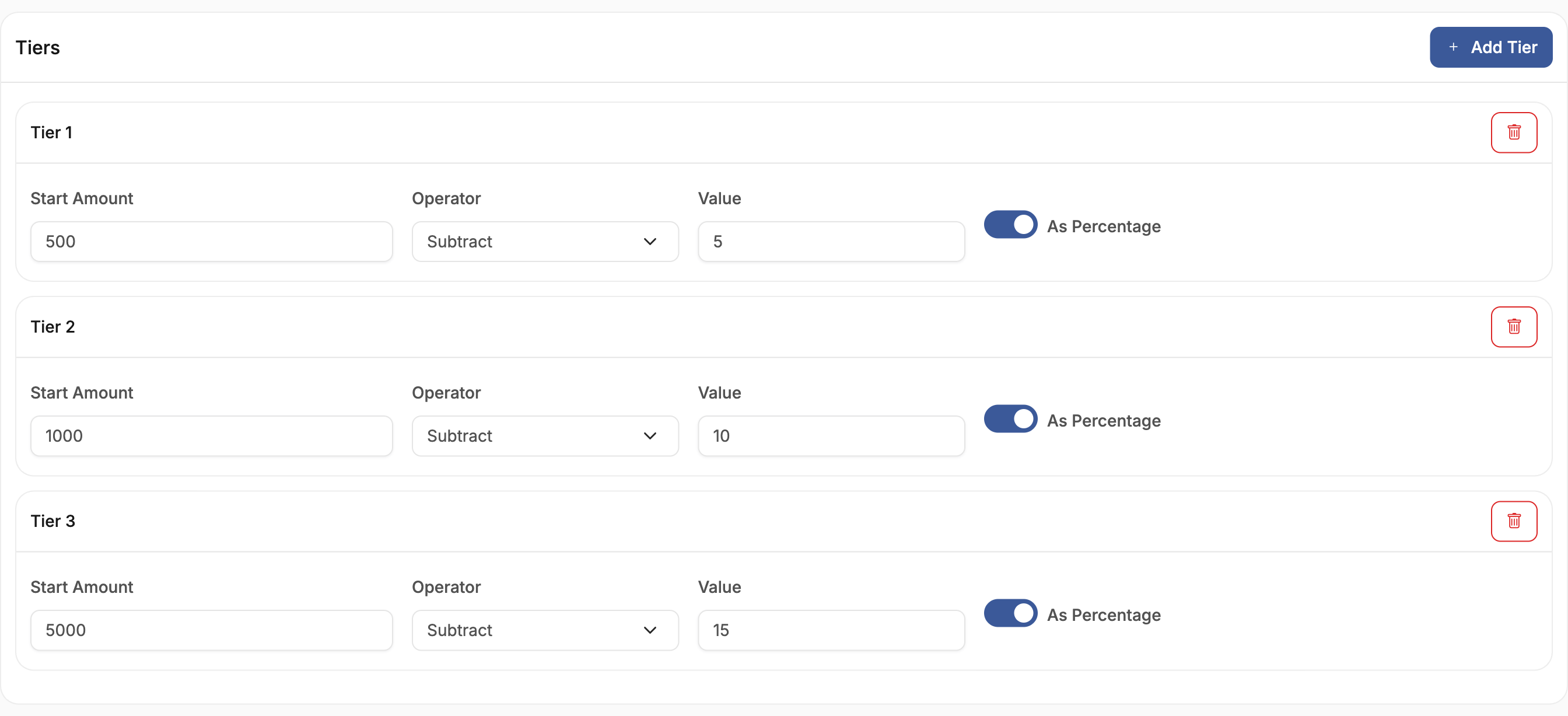
The selected tier's modifier applies to the entire target amount, not to the part above its start amount. A customer at €1,200 of GPU spend under the tiers above is discounted 10% of €1,200, not 10% of the €200 above the second threshold.
Worked example
Three tiers on a rule targeting GPU instances:
| Start amount | Operator | Value | As percentage |
|---|---|---|---|
| 500 | Subtract | 5 | on |
| 1000 | Subtract | 10 | on |
| 5000 | Subtract | 15 | on |
| GPU spend on the bill | Tier selected | Adjustment written |
|---|---|---|
| €420 | none | no line |
| €600 | 500 | −€30.00 |
| €1,200 | 1000 | −€120.00 |
| €6,000 | 5000 | −€900.00 |
As the customer keeps consuming during the month, the target amount grows, a higher tier takes over, and the existing line is rewritten with the new figure.
Change a rule that is already in use
Bills are open for the whole billing cycle, so a rule you edit today is one the billing job has likely already applied. The rule page shows how many open bills currently carry its line and how much has been adjusted so far.

Edits take effect on the next billing job run, and the line on every affected open bill is rewritten to the new figure — including retroactively for consumption already billed this cycle. To change a rule without touching bills that are already open, create the replacement rule with the next cycle in mind and keep the current one until the cycle closes.
Disabling or deleting a rule stops it from being recalculated but does not remove lines it has already written to open bills; those keep their last value until the cycle closes. A line on an open bill can be rewritten to a different amount by changing the rule's tiers, but it cannot be taken off the bill — so prefer correcting a rule over deleting it mid-cycle.
Troubleshooting
| Symptom | Cause | Fix |
|---|---|---|
| No adjustment line on the bill | The rule is disabled, or its price plan does not apply to that customer | Enable the rule; check the plan's access mode and its assignment on the billing profile |
| No adjustment line although the customer has usage | The target amount has not reached the lowest tier's start amount | Lower the start amount, or add a tier starting at 0 |
| Target amount stays at zero | A filter names an attribute the bill items do not carry, so no item matches | Check the attribute against the resource type's attribute list, and confirm the resource type matches the items on the bill |
| Adjustment much larger than expected | The tier modifier applies to the whole target amount, not only the part above the start amount | Set the value to what the full-amount discount should be |
| A rule was deleted but its line is still on the bill | Lines already written to an open bill are not removed | Wait for the cycle to close; while it is open, only a rule that still exists can rewrite the amount |