Protection plans
A protection plan assigns resources to a protection policy. The service backs up each resource on the policy's schedule and retains each backup for the policy's retention period. Create a plan to enable scheduled backups for your resources.
A plan protects one kind of resource: instances, volumes or buckets. The kind is fixed when the plan is created. Put servers that belong together in one plan. They run at the same time, under the same policy, and each still gets its own backups.
Choose a policy
Your cloud operator defines the available protection policies. Each policy summary states its schedule, retention, vault and deletion restrictions.
openstack backup policy list -c name -c mandatory -c sentence
+----------------------+-----------+---------------------------------------------------------------+
| name                 | mandatory | sentence                                                      |
+----------------------+-----------+---------------------------------------------------------------+
| nightly-7d-immutable | False     | Every day between 21:00 and 05:00. Each backup is kept for 7  |
|                      |           | days. A manual one can be kept up to 90 days. Backups are     |
|                      |           | kept in the Immutable vault and cannot be erased before they  |
|                      |           | expire, by anyone.                                            |
| weekly-immutable     | False     | Every week on Thursday at 02:00. Each backup is kept for 3    |
|                      |           | weeks, one a month for 6 months. A manual one can be kept up  |
|                      |           | to 90 days. Backups are kept in the Immutable vault and       |
|                      |           | cannot be erased before they expire, by anyone.               |
+----------------------+-----------+---------------------------------------------------------------+
The list holds only the policies your project may use. Check two properties before you choose:
- Mandatory policies cannot be paused, deleted or left by a tenant. Their backups cannot be deleted either. They exist so that protection, once in place, cannot be switched off with a project token.
- A withdrawn policy keeps running the plans already on it and accepts no new ones.
If no policy fits what a workload needs, ask your operator for one.
Create a plan
- Console
- CLI
Go to Plans and choose New plan, or select resources under Resources and choose Protect resources.
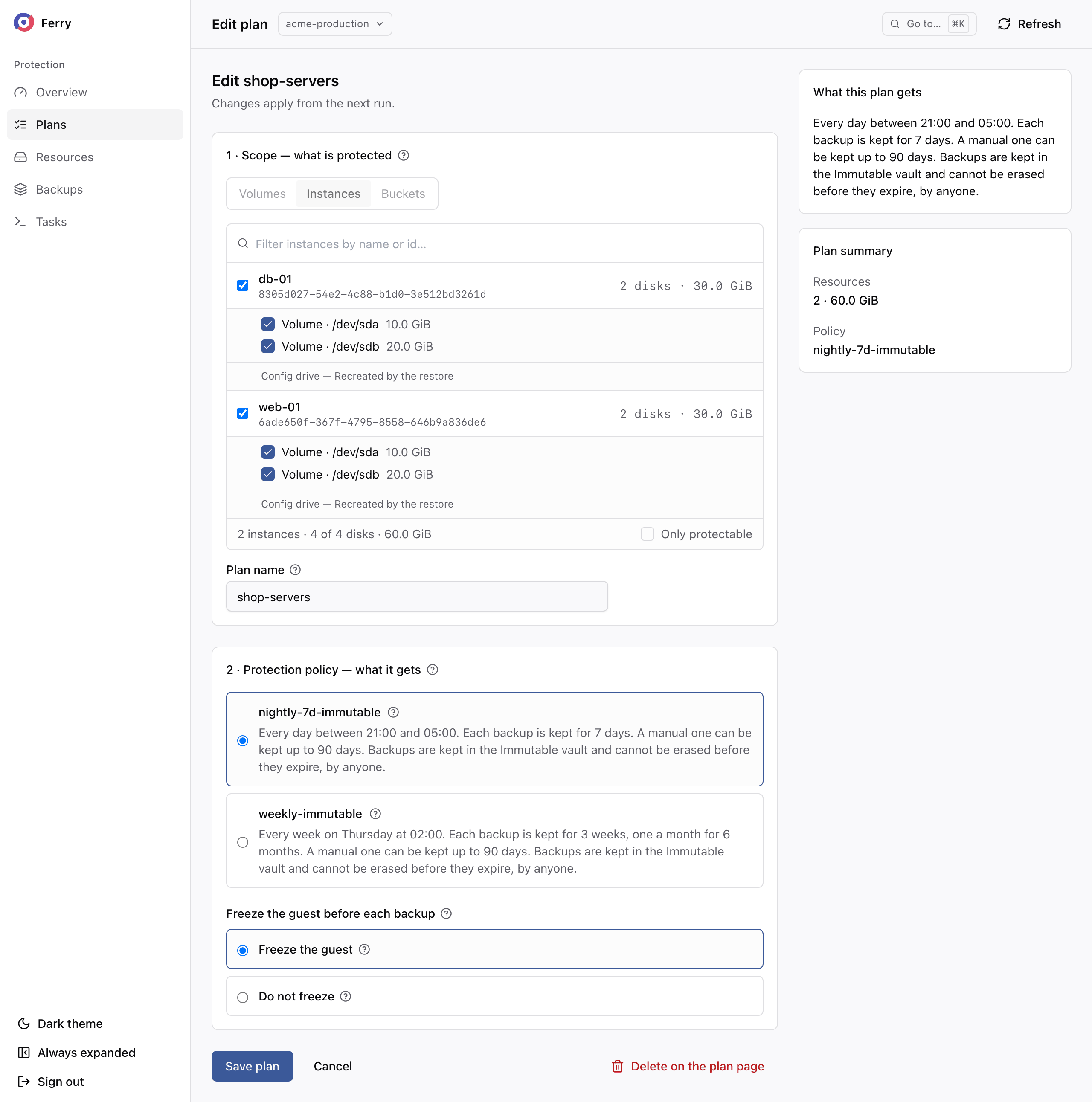
- Under Scope, pick Instances, Volumes or Buckets, and tick what to protect. An instance expands to show its disks.
- Give the plan a name.
- Under Protection policy, pick the service level. When only one policy is offered to the project it is already selected.
- For instances and volumes, choose whether to Freeze the guest before each backup (see below).
- Choose Create plan, or Create and back up now to take the first backup straight away.
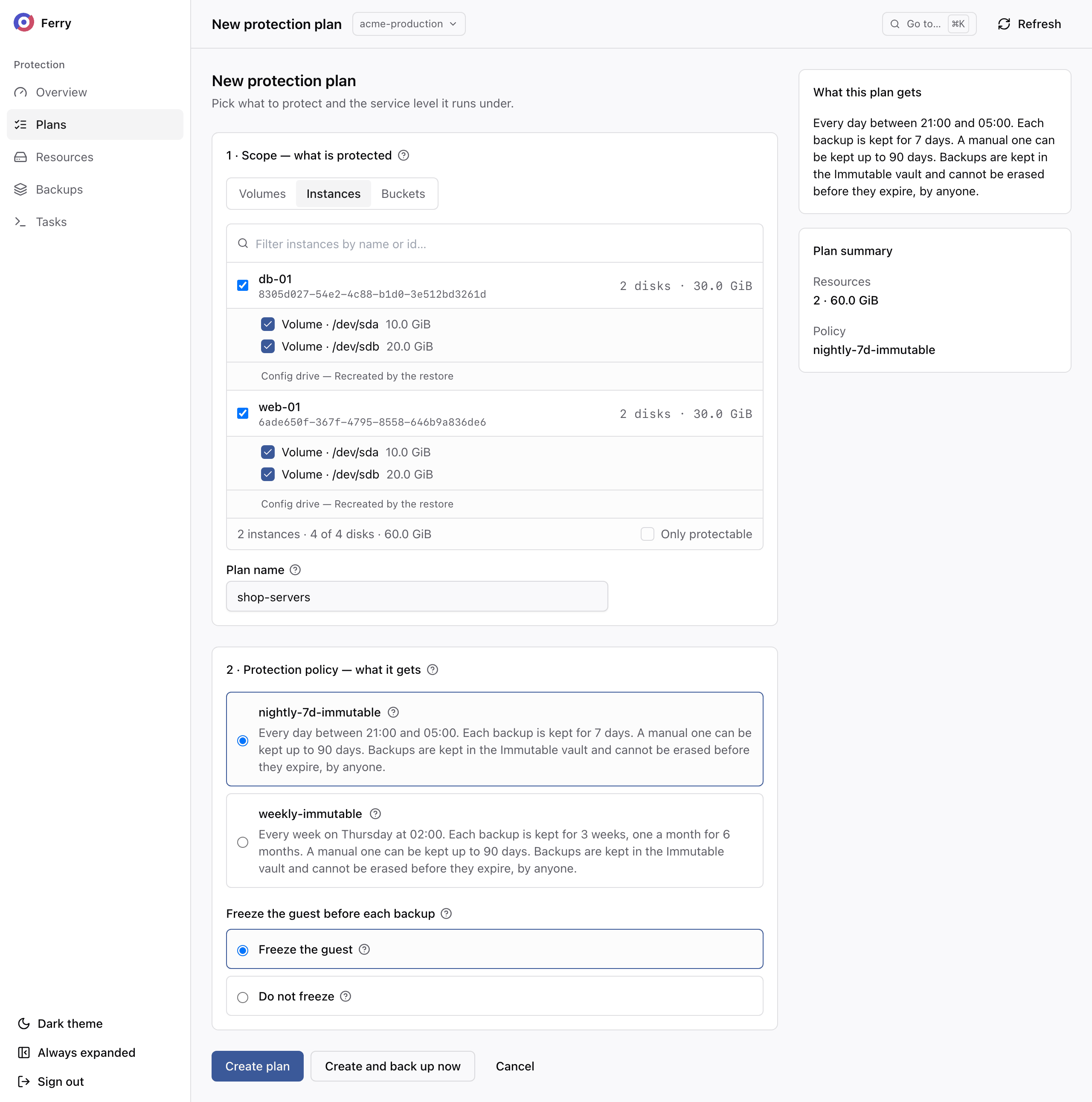
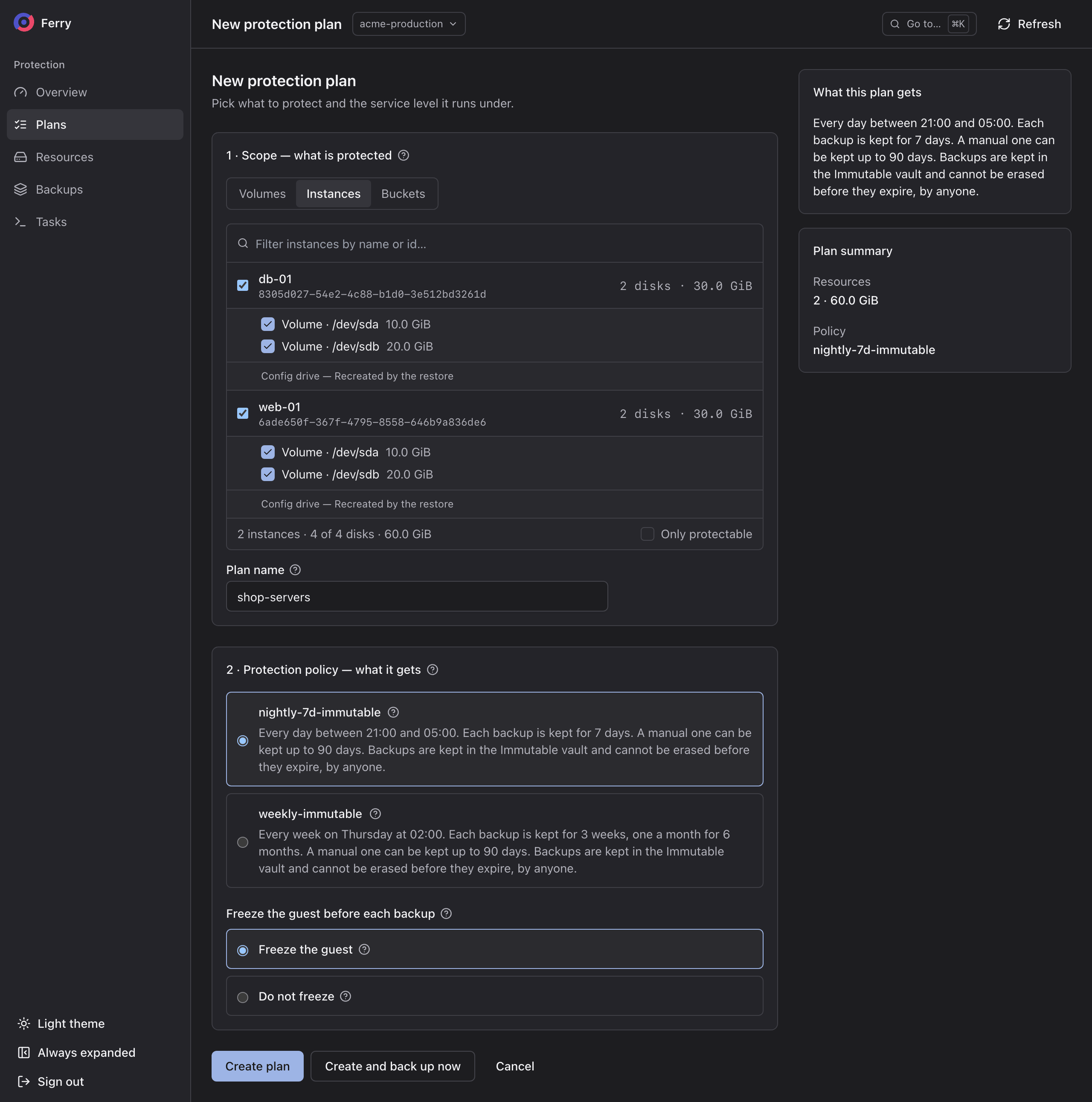
Review the summary for excluded resources and disks before saving.
Name every resource by its id, once per --resource:
openstack backup plan create shop-servers \
  --resource-kind instance \
  --resource <server-id> \
  --resource <server-id> \
  --policy nightly-7d-immutable \
  --consistency filesystem
--resource-kind is instance, volume or bucket. A bucket is named by its bucket name. The plan
takes its first backup at the policy's next scheduled run. To take one now, see
Take a manual backup.
The first backup reads the resource's data. Later backups upload only new data. Incremental reads depend on the storage backend.
Freeze the guest before each backup
Freezing flushes the guest's filesystem buffers and pauses writes while the service snapshots the instance's disks together. The pause lasts about a second. This produces a filesystem-consistent backup. Applications may still need their own recovery procedures after a restore.
| Choice | Console | CLI | Result |
|---|---|---|---|
| Freeze | Freeze the guest | --consistency filesystem | Filesystem-consistent backups. |
| Do not freeze | Do not freeze | --consistency crash | Crash-consistent backups: the disks as they were at one instant, like a server that lost power. |
| Leave it unset | neither | omit the option | The cloud's default: freeze where the operator has deployed the freeze agent on the hypervisors, otherwise do not. |
Freezing needs the QEMU guest agent running inside the guest, which most cloud images include. A guest that cannot be frozen is still backed up, crash-consistent. The backup is marked degraded so the difference is visible.
On guests with SELinux enforcing (RHEL, AlmaLinux, Rocky Linux, CentOS Stream), the guest agent may
not open filesystems mounted at paths of your own. An example is a data volume on /srv/data. The freeze
then fails and every backup of the guest is marked degraded. Allow it once inside the guest, and
relabel the mount point:
sudo setsebool -P virt_qemu_ga_read_nonsecurity_files 1
sudo restorecon -R /srv/data
Choose Do not freeze for a workload that a one-second write pause disturbs. The choice does not apply to buckets, which are read object by object.
You can change it later on the plan. The change applies from the next backup.
Encrypt a plan's backups
Choose encryption when you create the plan. The choice is fixed for the plan's lifetime and requires a key manager in your cloud:
| Console | CLI | What it means |
|---|---|---|
| Repository key | omit --encryption | Encrypted with a key shared across the repository. Identical data from other plans is stored once. |
| Its own key | --encryption barbican | Encrypted with a key that belongs to this plan alone. Nothing is shared with other plans. If the key is lost, the backups cannot be read. |
| Not encrypted | --encryption none | Stored as written. Anyone with access to the storage can read it. |
When the cloud has no key manager, the section is not shown and backups are stored unencrypted. The
console handles this for you. With the CLI, pass --encryption none, because a plan that asks for
the repository key on such a cloud is refused.
Plan coverage and exclusions
An instance plan covers every disk. The root disk and every attached volume are backed up
together. To leave a disk out, untick it under its instance in the console, or pass
--exclude-disk <volume-id> to the CLI. A disk left out is not restored either. The instance comes
back without it, and restoring such a backup asks you to acknowledge the missing disk.
Config drives and swap disks are recreated. They hold nothing that outlives the instance, so a restore creates them fresh.
A volume can be covered twice. A volume attached to an instance in one plan and also named in a volume plan is backed up by both. The plan form warns when that happens.
A bucket plan protects exactly one bucket, because a restore writes into one bucket. Create one plan per bucket.
Check whether resources can be protected before adding them. Under Resources, the console
explains why a resource is unavailable and how to resolve it. Causes include unreadable storage,
an unavailable encryption key or missing bucket access. The CLI reports this in the protectable
and reason columns:
openstack backup resource list
After a plan exists, openstack backup plan refusal list <plan-id> reports anything in it that is
not being backed up, and why.
Manage a plan
Every change to a plan applies from its next backup. Backups already taken keep the expiry date they were given when they completed, whatever happens to the plan afterwards.
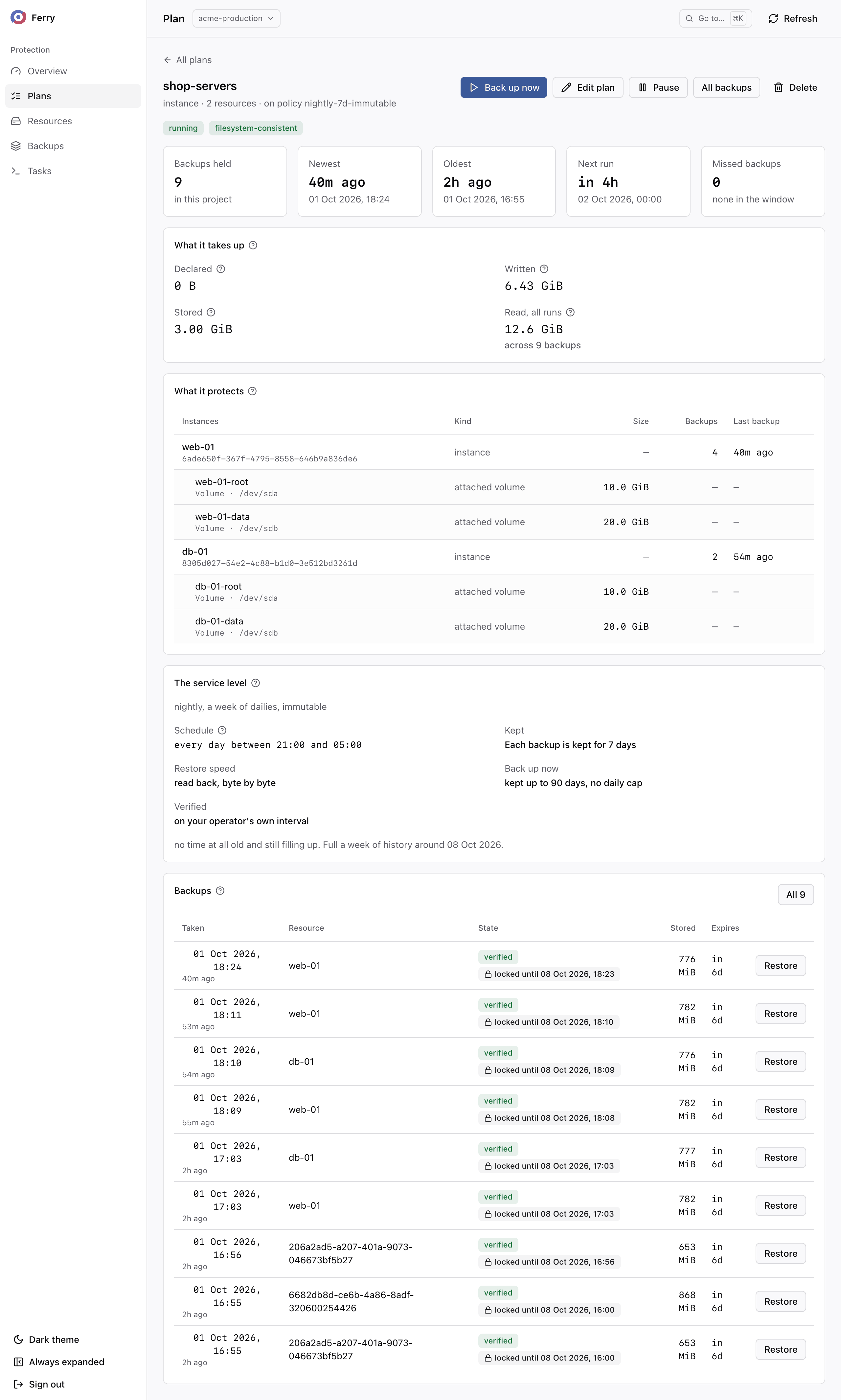
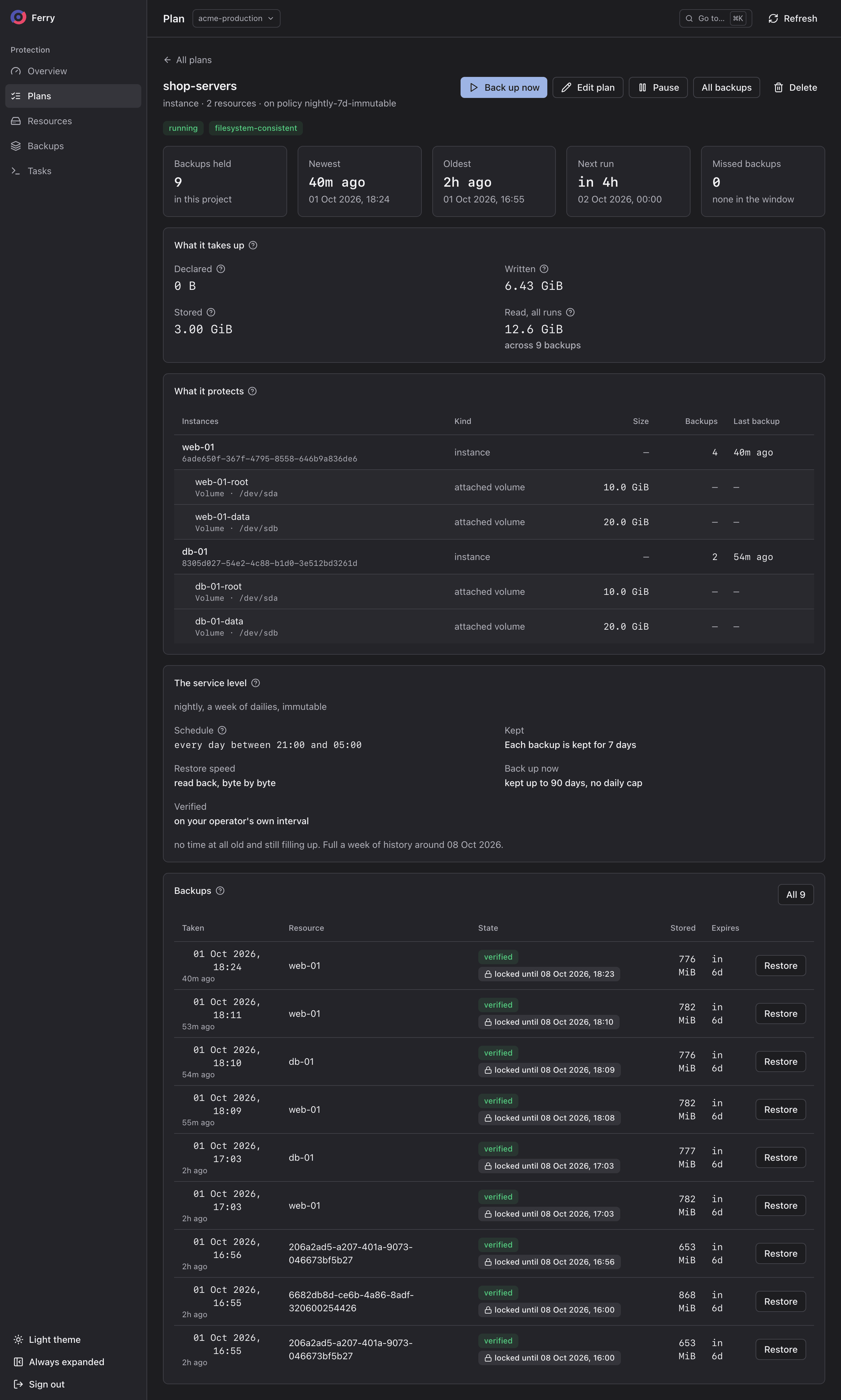
The plan's page shows what it protects, the service level it runs under, when it runs next, the backups it holds, and any scheduled backup that did not run, with the reason.
Change a plan's resources
- Console
- CLI
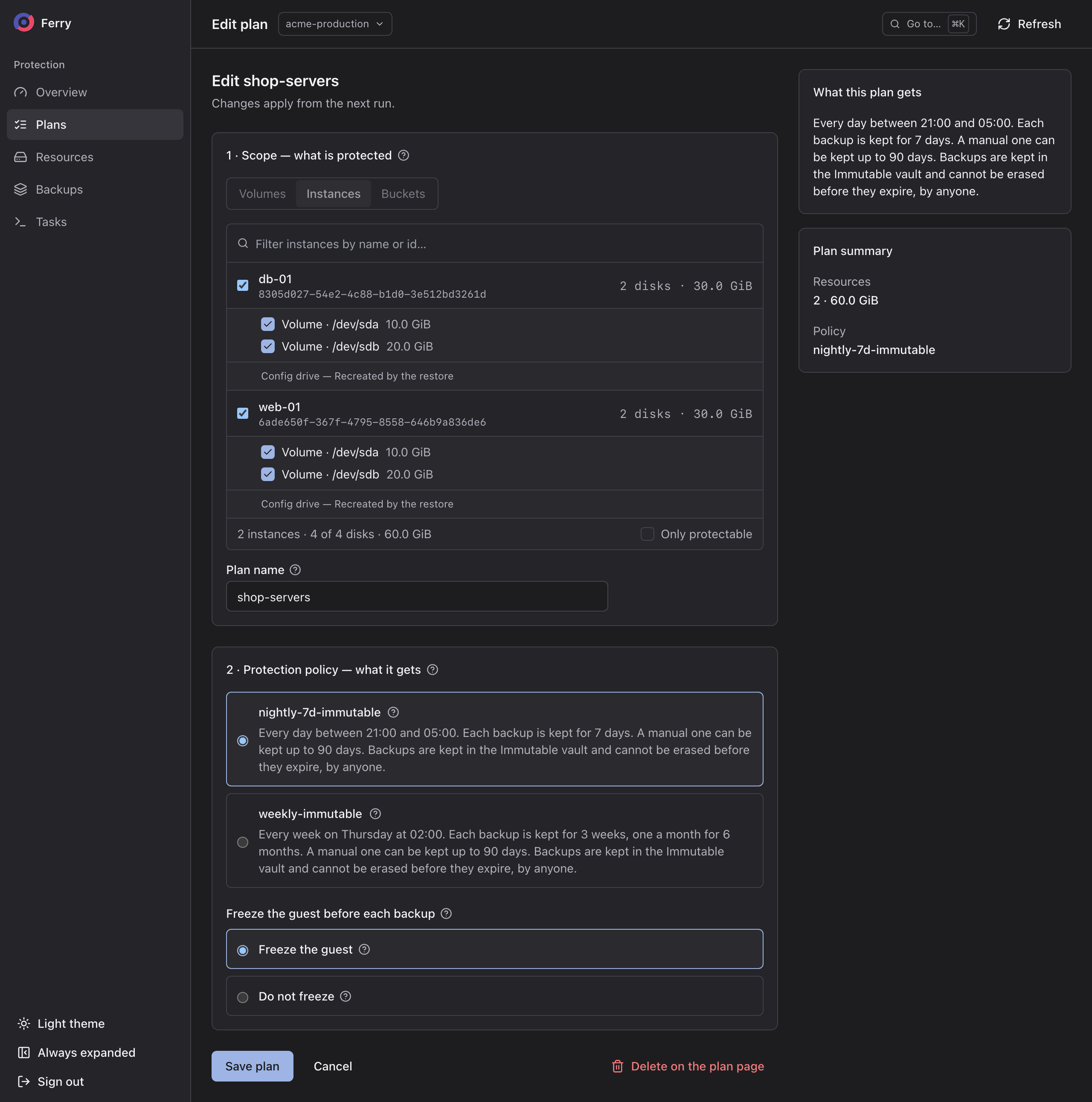
Open the plan and choose Edit plan. Tick or untick resources and disks, change the policy or the freeze choice, and choose Save plan. The plan's kind cannot change. To protect another kind of resource, create a new plan.
--resource replaces the whole list, so name every resource the plan should keep:
openstack backup plan set <plan-id> \
  --resource <server-id> \
  --resource <server-id>
--exclude-disk also replaces the list of disks left out. Pass an empty value to protect every
disk again. --consistency filesystem or --consistency crash changes the freeze choice.
A resource removed from a plan stops being backed up at the next run. Its existing backups stay listed under Backups and stay restorable until each one expires.
Move a plan to another policy
Choose another policy in the plan's edit form, or:
openstack backup plan set <plan-id> --policy <policy>
A tenant may move a plan only to a policy that protects at least as well. A move to a policy that keeps backups for less time, runs less often, drops immutability or offers a weaker recovery is refused. The refusal gives the reason ("that policy offers less protection than this plan already has"). Only an operator can make such a move. A plan under a mandatory policy can be moved by a tenant only to another mandatory policy that protects at least as well.
Pause and resume a plan
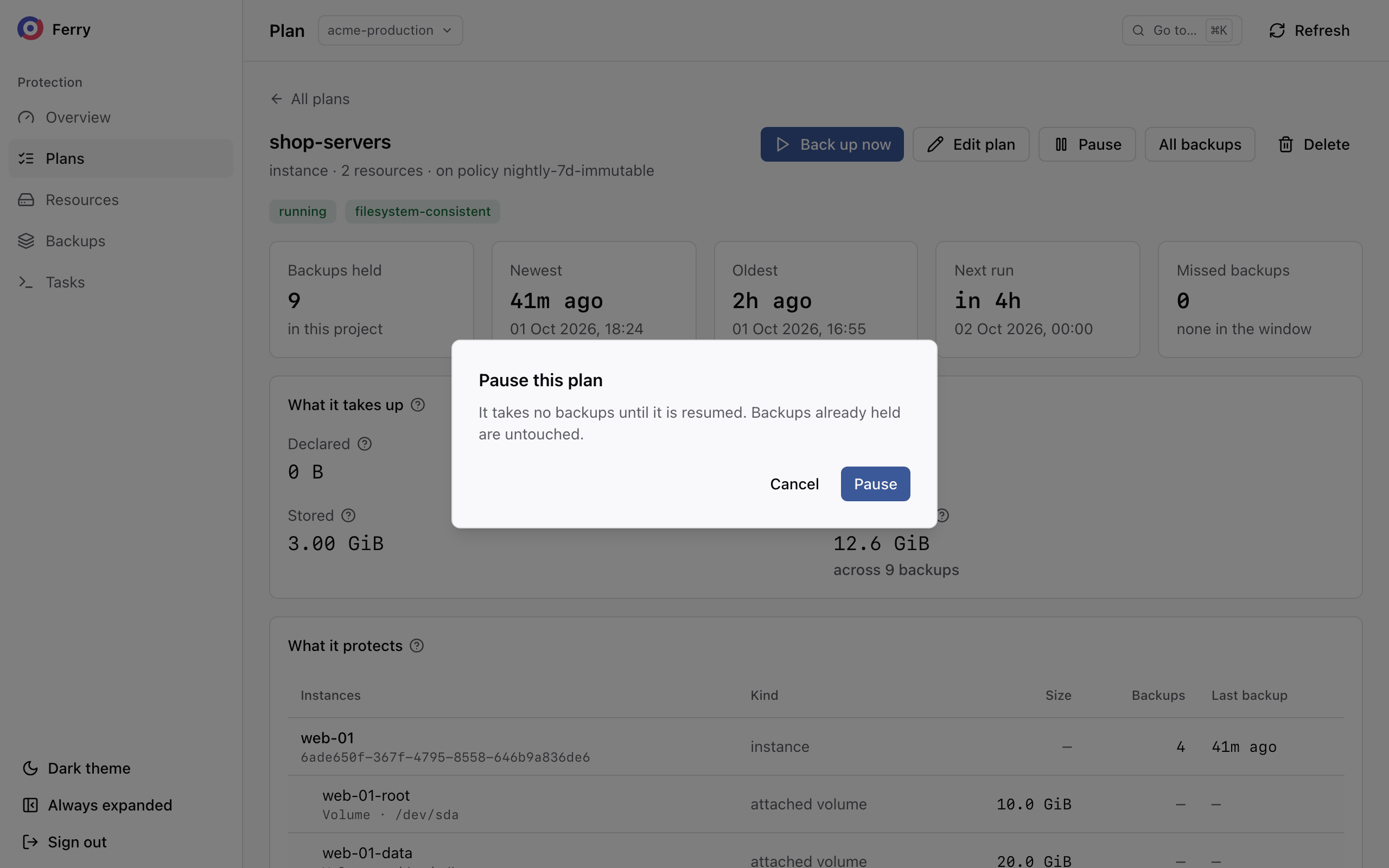
A paused plan takes no backups until it is resumed, and its existing backups are untouched. While it is paused, its resources count as unprotected on the overview.
- Console
- CLI
Choose Pause on the plan page, then Resume to start it again. It runs at the policy's next scheduled time. The missed runs are not caught up.
openstack backup plan set <plan-id> --disable
openstack backup plan set <plan-id> --enable
A tenant cannot pause a plan under a mandatory policy. The button is disabled, and the API refuses with "protection under this policy cannot be turned off".
Delete a plan
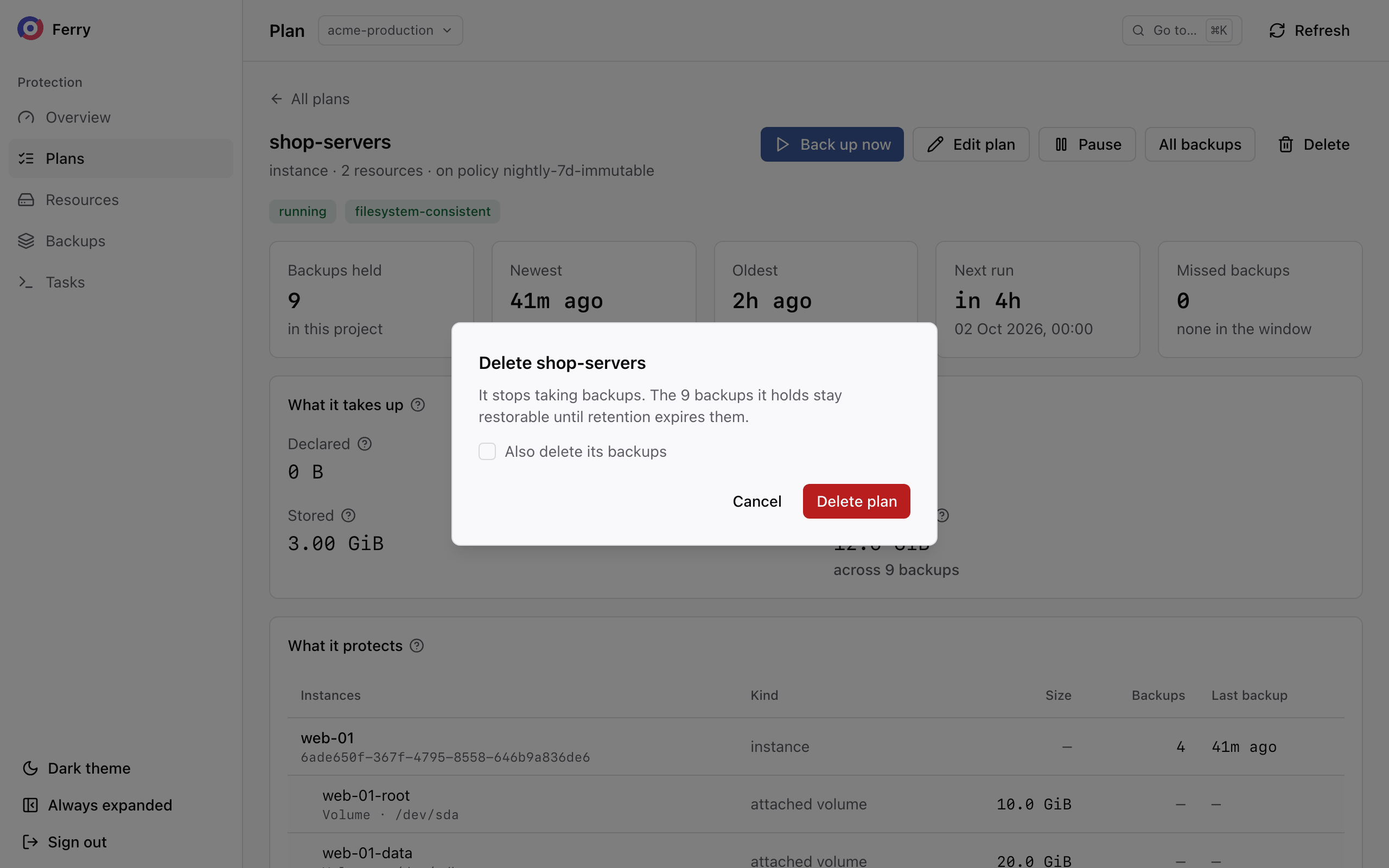
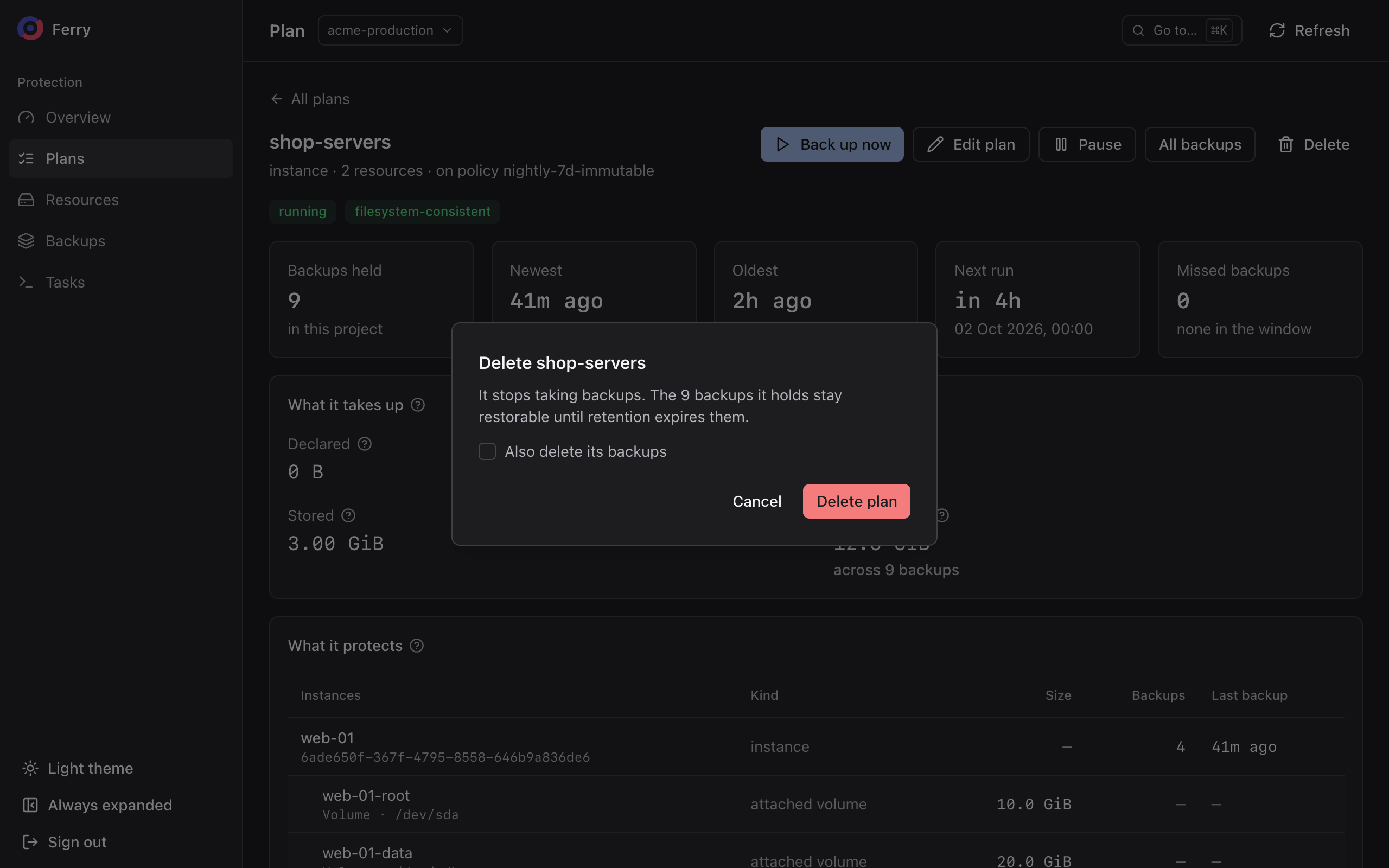
Deleting a plan stops its backups. By default the backups it took stay listed and restorable until each one expires. In the console you can tick Also delete its backups to remove them too.
- Console
- CLI
Choose Delete on the plan page, decide whether to tick Also delete its backups, and confirm.
openstack backup plan delete <plan-id>
The plan's backups are kept. Use openstack backup point delete to delete individual backups.
A deleted plan disappears from the project immediately. Ask your operator to recover it if it was deleted by mistake. Recovery is available during the deletion grace period. Deleted backups in an immutable vault leave your listing and usage, but storage retains their data until both the lock and deletion grace period end.
A plan under a mandatory policy cannot be deleted by a tenant.
Related
- Take a manual backup before a workload change.
- Monitor backup coverage and check whether plans are on schedule.