Custom roles for every organization
Organizations define their own custom roles in the client portal. When many of your customers need the same role, such as a read-only billing role or an auditor role, define it once in the admin dashboard instead. Every organization on the platform can then use it.
A role defined here works like an organization's own custom role. The organization's owners assign it to members, grant it through groups, and name it in IAM attachments. Organizations list it read-only with a Public badge, and only this page changes or deletes it. See Roles from your provider for what customers see.
Create a custom role
- Open System > Settings > Identity management and choose the Custom Roles tab.
- Choose Create custom role.
- Enter a Role Name in uppercase letters, digits and underscores, such as
AUDITOR, and a Description that tells customers what the role is for. - Tick the permissions the role grants. The permissions are the same as for an organization's own roles, listed in Members and roles.
- Choose Save.
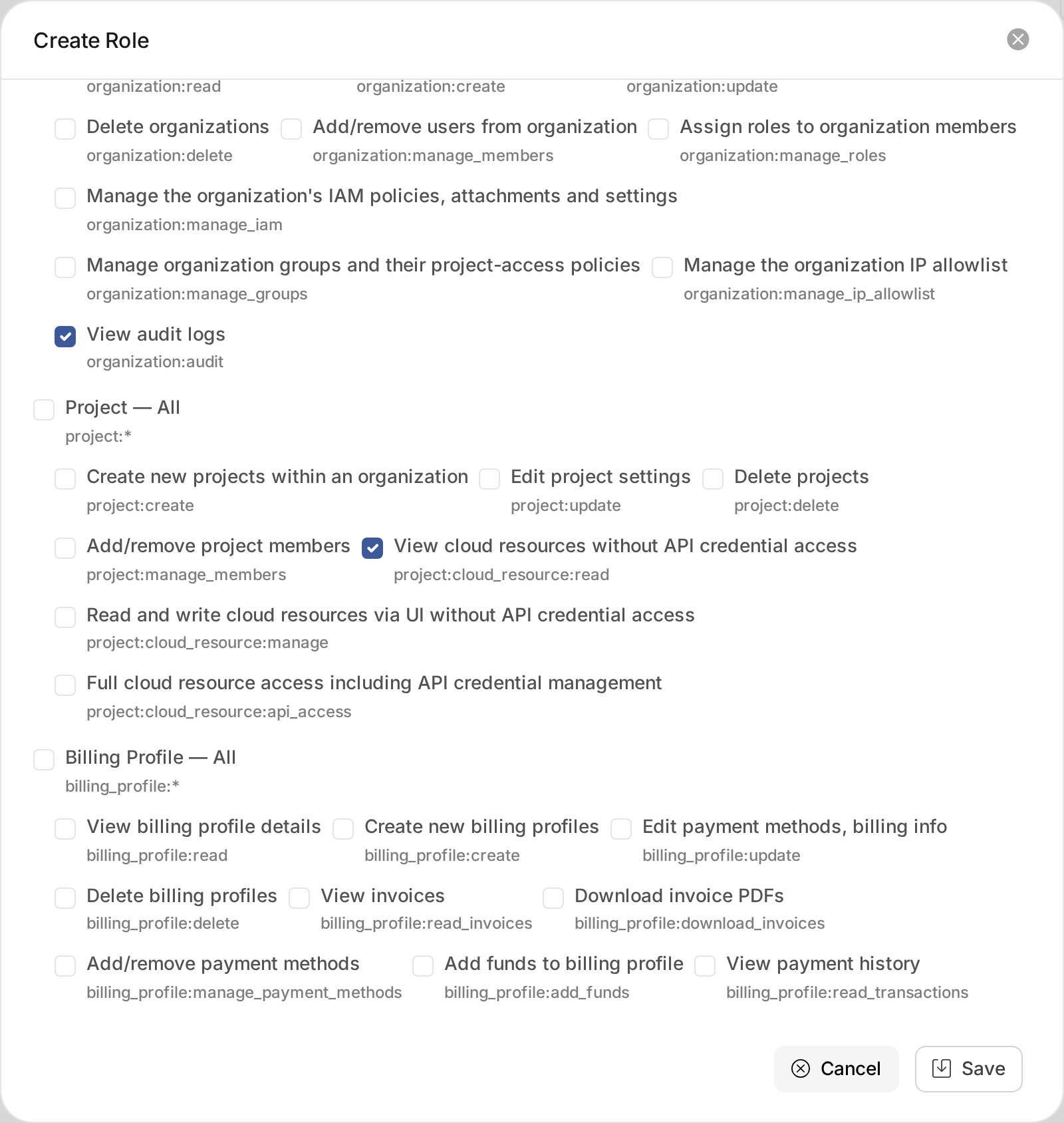
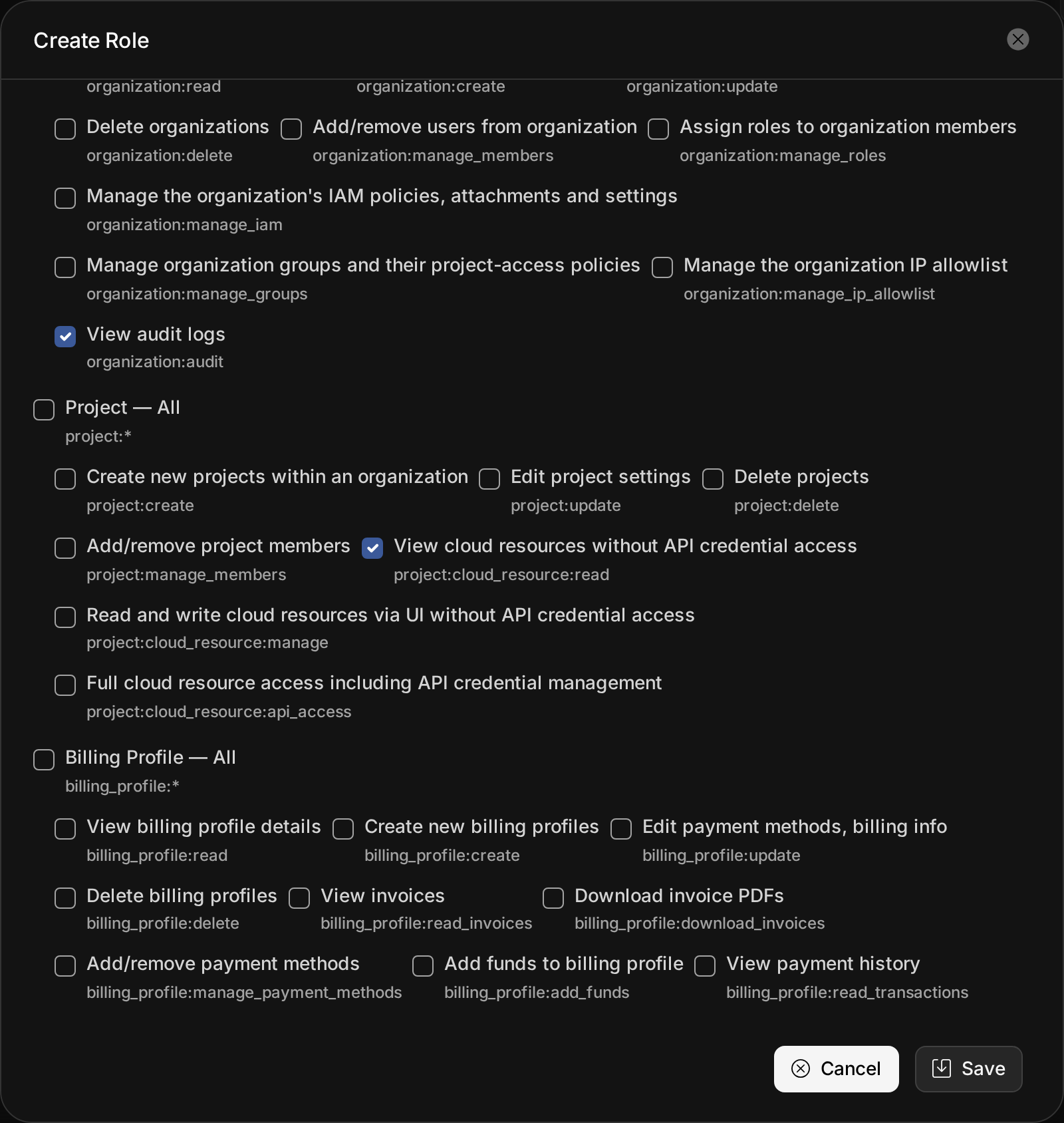


Members and IAM attachments refer to roles by name, so role names are unique across the platform. The dashboard refuses a name that an organization already uses for a role, a member or an IAM attachment, and organizations cannot create a role with the name of one of yours.
Change or delete a custom role
Use the edit and delete buttons on the role's row. A change to the permissions applies at once to every member who holds the role, in every organization.
The dashboard refuses to delete a role that is still in use, and says how many members hold it, how many IAM attachments name it and how many group policies grant it, across all organizations. Give those members another role and remove the attachments and policies first.
An organization's Roles tab in the admin dashboard lists these roles read-only, marked Managed in Custom Roles.
The Custom Roles tab needs the admin:organization:manage_roles permission, and the Realms tab
needs admin:realm:read. An administrator with only one of them sees only that tab.