Let a customer back in after an IP lockout
Customers restrict access to their projects with IP allow lists. While the lists restrict anything, the organization's own owners and admins can change the organization, its allow lists included, only from an address that reaches every restricted project. A customer who saves lists without their own address therefore locks themselves out, and cannot correct the lists from the client portal. The admin dashboard is not held to the lists, so you let them back in from there.
Correct a customer's allow lists
- Ask the customer for the IP address they connect from. The notice in their organization's settings shows the address OSIE sees for them.
- Under Client Area > Organizations, open the organization and choose the IP Allow Lists tab.
- Either add the customer's address with Add IP to every list that restricts a project, or remove the lists that block them.
- Choose Save.
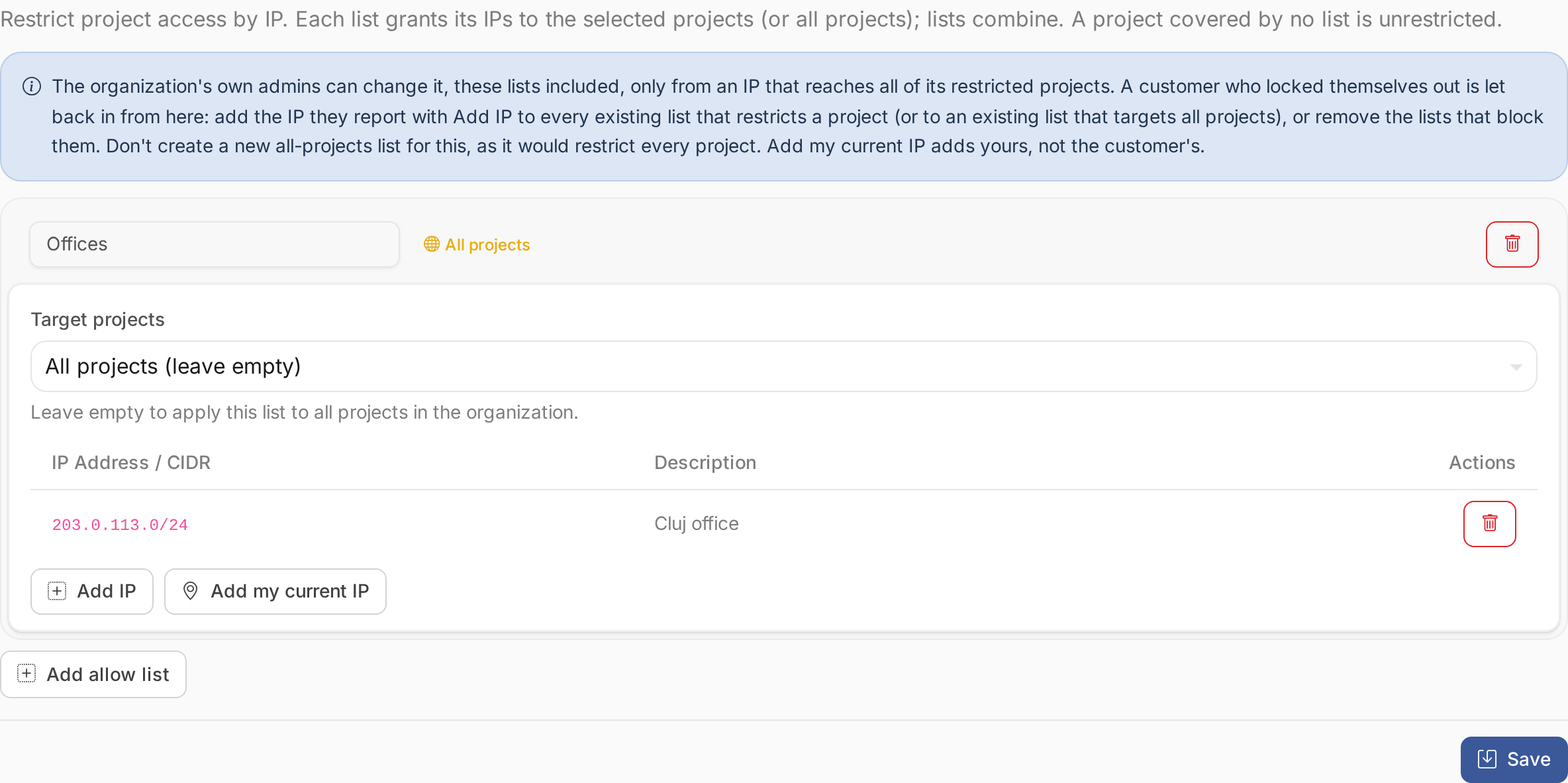
Add the address to lists that already exist. A new list that applies to all projects would restrict every project of the organization, including the ones no list restricted before. Add my current IP adds your own address, not the customer's.