Send email over SMTP
OSIE sends all of its email through one mail gateway: invoices, invitations, password recovery and billing notifications. With an SMTP integration, that gateway is your own mail server. When the gateway cannot deliver, none of these messages reach your customers.
Connect your mail server
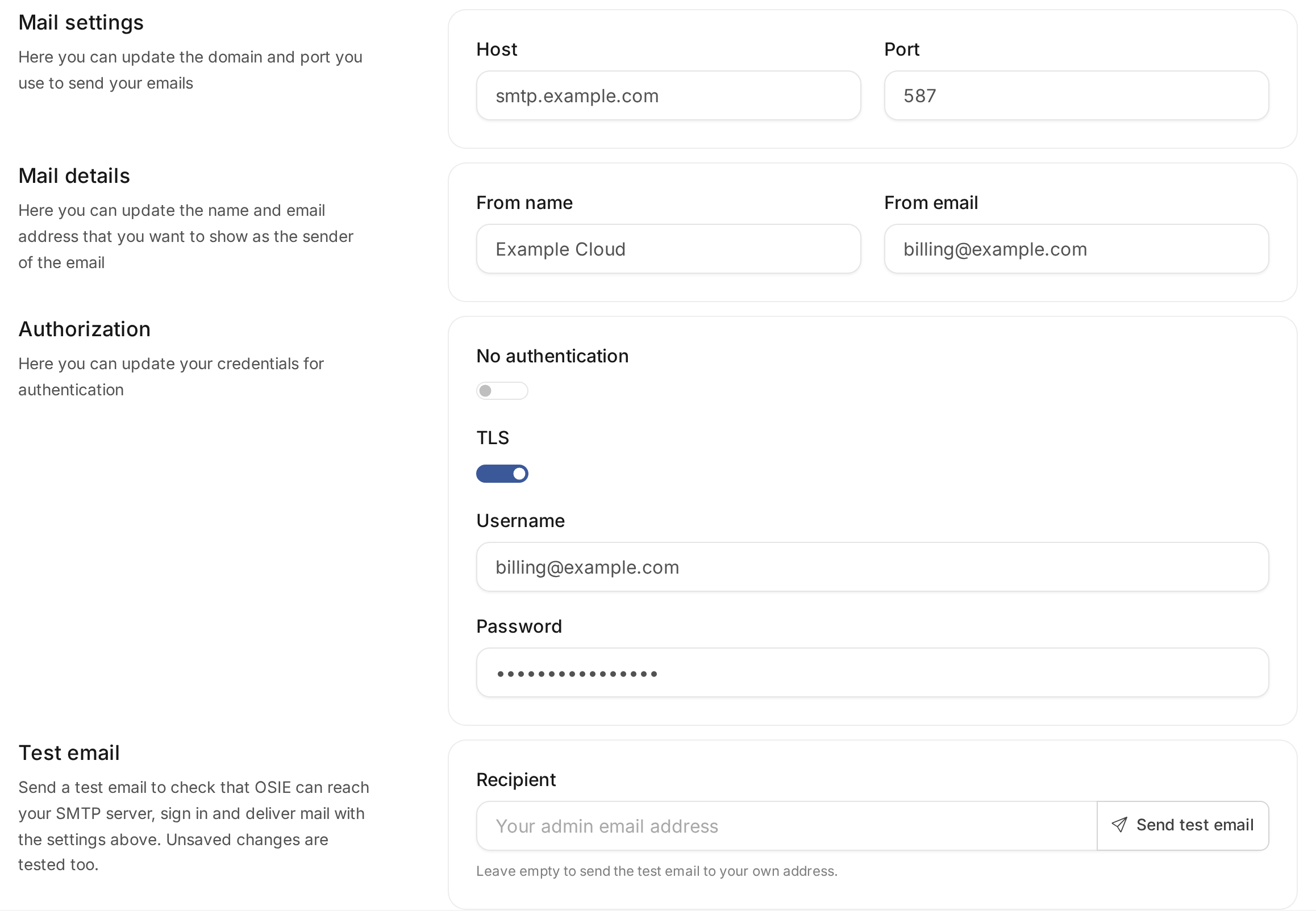
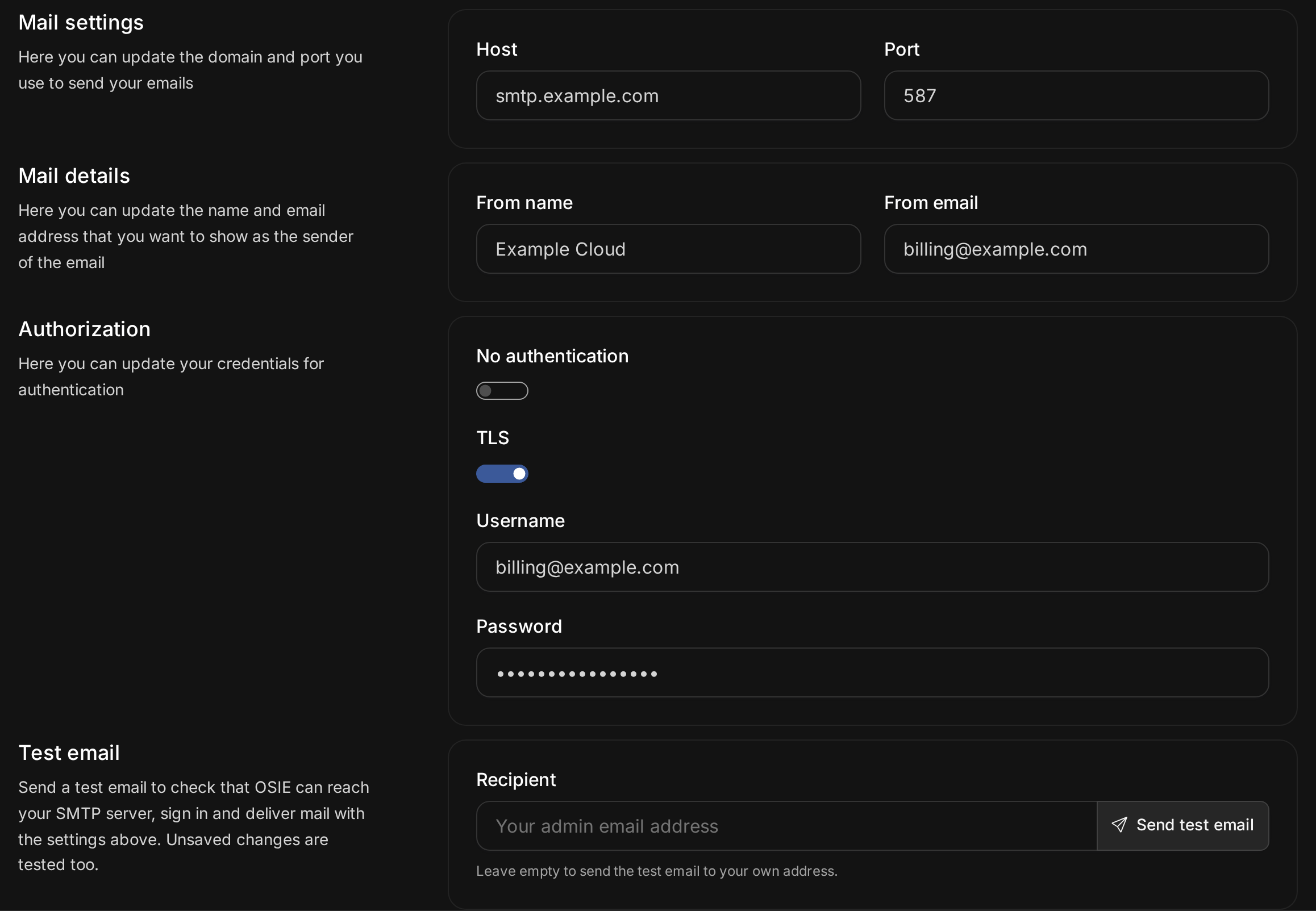
Go to System > Integrations, choose SMTP, and enter the server's host and port, the credentials OSIE signs in with, and the sender name and address recipients see.
OSIE speaks plain SMTP, and upgrades the connection with STARTTLS when TLS is selected. Implicit TLS on port 465 is not supported, so use the server's submission port, usually 587, or port 25. Select No authentication only for a server that accepts mail from OSIE without signing in. The sender address must be one the server allows OSIE to send as. The connections OSIE opens are listed in Network flows and ports.
When OSIE is installed with the smtp block in its Helm values and no email integration exists yet, OSIE
creates this integration from those values. You maintain it here afterwards.
Test the settings
The integration's page sends a test email with the settings on screen, saved or not, so you can check a change before you save it. Leave the recipient empty to send the test to your own address, and select Send test email.
A successful test means the server accepted the message after OSIE connected and signed in. Delivery to the inbox still depends on the receiving side. A failed test shows the reason the server gave, such as a refused connection or rejected credentials. OSIE waits 15 seconds for each step of the conversation before it gives up.
When you test changes to a saved integration, you can leave the password empty to use the stored one.
To check whether a particular email reached the server, and what it said, look it up in the email log.
Choose the mail gateway
When you have more than one email integration, such as SMTP and Mailgun, choose the one OSIE uses under System > Billing settings, on the Settings tab, as the Mail Gateway. Without a choice, OSIE uses the first email integration it finds.