Managing OpenStack Backup and Restore from One Dashboard
A critical part of a VMware to OpenStack migration is managing your workloads and resources post-migration.
Horizon, OpenStack’s official dashboard, gives you one place to manage volumes, instances, images, and more. You can snapshot and restore instances manually, using the “Create Snapshot” action on the Instances page. From there, you have two paths: build and maintain your own scheduling and retention scripts around that action, or use a dedicated backup service built for it.
Storware and Trilio are established backup solutions used across OpenStack environments. Trilio is an add-on OpenStack service, with a separate Horizon plugin for easier use. Storware also integrates with OpenStack offering a Horizon plugin, though its underlying architecture works differently.
Osie integrates with both Trilio and Storware, bringing backup and restore to the OpenStack dashboard. Restore workloads in the same deployment, or in a different one entirely.
In this blog, we look at how Osie’s Storware and Trilio integrations work under the hood. We’ll start with a boot-from-volume walkthrough on vanilla Horizon to see what OpenStack natively provides. From there, we’ll cover Trilio and Storware, and how each integrates with Osie.
Native OpenStack
One use case on native OpenStack is attaching a volume when creating an instance. You can take a snapshot of the instance, and restore your instance if you lose it. The boot source becomes “Image,” with a new volume created for persistent storage (Cinder).
When you take a snapshot of the instance, Glance (Images) stores the image’s metadata while the actual data is stored by Cinder (Block Storage).
You can then launch the instance from your snapshot (this time the boot source is “Instance Snapshot”). Note that only the volume’s data was captured. You still have to reselect key pairs, security groups, flavors, and other configuration settings.
An OpenStack instance snapshot, taken this way, stays within the same OpenStack deployment. It relies on Glance and Cinder in that same cloud, rather than an independent backup destination.
This is a simple use case of how OpenStack natively supports backup and restore. If you want to do this at scale, with multiple OpenStack deployments, you would need to write your own scripts, policies and schedules.
OpenStack has open source building blocks for backup, but not a complete solution.
On the OpenInfra Live episode about the OpenStack 2026.2 Hibiscus release (October 1, 2026), Freezer maintainer Dmitriy Rabotyagov said Cinder backup does not schedule backups or manage their lifecycle.
Freezer aims to provide backup as a service, he said, but it has not been in the spotlight for a while. Teams that want a dedicated option can integrate a provider such as Trilio or Storware.
For teams managing multiple OpenStack deployments, or a multi-tenant cloud business, custom scripts and/or cross-vendor integrations become another thing to build and maintain, on top of everything else you’re already running.
Osie gives you one OpenStack dashboard for all of it, backup and recovery included. No need to manage multiple vendor systems separately.
Next, we look at how Osie integrates with Trilio to give you backup and recovery from the same OpenStack dashboard.
Trilio
Trilio is a backup and recovery solutions provider for OpenStack and Kubernetes. Its product, Trilio for OpenStack (T4O), helps you backup and recover your OpenStack workloads.
Trilio for OpenStack allows you to take point-in-time snapshots of your entire workloads, or incremental snapshots of just what changed. Full backups include your applications, OS, compute, network, configs and metadata. The snapshots are then stored in AWS S3, Network File Storage or S3-compatible options.
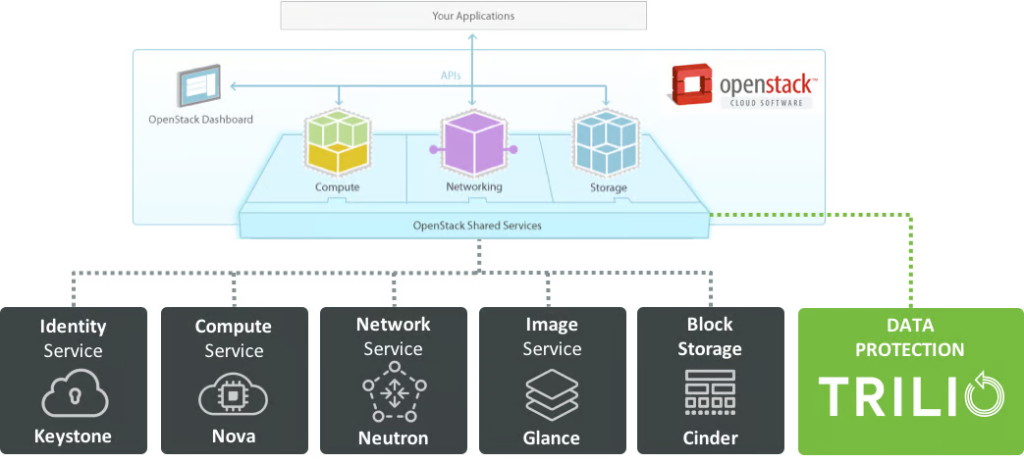
T4O is built to integrate with OpenStack, similar to other OpenStack services like Neutron, Keystone or Cinder. It also provides a Horizon plugin. Trilio is a consumer of OpenStack services as well.
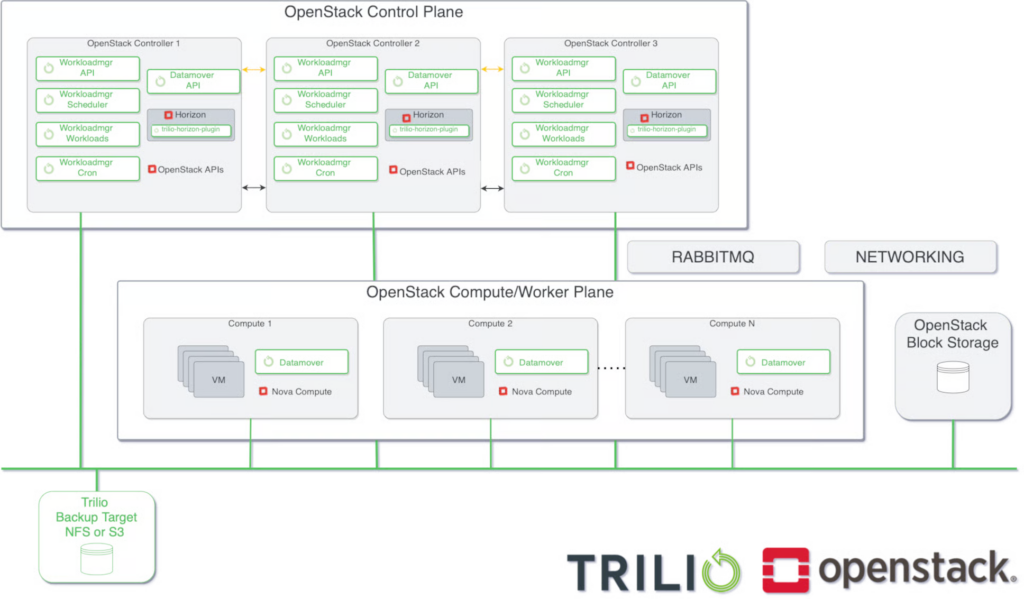
Trilio and Osie
Trilio and Osie have recently announced a partnership resulting in the integration of two products, T4O and the Osie portal, creating a more complete OpenStack dashboard experience.
Osie provides an enterprise-ready, multi-cloud OpenStack dashboard, and the recent integration with Trilio adds backup and recovery directly into the Osie portal, protected, metered, and invoiced from the same place you manage everything else.
How Trilio integrates with Osie
When a user creates a backup on Osie, Osie calls Trilio’s endpoints behind the scenes. Restoring a backup gives the user three options:
- One-Click Restore – restores everything exactly as it was backed up. The original VMs no longer exist.
- Selective Restore – lets you reconfigure instance names, flavors, networking, and more before restoring.
- In-Place Restore – rolls back a volume’s data on an existing, still-connected VM, without creating new resources.
Trilio uses OpenStack’s native Cinder and Nova APIs, so it doesn’t require installing anything inside the VM being protected.
Backup and storage usage is metered automatically and billed alongside compute and storage, on the same Osie invoice.
Backup status, RPO health, and restore actions appear directly in Osie’s dashboard, no separate login, no separate tool.
Let’s now do a walkthrough of the Osie and Trilio integration.
Exploring the Trilio-Osie Integration: Moving workloads across clouds, step by step
This walkthrough covers the Trilio-Osie integration in action: moving a workload to another cloud.
- Select the source cloud, the cloud the workloads are currently backed up on.
- Scan for workloads eligible to move. Select the workload(s) to move from the scanned list. Not every workload is eligible at any given moment. If a workload’s status is `Locked`, it can’t be selected for the move, as there is an active backup or restore process running.
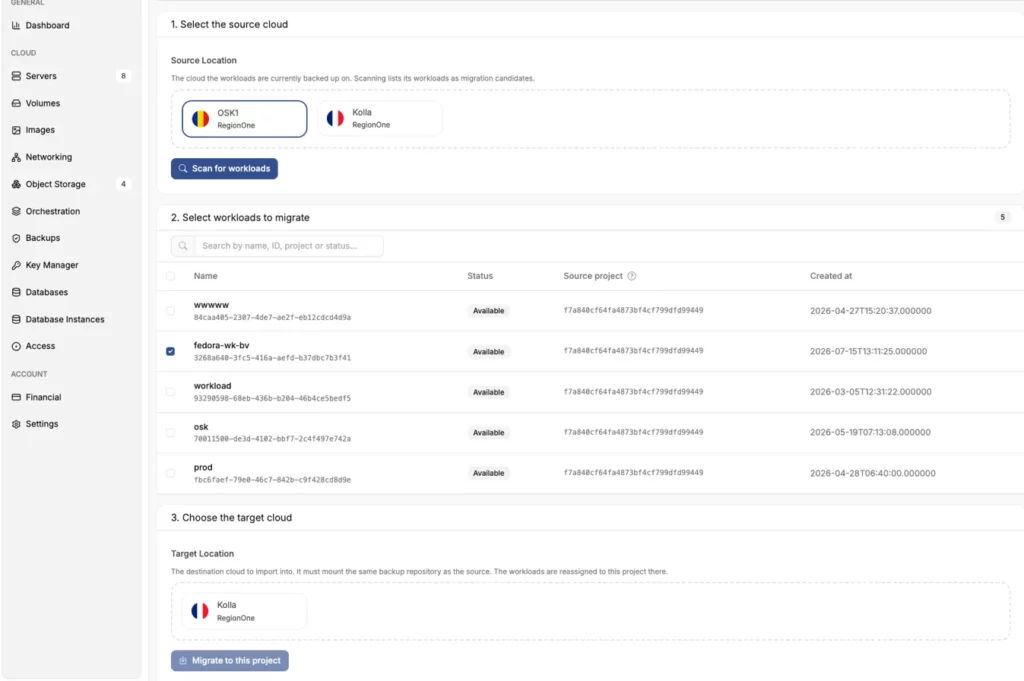
- Select the workload(s) to move from the scanned list. Not every workload is eligible at any given moment. If a workload’s status is `Locked`, it can’t be selected for the move, as there is an active backup or restore process running.
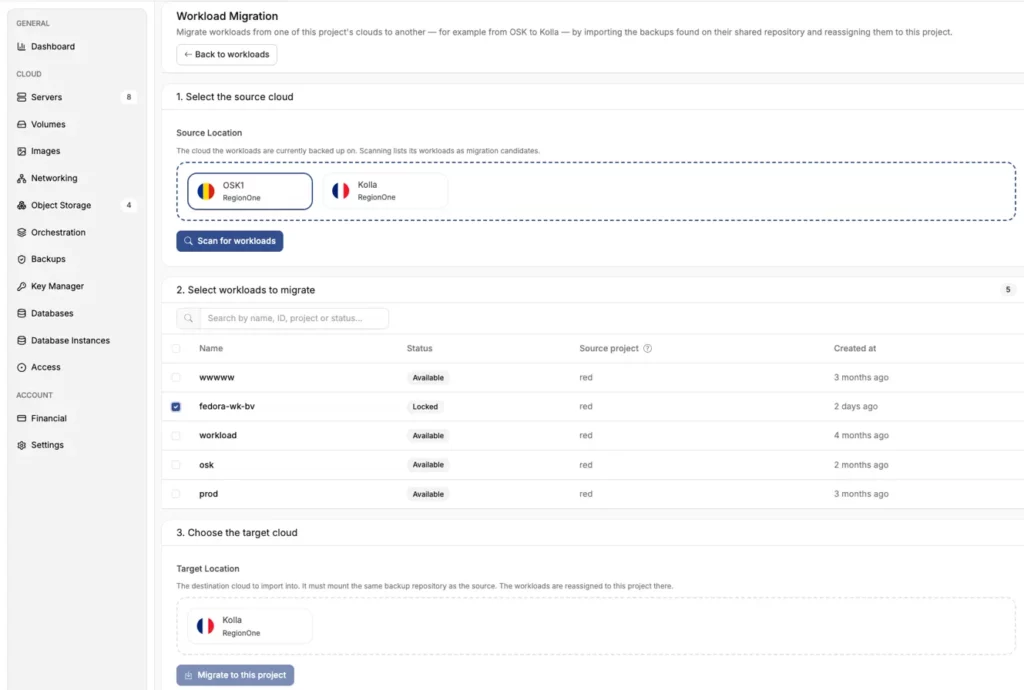
- Choose the target cloud. The destination cloud must mount the same backup repository as the source. Moving workloads reassigns the existing backup to a project on the target cloud, it isn’t copying data between two unrelated storage systems.
- Move. Confirm, and the workload’s backup is reassigned to the target project on the destination cloud.
Osie-Trilio Integration Features
- Workload creation. Osie lets you create a named workload and assign specific instances to it, grouping related resources under one protected unit rather than backing up instances individually.
- On-demand backups. From a workload, you can trigger a full or incremental backup directly, with the job’s size and status visible immediately in the dashboard.
- Backup details view. Each backup shows its status, creation date, region, availability zone, and encryption setting, all in one place.
- Encryption at rest. Backups can be encrypted using OpenStack Barbican for key management, visible as a status field on each backup.
- Three restore options. Osie offers One-Click Restore, Selective Restore, and In-Place Restore for any available backup, each suited to a different recovery scenario.
- Workload states. A workload shows as `Available` or `Locked`, with `Locked` indicating an active backup or restore is currently running.
- Workload reset and delete. Workloads can be reset, clearing their backup history while keeping the workload itself, or deleted entirely, with clear warnings before either action.
- Cross-cloud migration. Osie can migrate a workload’s backups from one connected OpenStack cloud to another, reassigning them to a project on the destination cloud.
Trilio isn’t the only backup and restore option Osie supports. For teams already using, or considering, a different tool, Osie integrates with Storware too.
Storware
Storware is a multiplatform backup and recovery company, supporting VMs, private cloud, containers, storage providers, applications, and OS agents under a single reusable license.
Storware Backup and Recovery for OpenStack protects data in OpenStack environments. That’s the focus of this piece, since it’s what integrates with Osie.
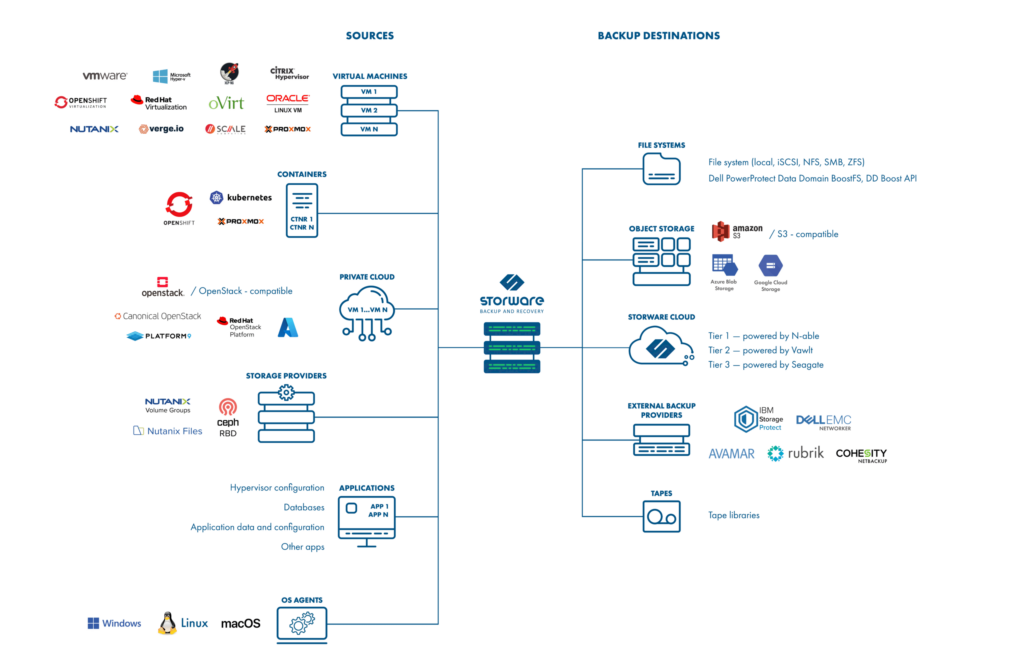
Storware supports full and incremental backups. Restores work at the file, VM, volume, or instance level.
The platform deduplicates and compresses backups to reduce storage use, and automates scheduling and retention so you don’t manage every backup job manually.
Backups can be stored in OpenStack Swift, along with other supported destinations. On the source side, Storware also works with Ceph RBD-backed OpenStack deployments.
Storware integrates with core OpenStack services: Nova for instances, Cinder for volumes, Glance for images, and Keystone for authentication.
Storware also offers a Horizon plugin, letting you manage backup and restore directly from OpenStack’s dashboard.
Next, we look at how Storware integrates with Osie.
Storware and Osie
Osie connects to Storware’s API using credentials configured in Osie’s admin settings. Once connected, Osie automatically discovers which OpenStack clouds Storware protects, matching each one by its Keystone endpoint. You don’t need to do any configuration.
One Storware server can protect several separate OpenStack clouds at the same time.
Admins control what tenants can do:
- Enable or disable tenant-created backup policies and schedules.
- Set limits on how many policies and schedules each tenant can create.
- Define templates to keep policy and schedule names consistent across tenants, useful for Managed Service Providers (MSPs) managing several accounts under one Storware server.
Let’s look at the Storware-Osie integration in action
Exploring the Storware-Osie Integration: Restoring a backup to another region, step by step
This walkthrough covers restoring a Storware backup to a different OpenStack region.
- Choose the restore source. Select the instance, `Oxford` in this example, then choose a backup to restore from its `Restore` tab.
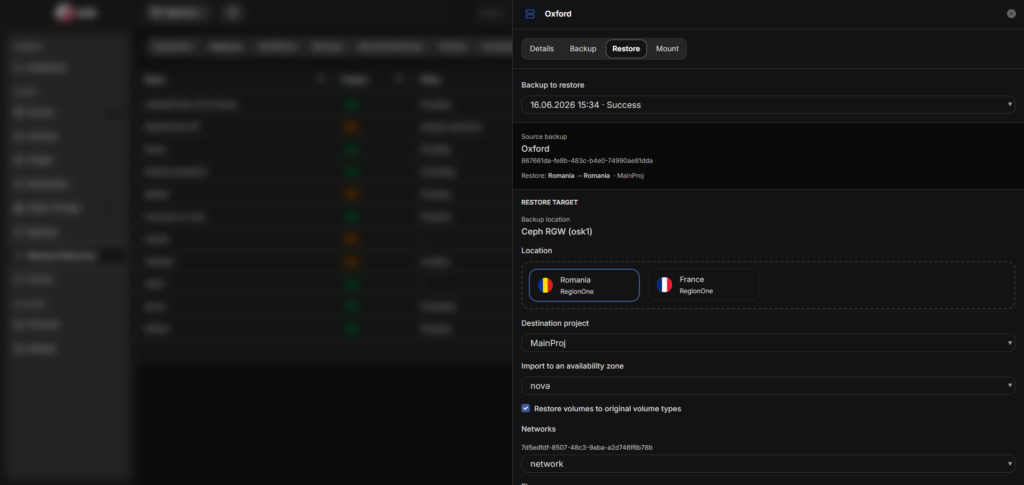
- Choose the restore target. Pick a region, the same one the backup came from, or a different one entirely. Then choose the destination project, `MainProj` in this example.
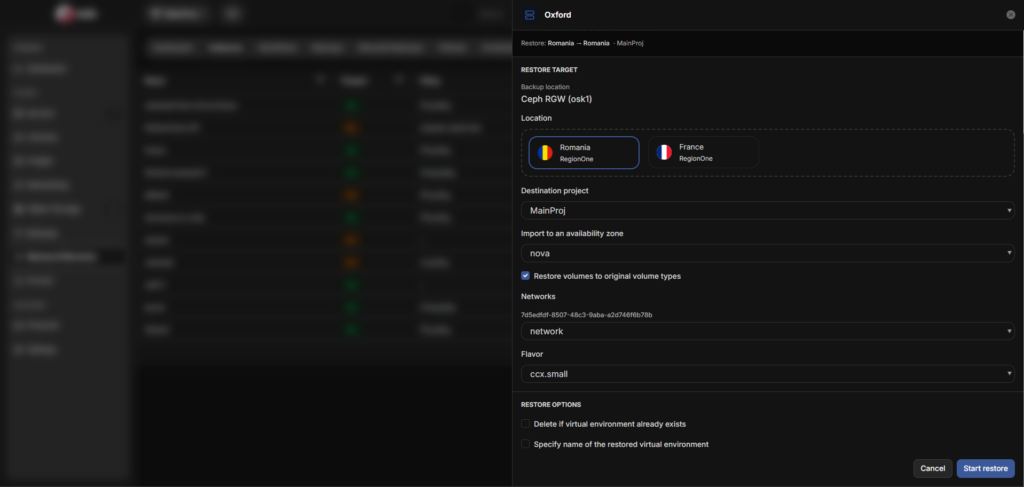
- Choose the instance settings for the restore. Availability zone, network, and flavor.
- Decide how volumes and existing resources will be handled.
- Restore volumes to their original types.
- Delete a matching environment if one already exists.
- Specify a new name for the restored instance.
- Start the restore. Confirm, and Osie triggers Storware to restore the backup to the selected region and project.
Osie-Storware Integration Features
- Policy-based protection. Tenants create backup policies with rules defining destinations, retention, and linked schedules, daily, weekly, or on a specific day each month. Priority settings determine execution order when multiple policies run at once.
- Multi-destination backups. A single policy can back up to more than one destination at once, such as Ceph RGW and Amazon S3, for added redundancy.
- Retention control. Policies set separate retention rules for full and incremental backups, by number of days or number of copies kept.
- Mount without a full restore. Backups can be mounted as a browsable filesystem to recover individual files, without restoring the entire instance. Mounts unmount automatically after a set time.
- Workflow tracking. Backup and restore jobs run as trackable workflows, so tenants can follow progress in real time.
- Naming templates. Admins define naming conventions for policies and schedules, keeping them consistent across tenants, useful for MSPs managing several accounts.
Storware and Trilio solve the same problem in different ways. The choice comes down to what fits your environment.
Why Both Storware and Trilio?
Osie doesn’t lock you into a single backup and restore tool. Storware and Trilio are both supported. Both solve the same problem: protecting OpenStack deployments.
Teams often have a preference already, or an existing relationship with one vendor. Osie doesn’t force a switch. Use the tool you already have, or choose one that fits.
Both are established, credible tools in the OpenStack ecosystem. The right choice depends on your environment and preferences, not a quality gap between them.
Whichever tool you choose, Osie manages it the same way, alongside your OpenStack resources, not as a separate, disconnected system.
Conclusion
Backup and restore for OpenStack workloads at scale doesn’t come built into Horizon. That capability comes from dedicated tools built for it.
Osie doesn’t replace Storware or Trilio. It brings either into the same dashboard you already use to manage your OpenStack resources. No separate login. No context-switching.
Whichever tool fits your environment, Storware or Trilio, Osie manages it the same way.
See Osie’s Trilio and Storware integrations in action. Explore Osie to learn more.
PS: Read article summary as PDF